

Space Mode Overview
The space mode (CodeArts Agent Space) offers a brand-new interactive experience in CodeArts Agent. With agents as the core of interaction, this mode enables multiple agents to collaborate on development.
Enabling the Space Mode
- Log in to CodeArts Agent IDE as instructed in Quick Start.
- Click Space in the upper left corner to switch from the IDE mode to the CodeArts Agent Space mode. Figure 1 Mode switch button


- When you open CodeArts Agent IDE for the first time, it enters the IDE mode by default.
- When multiple IDE windows are opened simultaneously and then all closed, the mode of the last closed window is automatically recorded. Upon restarting the IDE, it will automatically restore to this mode (IDE mode/Space mode) without requiring manual switching.
- Open a folder to store files generated in the project.
- Method 1: In CodeArts Agent Space, click Select Project Folder, choose Open Project, and open a folder. Figure 2 Opening a folder
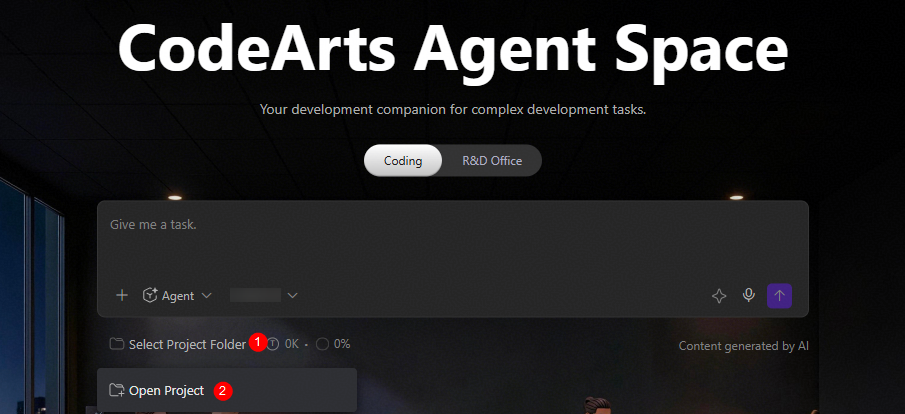
- Method 2: In the dialog box at the bottom of CodeArts Agent Space, click Open Folder. Figure 3 Clicking Open Folder in the dialog box

- Method 1: In CodeArts Agent Space, click Select Project Folder, choose Open Project, and open a folder.
CodeArts Agent Space User Interface
CodeArts Agent Space features a three-column layout, consisting of the chat management panel, AI chat panel, and tool panel from left to right.

| Function | Description |
|---|---|
| Creating a chat | Click New Chat in the upper left corner to open a new chat window. To ensure smooth user experience, it is recommended that no more than five chat windows be opened at the same time. NOTE: During the response generation, you can initiate a new chat in the input box of the current chat window, and the new chat will be automatically added to the queue. The queue can hold a maximum of 20 waiting messages; any additional messages will not be accepted. |
| Scheduled tasks | Create scheduled tasks to automatically run preset operations and export results at custom times or intervals without manual effort. For details, see Scheduled Tasks. |
| Chat history | View the stored memory content formed during the interaction between CodeArts Agent Space and users. It records the chat history between users and the AI, facilitating subsequent task continuity and contextual understanding. NOTE: The chat history is stored in the local file opencode.db in the %USERPROFILE%/.codeartsdoer/codearts-data directory. |
| IM integration | Integrate Lark chatbot and Slackbot through the remote collaboration capabilities provided by CodeArts Agent Space. This achieves seamless connectivity between CodeArts Agent Space, mobile devices, and collaboration endpoints, effectively supporting the efficient flow of tasks across different platforms. For details, see IM Integration. |
| Chat interaction |
|
| Tool panel | CodeArts Agent Space features a variety of built-in core tools, such as editors, documents, terminals, and browsers. You can flexibly call these tools based on your needs to expand further capabilities. For details, see Tool Panel. |
What is your overall rating for this page?
Thank you very much for your feedback. We will continue working to improve the documentation.See the reply and handling status in My Cloud VOC.
For any further questions, feel free to contact us through the chatbot.
Chatbot


