

Tool Panel
CodeArts Agent Space features a variety of built-in core tools, such as editors, documents, terminals, and browsers. You can flexibly call these tools based on your needs to expand further capabilities.
Opening the Tool Panel
Click  (Toggle Tool Panel) in the upper right corner of CodeArts Agent Space page to open the tool panel.

Tool Description
During the task analysis and execution phases in CodeArts Agent Space, various tools have clear divisions of responsibility and work collaboratively to support the entire workflow.
You can view or edit code files generated by CodeArts Agent Space. In CodeArts Agent Space, context changes are presented through a Diff view, making the modified content more intuitive and easy to understand.

You can click and view documents related to development requirements (such as PRDs, technical architecture documents, etc.). You can also click a document in Task Artifacts to view details.

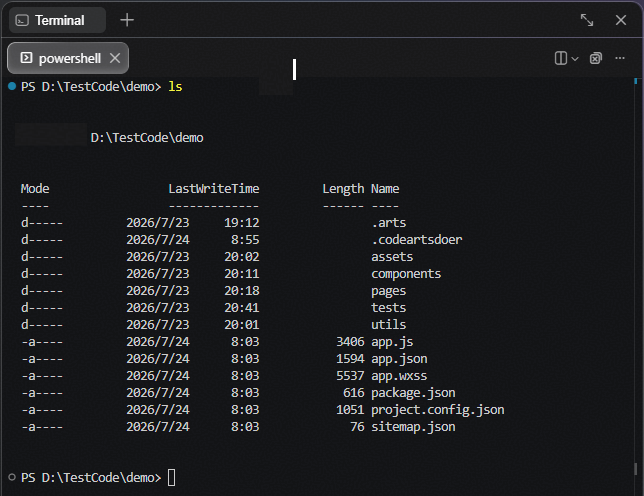
CodeArts Agent Space integrates system terminals (such as PowerShell) and automatically switches to the root directory of the current project. You can run project-related commands without leaving the editor, improving efficiency and operation smoothness.
CodeArts Agent Space incorporates built-in browser functionality, enabling you to directly view the live runtime results of your Web applications and perform the following operations:
For more information about browser operations, see Web-based Preview.

You can click Code Changes to have a real-time overview of task code modifications (including the total number of files, file names, and line counts). In CodeArts Agent Space, code changes are presented through a Diff view, making the modified content more intuitive and easy to understand.

Configure core parameters for CodeArts Agent Space, such as log levels, chats, and skills. For a detailed guide, see CodeArts Agent Space Settings.

What is your overall rating for this page?
Thank you very much for your feedback. We will continue working to improve the documentation.See the reply and handling status in My Cloud VOC.
For any further questions, feel free to contact us through the chatbot.
Chatbot


