

Fast Access
Creating a Product
A smoke detector product model is provided to help you understand the product model. This smoke detector can report the smoke density, temperature, humidity, and smoke alarms, and execute the ring alarm command. The following uses the smoke detector as an example to introduce the procedures of message reporting and property reporting.
- Access the IoTDA service page and click Access Console. Click the target instance card.
- Choose Products in the navigation pane and click . Figure 1 Creating a product
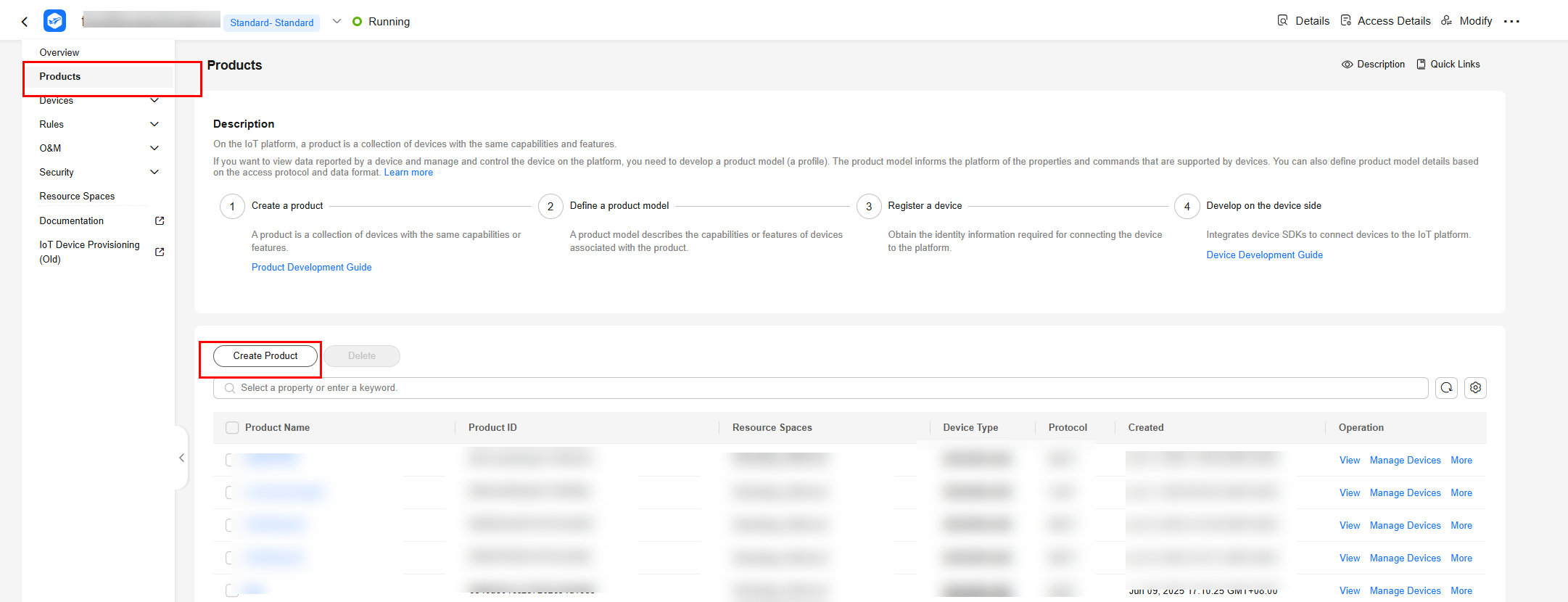
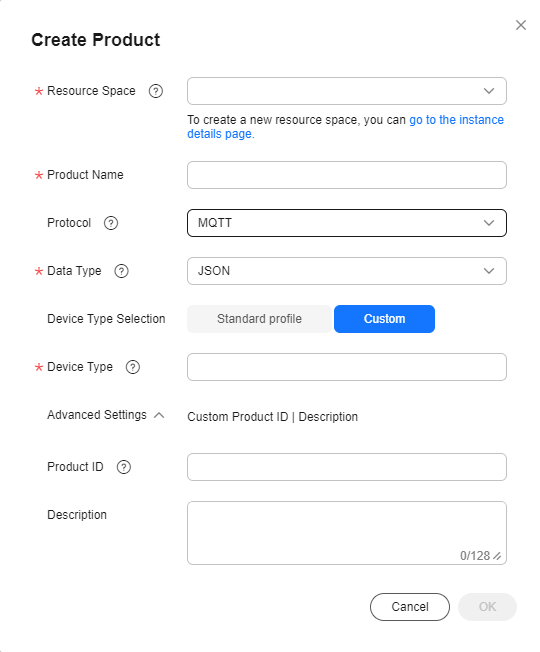
- Set the parameters as prompted and click OK.
Basic Info
Resource Space
The platform automatically allocates the created product to the default resource space. You can also select an existing resource space from the drop-down list or create one.
Product Name
Customize the product name. The name can contain letters, numbers, underscores (_), and hyphens (-).
Protocol
Select MQTT.
Data Type
Select JSON.
Device Type Selection
Select Custom.
Device Type
Select smokeDetector.
Advanced Settings
Product ID
Leave this parameter blank.
Description
Set this parameter based on service requirements.
Figure 2 Creating a product - MQTT
Uploading a Product Model
- Download the smokeDetector product model file.
- Click the name of the created product to access its details page.
- On the Basic Information tab page, click Import from Local to upload the product model file obtained in 1. Figure 3 Product - Uploading a product model

Registering a Device
- In the navigation pane, choose Devices > All Devices, and click Register Device.
- Set the parameters as prompted and click OK.
Parameter
Description
Resource Space
Ensure that the device and the created product belong to the same resource space.
Product
Select the created product.
Node ID
Customize a unique physical identifier for the device. The value consists of letters and digits.
Device Name
Customize the device name.
Authentication Type
Select Secret.
Secret
Customize the device secret. If this parameter is not set, the platform automatically generates a secret.
After the device is registered, save the node ID, device ID, and secret.
Initializing a Device
- Obtain the access address by choosing Overview > Access Details on the console. Figure 4 Access information - MQTT access address on the device side
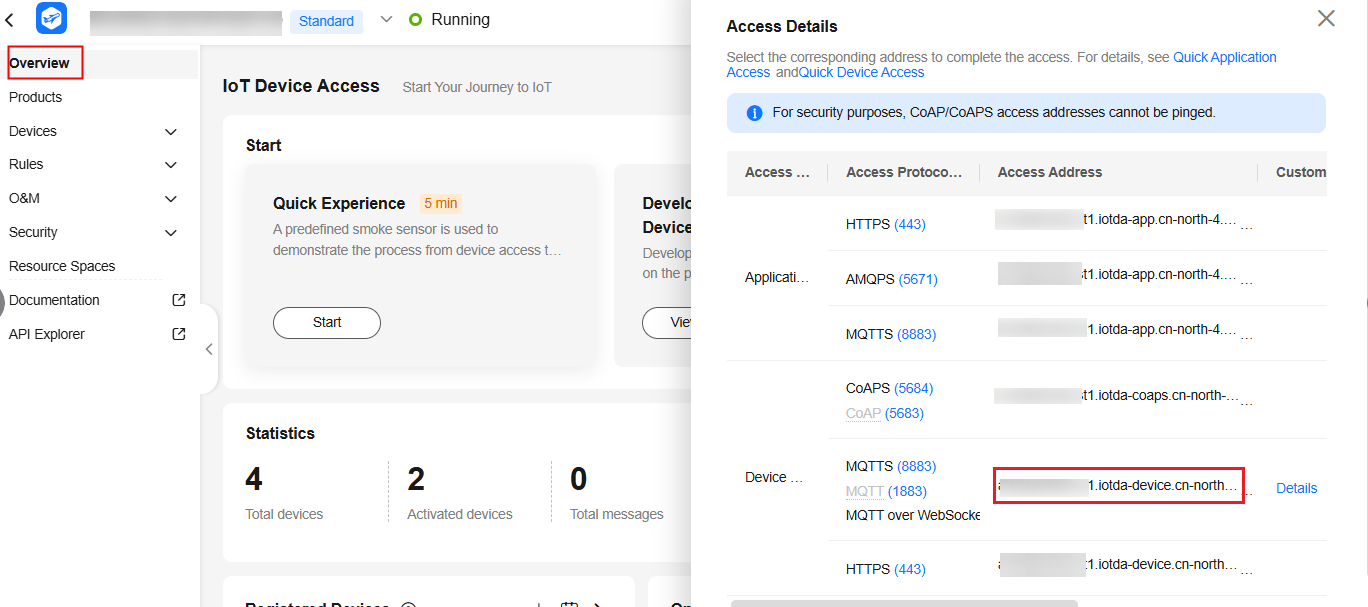
- Open the demos/device_demo/basic_test.c file and enter the access address, device ID, and device secret obtained earlier.
// Create and initialize a device. Modify the connection parameters in basic_test.c.
// You can get the access address from IoT Console "Overview" -> "Access Information"
char *g_address = "Domain name";
char *g_port = "8883";
char *g_deviceId = "Device ID";
char *g_secret = "Device secret";

static void mqttDeviceSecretInit(char *address, char *port, char *deviceId, char *password) {

    IOTA_Init("."); // The certificate address is set to: ./conf/rootcert.pem
    IOTA_SetPrintLogCallback(MyPrintLog); // Set log printing method

    // MQTT protocol when the connection parameter is 1883; MQTTS protocol when the connection parameter is 8883
    IOTA_ConnectConfigSet(address, port, deviceId, password);
    int ret = IOTA_Connect();
    if (ret != 0) {
        PrintfLog(EN_LOG_LEVEL_ERROR, "basic_test: IOTA_Connect() error, Auth failed, result %d\n", ret);
        return -1;
    }
}
You can download the platform certificate from conf/rootcert.pem in the source code.
- Write and run the code. Run the command below in the root directory. If login success is displayed in the log, the device authentication is successful.
export LD_LIBRARY_PATH=./lib/ # Load the library file.
 make clean
 make device_demo
 ./basic_test
Figure 5 Connection succeeded

- Check the device running status. On the device details page of the console, check whether the device is online. Figure 6 Device list - Device online status


The SDK provides automatic reconnection by default. After the device is initialized, if the connection fails due to an unstable or unreachable network, or proactive disconnection by the platform, the SDK automatically initiates reconnection in the backend. To disable this function, see Disconnection and Connection.
Reporting a Message
| Function | API |
|---|---|
| Reporting messages through custom topics | HW_API_FUNC HW_INT IOTA_RawTopicMessageReport(HW_CHAR *topic, HW_CHAR *payload, int qos, void *context); |
| Reporting messages through system topics | HW_API_FUNC HW_VOID IOTA_SetUndefinedMessageCallback(PFN_MESSAGE_CALLBACK_HANDLER callbackHandler); |
- Report messages to the platform with the IOTA_MessageDataReport function in the example of ./demos/device_demo/message_test.c.
void basicMassage() { // Subscribe to system topics. SubscribeAll(); // Report a message with the ID 123 to the device. The message content is "hello!". ST_IOTA_MESS_REP_INFO mass = {NULL, "name", "id", "hello!", "test"}; int messageId = IOTA_MessageDataReport(mass, NULL); if (messageId != 0) { PrintfLog(EN_LOG_LEVEL_ERROR, "basicMassage() failed, messageId %d\n", messageId); } TimeSleep(3000); } - On the IoTDA console, choose Devices > All Devices and check whether the device is online. Figure 7 Device list - Device online status
- Select the device, click View, and enable message trace on the device details page. Figure 8 Message tracing - Starting message tracing
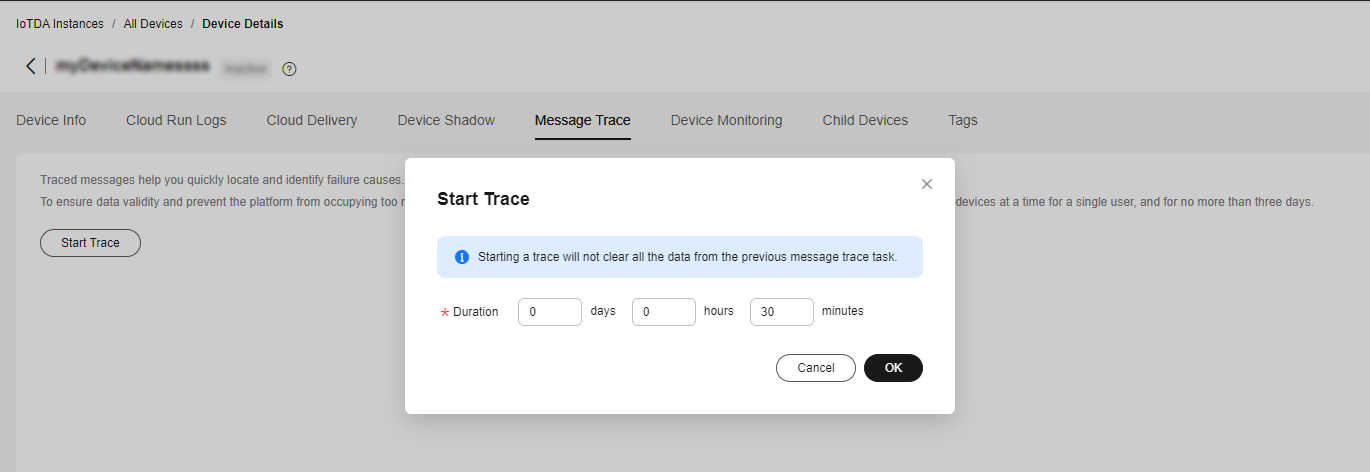
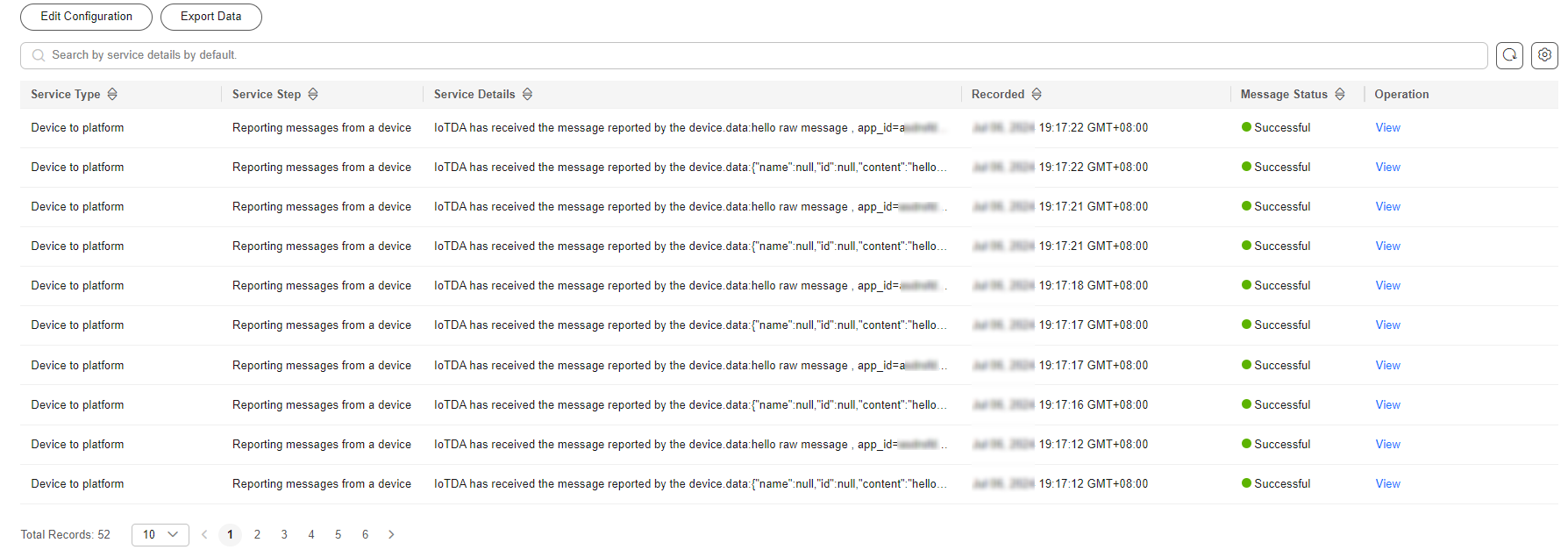
- Check the message tracing result to see whether the platform has received messages from the device.
Message tracing may be delayed. If no data is displayed, wait for a while and refresh the page.
Figure 9 Message tracing - Viewing device_sdk_java tracing result
Reporting Properties
| Function | API |
|---|---|
| Reporting device properties | HW_INT IOTA_PropertiesReport(ST_IOTA_SERVICE_DATA_INFO pServiceData[], HW_INT serviceNum, HW_INT compressFlag, void *context) |
- Report device properties to the platform with the IOTA_PropertiesReport function in the demos/device_demo/properties_test.c of the source code.
void Test_propertiesReport() { int serviceNum = 1;// Number of reported services ST_IOTA_SERVICE_DATA_INFO services[serviceNum]; //---------------the data of service------------------------------- char *service = "{\"temperature\": 28}"; services[0].event_time = NULL; services[0].service_id = "smokeDetector"; services[0].properties = service; int messageId = IOTA_PropertiesReport(services, serviceNum, 0, NULL); if(messageId != 0) { PrintfLog(EN_LOG_LEVEL_ERROR, "device_demo: Test_batchPropertiesReport() failed, messageId %d\n", messageId); } } - In the navigation pane, choose Devices > All Devices. Click the button to access the device details page, and check the reported property values on the Device Shadow tab page. Figure 10 Device shadow - temperature
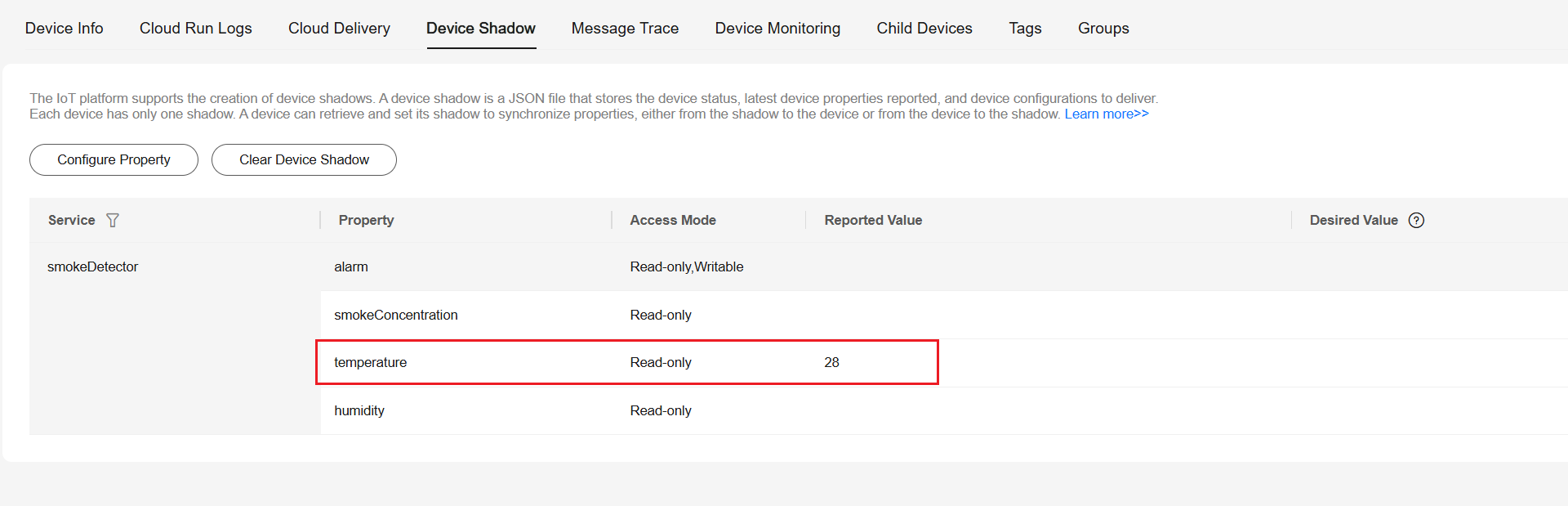
If no property value is reported, check whether the product model has been uploaded. For details, see Uploading a Product Model.
Delivering Commands
You can set a command listener to receive commands delivered by the platform. The callback API needs to process the commands and report responses. ./demos/device_demo/command_test.c provides an example of processing commands delivered by the platform. The HandleCommandRequest function in the code below is used as the command listener.
- Register a callback function for the device to receive the command as defined in the product model. Related API: HW_API_FUNC HW_VOID IOTA_SetCmdCallback(PFN_CMD_CALLBACK_HANDLER callbackHandler).
IOTA_SetCmdCallback(HandleCommandRequest);
- When the cloud delivers a command or the rule on the device side triggers the command execution, the defined function is called.
int beepState = 0; // Buzzer status of the product model
// Respond to command delivery.
static void Test_CommandResponse(char *requestId)
{
  /* Implement the command delivery response parameters. The following is an example.*/
  char pcCommandRespense[100] = {0}; // in service accumulator
  (void)sprintf_s(pcCommandRespense, sizeof(pcCommandRespense), "{\"Beep_State\": %d}", beepState);

  int result_code = 0;
  char *response_name = "Smoke_Control_Beep";

  int messageId = IOTA_CommandResponse(requestId, result_code, response_name, pcCommandRespense, NULL);
  if (messageId != 0) {
      PrintfLog(EN_LOG_LEVEL_ERROR, "Test_CommandResponse() failed, messageId %d\n", messageId);
  }
}

void HandleCommandRequest(EN_IOTA_COMMAND *command)
{
    if (command == NULL) {
        return;
    }
    PrintfLog(EN_LOG_LEVEL_INFO, "command_test: HandleCommandRequest(), messageId %d, service_id %s, command_name %s, request_id %s\n",
        command->mqtt_msg_info->messageId, command->service_id, command->command_name, command->request_id);
    PrintfLog(EN_LOG_LEVEL_INFO, "command_test: HandleCommandRequest(), request_id %s\n", command->request_id);

    /* Implement the command delivery logic.*/

      Test_CommandResponse(command->request_id); //response command
}
What is your overall rating for this page?
Thank you very much for your feedback. We will continue working to improve the documentation.See the reply and handling status in My Cloud VOC.
For any further questions, feel free to contact us through the chatbot.
Chatbot


