

Creating an HTTP Function Using a Container Image Built with Java
For details about how to use a container image to create and execute an HTTP function, see Creating an HTTP Function Using a Container Image and Executing the Function. This section describes how to create an image using Java and verify the image locally.
Step 1: Creating an Image
Take the Linux x86 64-bit OS as an example. (There are no specific requirements for system configurations.)
- Run the following command to create a folder:
mkdir custom_container_http_example && cd custom_container_http_example
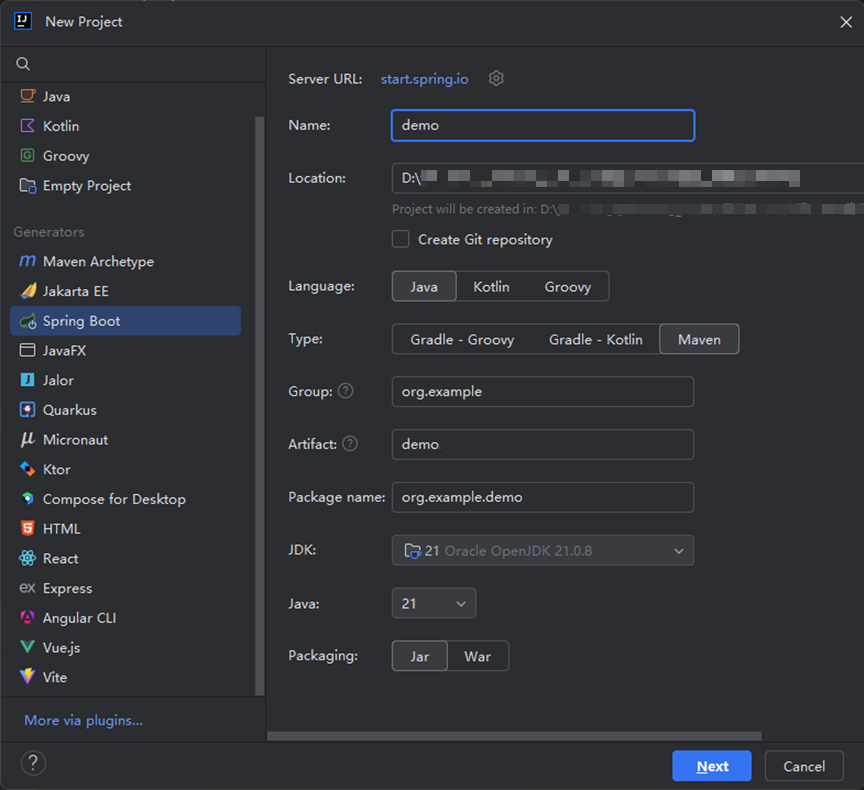
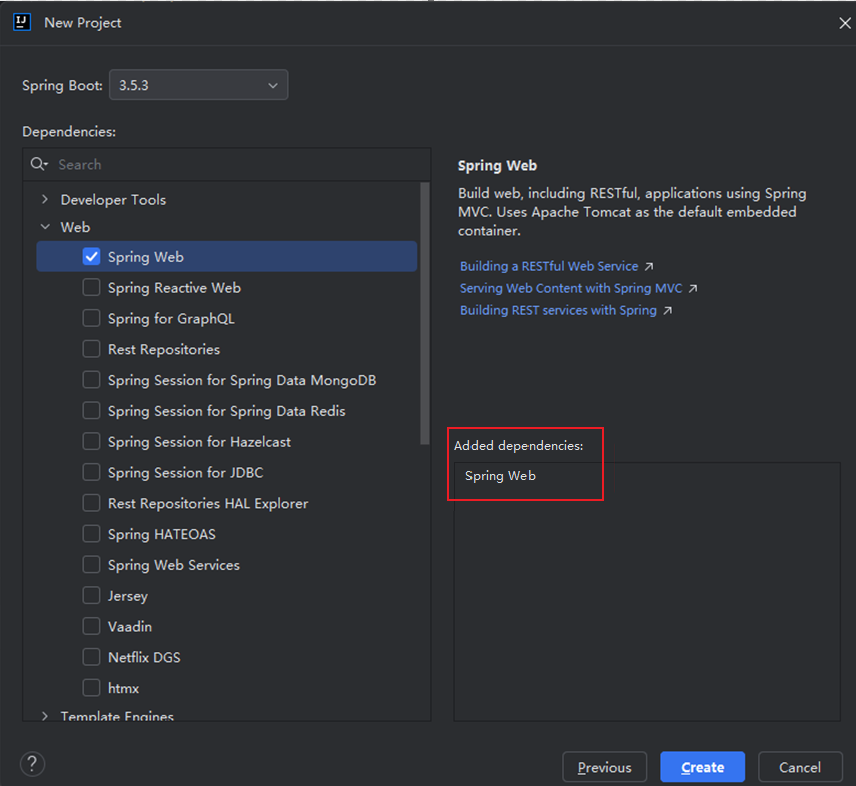
- Use IntelliJ IDEA to create a Spring Boot project and select Spring Web, as shown in Figure 2. Figure 1 Creating a Spring Boot project
- Use Java to implement an HTTP server demo to process HTTP requests and send responses.
Additionally create a controller package in the demo and implement a HelloWorld class to handle requests. The code is as follows:
import org.apache.logging.log4j.LogManager; import org.apache.logging.log4j.Logger; import org.springframework.web.bind.annotation.RequestMapping; import org.springframework.web.bind.annotation.RestController; @RestController @RequestMapping("/hello") public class HelloWorld { //Create a logger for recording debugging information. private static final Logger logger = LogManager.getLogger(HelloWorld.class); //Process the /init request. @RequestMapping("/world") public String world() { logger.debug("hello world"); return "hello world!!"; } // Process the /invoke request. @RequestMapping("/china") public String china() { logger.debug("hello china"); return "hello china!!"; } } - Create a Dockerfile file and replace demoSpringBoot-0.0.1-SNAPSHOT.jar with the compiled JAR package.
FROM ubuntu:22.04

ENV HOME=/home/paas
ENV GROUP_ID=1003
ENV GROUP_NAME=paas_user
ENV USER_ID=1003
ENV USER_NAME=paas_user

RUN mkdir -m 550 ${HOME} && groupadd -g ${GROUP_ID} ${GROUP_NAME} && useradd -u ${USER_ID} -g ${GROUP_ID} ${USER_NAME}

RUN apt-get update &&  \
    apt-get install -y --no-install-recommends openjdk-21-jre-headless maven &&  \
    apt-get clean

COPY demoSpringBoot-0.0.1-SNAPSHOT.jar ${HOME}/

RUN chown -R ${USER_ID}:${GROUP_ID} ${HOME}
RUN chmod -R 775 ${HOME}

USER ${USER_NAME}
WORKDIR ${HOME}
EXPOSE 8000
ENTRYPOINT ["java", "-jar", "-Dfile.encoding=utf-8" ,"/home/paas/demoSpringBoot-0.0.1-SNAPSHOT.jar"]
Table 1 Parameter description Parameter
Description
FROM
Specifies base image ubuntu:22.04. The base image is mandatory and its value can be changed.
ENV
Sets environment variables HOME (/home/custom_container), GROUP_NAME and USER_NAME (custom_container), and USER_ID and GROUP_ID (1003). These environment variables are mandatory and their values can be changed.
RUN
Executes commands. The format is RUN <command>. For example, RUN mkdir -m 550 ${HOME} means to create directory ${HOME} for user ${USER_NAME} during container building.
COPY
Copies files or directories from the build context to the image. Copy demoSpringBoot-0.0.1-SNAPSHOT.jar to the ${HOME} directory of user ${USER_NAME} in the container.
USER
Switches to user ${USER_NAME}.
WORKDIR
Switches the working directory to the ${HOME} directory of user ${USER_NAME}.
EXPOSE
Expose port 8000 of the container. Do not change it.
ENTRYPOINT
Sets the executable command that is run each time a container starts. Run the following command to start a container:
java -jar -Dfile.encoding=utf-8 /home/paas/demoSpringBoot-0.0.1-SNAPSHOT.jar
- Run the following command to build an image:
docker build -t custom_container_http_example:latest .
In the preceding command, the image name is custom_container_http_example, the tag is latest, and the period (.) indicates the directory where the Dockerfile is located. Run the image build command to pack all files in the directory and send the package to a container engine to build an image.
Step 2: Performing Local Verification
- Run the following command to start the Docker container:
docker run -u 1003:1003 -p 8000:8000 custom_container_http_example:latest
- Open a new Command Prompt, and send a message through port 8000 to access the /hello/world directory specified in the template code.
curl -XPOST -H 'Content-Type: application/json' localhost:8000/hello/world
The following information is returned based on the module code:
hello world!!
Step 3: Creating a Function
Once you build the container image locally, you can create a function on the console.
For details, see Creating an HTTP Function Using a Container Image and Executing the Function. Start from Step 3: Upload the Image.
Helpful Links
- For more information about function development, such as the supported runtimes, trigger events, function project packaging specifications, and DLL referencing, see Function Development Overview.
- For details about the syntax and SDK APIs of function development in Java, see Function Development Overview.
What is your overall rating for this page?
Thank you very much for your feedback. We will continue working to improve the documentation.See the reply and handling status in My Cloud VOC.
For any further questions, feel free to contact us through the chatbot.
Chatbot


