

Logging In to a Linux FlexusX Instance Using CloudShell
Scenarios
CloudShell is an online interactive terminal service available on the Huawei Cloud console. It allows you to access and manage Huawei Cloud resources using a browser without installing local tools. When you use CloudShell, CloudShell communicates with cloud servers through the CloudShell proxy IP address. This helps hide your real IP address to improve your privacy and cloud server security.
This section describes how to use CloudShell to log in to a FlexusX instance on the management console.

Currently, CloudShell is only available in some regions. For details, see the management console.
Prerequisites
- The FlexusX instance for login is in the Running state.
- You have obtained the login username and password. If you have forgotten the password, reset it by following Resetting the Password for a FlexusX Instance.
The username created from a Linux public image is root.
- Ensure that the remote port (default SSH port: 22) of the CloudShell proxy IP address is allowed in the security group. Otherwise, the FlexusX instance cannot be connected. The CloudShell proxy IP address varies depending on the region. The actual proxy IP address will be displayed on the CloudShell configuration page. For details about how to configure security group rules, see Configuring Security Group Rules for a FlexusX Instance.
If a different port is required, you can use the default port to log in to the FlexusX instance and then change the port No. For details about how to change a remote login port, see How Can I Change a Remote Login Port?
- An EIP has been bound to the FlexusX instance.
- You can use CloudShell to connect to a FlexusX instance through a public or private network. When you choose to connect through a private network, service authorization is required.
- If the Service authorization page is displayed, it means you have the Security Administrator permissions. Click Agree. The service authorization takes effect at the region level and is required only when you use CloudShell for the first time in a specific region.Figure 1 Service authorization

- If you do not have the Security Administrator permissions, a page will be displayed, requiring you to contact the administrator (or users with admin permissions) to assign permissions to you.
Perform the following steps to assign permissions:
- Create a user group and assign the Security Administrator permissions to the user group. For details, see Creating a User Group and Assigning Permissions.
- Add the user to the user group. For details, see Adding Users to a User Group.
When you use CloudShell to remotely connect to an ECS through a public network, service authorization is not required.
- If the Service authorization page is displayed, it means you have the Security Administrator permissions. Click Agree.
Procedure
- Log in to the FlexusX console. In the upper left corner, click
 and select a region.
 - Locate the FlexusX instance you want to log in to, click Remote Login in the Operation column.
- In the displayed dialog box, click Log In in CloudShell-based Login.
- On the CloudShell page, configure the FlexusX instance information.
Upon the first login, the CloudShell wizard is displayed by default. You need to enter the instance information for connection.
Retain the default values of Region and ECS. You can use either the EIP or the private IP address to log in.
Using the EIP for login
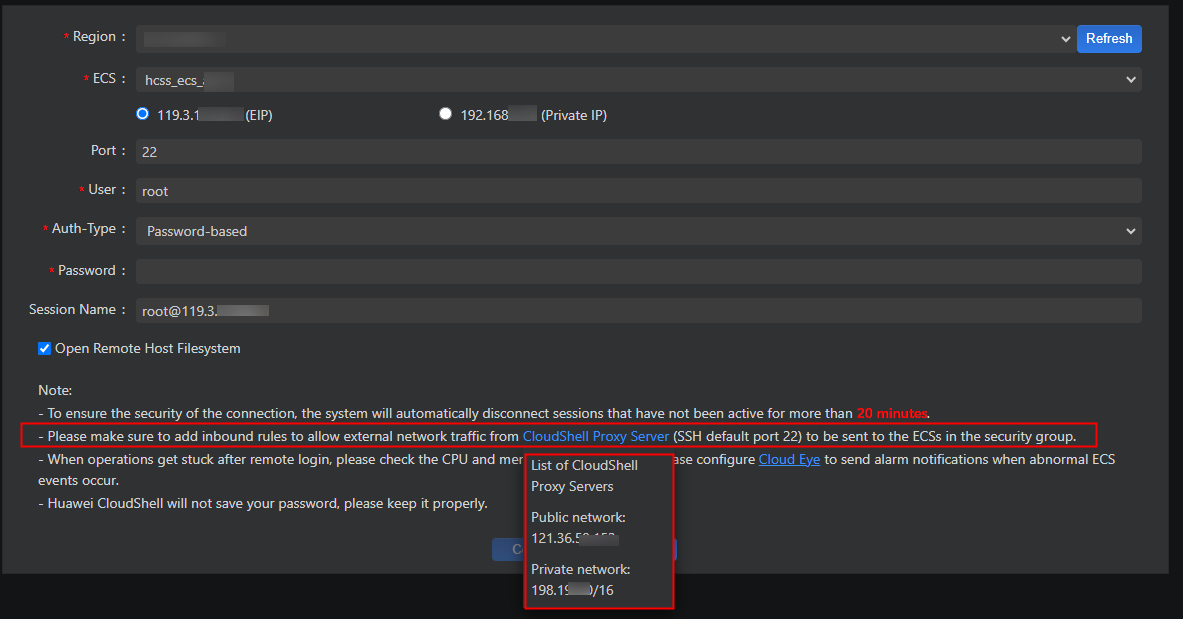
- In the CloudShell configuration wizard, select the EIP associated with the server and configure parameters for logging in to the server. Figure 2 CloudShell wizard (EIP)

Table 1 Parameters for logging in to the FlexusX instance Parameter
Description
Port
The port for connecting to the FlexusX instance. The default value is 22.
User
The username of the FlexusX instance. The default value is root.
Auth-Type
Select Password-based and enter the password for logging in to the FlexusX instance.
If you did not set the password or forgot the password, reset it by referring to Resetting the Password for a FlexusX Instance.
Session Name
The default format is Username@IP address. You can change it as needed.
Ensure that the remote port (default SSH port: 22) of the CloudShell proxy IP address is allowed in the security group. When you use CloudShell to connect to the FlexusX instance, the CloudShell proxy IP address sends the connection request to the FlexusX instance on behalf of your actual IP address. You need to add a rule to the security group of the FlexusX instance to allow the traffic from the CloudShell proxy IP to pass through port 22. If your security group rule only allows your actual IP address to pass through port 22 but blocks the CloudShell proxy IP address, you will fail to connect to the instance through CloudShell. For details about how to configure security group rules, see Configuring Security Group Rules for a FlexusX Instance.
The CloudShell proxy IP address may vary depending on the region. The following figure is just an example.
Figure 3 CloudShell proxy IP address
Using the private IP address for login
- Select the private IP address of the server and click Go. Figure 4 Redirection from the CloudShell wizard (private IP)
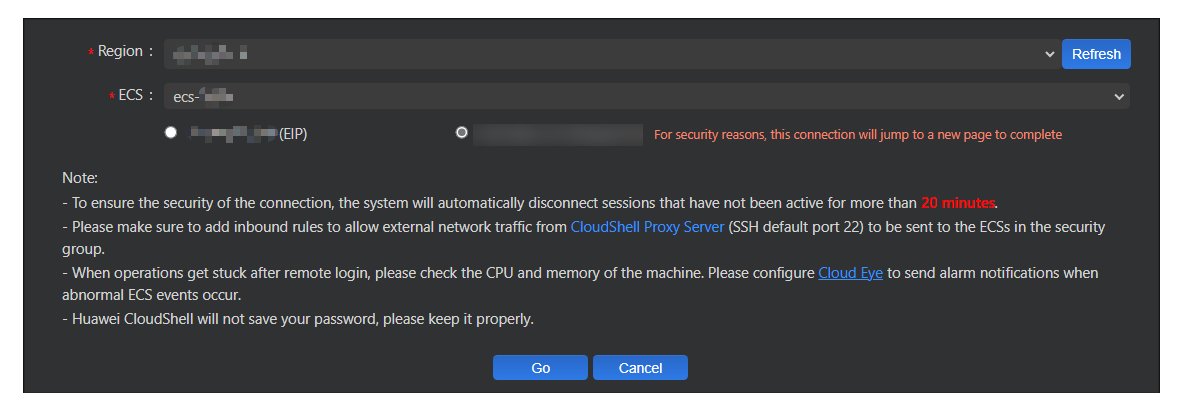
If a message is displayed indicating that you do not have required permissions or an authorization is required, complete the service authorization as instructed in prerequisites first.
- Configure parameters for logging in to the FlexusX instance. Figure 5 CloudShell wizard (private IP)
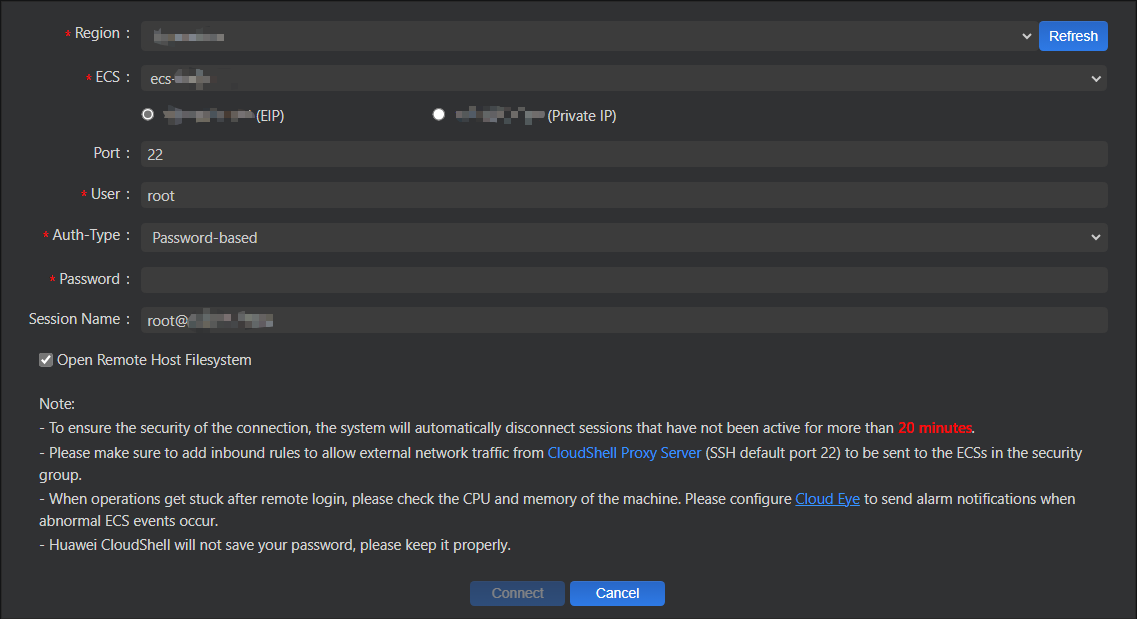
Table 2 Parameters for logging in to the FlexusX instance Parameter
Description
Port
The port for connecting to the FlexusX instance. The default value is 22.
User
The username of the FlexusX instance. The default value is root.
Auth-Type
Select Password-based and enter the password for logging in to the FlexusX instance.
If you did not set the password or forgot the password, reset it by referring to Resetting the Password for a FlexusX Instance.
Session Name
The default format is Username@IP address. You can change it as needed.
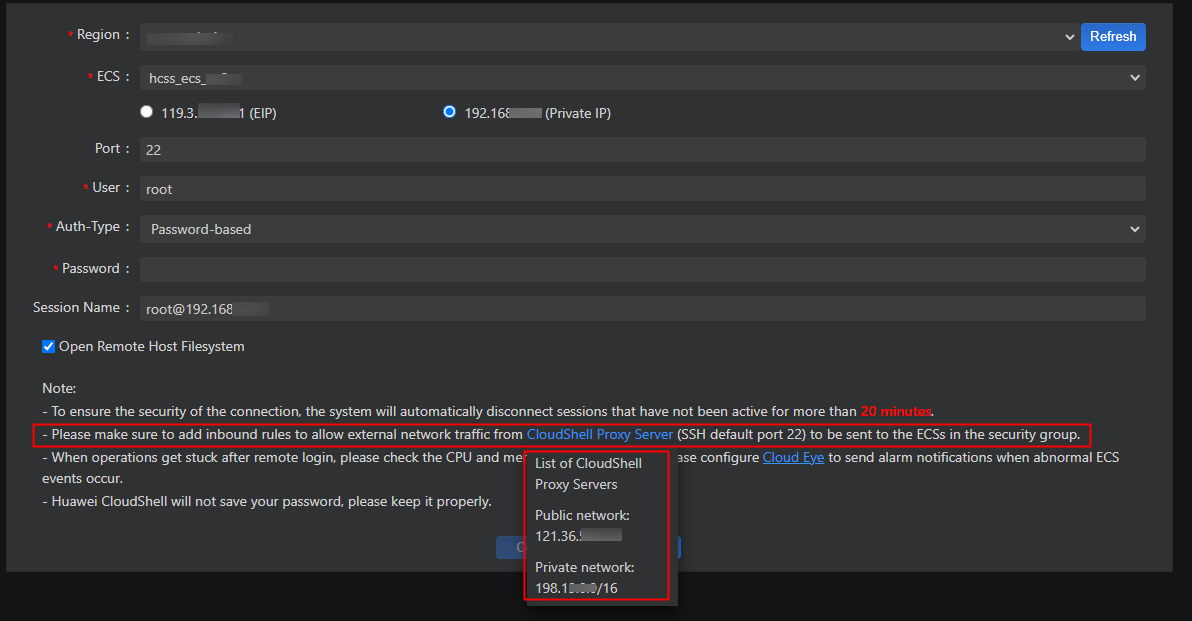
Ensure that the remote port (default SSH port: 22) of the CloudShell proxy IP address is allowed in the security group. When you use CloudShell to connect to the FlexusX instance, the CloudShell proxy IP address sends the connection request to the FlexusX instance on behalf of your actual IP address. You need to add a rule to the security group of the FlexusX instance to allow the traffic from the CloudShell proxy IP to pass through port 22. If your security group rule only allows your actual IP address to pass through port 22 but blocks the CloudShell proxy IP address, you will fail to connect to the instance through CloudShell. For details about how to configure security group rules, see Configuring Security Group Rules for a FlexusX Instance.
The CloudShell proxy IP address may vary depending on the region. The following figure is just an example.
Figure 6 CloudShell proxy IP address
- In the CloudShell configuration wizard, select the EIP associated with the server and configure parameters for logging in to the server.
- Click Connect to log in to the instance.
If the system does not respond, the login password is incorrect or the password has not been set. In this case, reset the password and log in to the instance again.
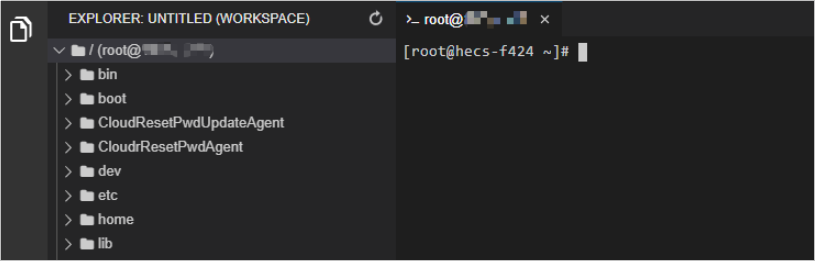
After the connection is successful, a figure similar to the following will be displayed:Figure 7 Successful login
Helpful Links
- After login, if you need to use the copy-and-paste function provided by CloudShell, see Common CloudShell Operations.
- Why Can't I Log In to My Linux ECS?
- What Are the Username and Password for Remotely Logging In to a FlexusX Instance?
- What Can I Do If I Forget the Login Password of a FlexusX Instance?
What is your overall rating for this page?
Thank you very much for your feedback. We will continue working to improve the documentation.See the reply and handling status in My Cloud VOC.
For any further questions, feel free to contact us through the chatbot.
Chatbot


