

Setting WeCom Subscriptions
Scenario
When any of the following events occurs, CodeArts sends a message through HTTP to the WeCom group that has subscribed to the event.
| Category | Event Type |
|---|---|
| Repository | Capacity warning |
| Repo deleted | |
| MR | MR opened |
| MR updated | |
| MR merged | |
| MR reviewed | |
| MR approved | |
| Review created | |
| Review comment resolved |
| Event Type | Notification Content | |
|---|---|---|
| CodeArts Pipeline | Completed |
|
| Failed | ||
| Paused | ||
| Suspended | ||
| Ignored | ||
| Event Type | Notification Content | |
|---|---|---|
| Check task | Completed
|
|
| Event Type | Notification Content | |
|---|---|---|
| Build task | Task successful |
|
| Task failed | ||
| Task disabled | ||
| Task deleted | ||
| Task configurations updated | ||
| Event Type | Notification Content | |
|---|---|---|
| Application | Application deployed |
|
| Deploy application failed | ||
| Deploy stopped | ||
Constraints
This function is now available in the AP-Singapore region.
Prerequisites
You have created a CodeArts project, and your role in the project is Project Administrator or Project Manager.
Procedure
- Go to the CodeArts homepage.
- Log in to the CodeArts console, click
 , and select a region where you have enabled CodeArts.
 - Click Go to Workspace.
If your account uses the old billing mode (see Old Billing Modes), click Access Service.
- Log in to the CodeArts console, click
- Click the target project name to go to the project.
- In the navigation pane, choose Settings > General > Notifications.
- Click the WeCom tab.
- Configure the parameters and click OK. Figure 1 Configuring WeCom notifications (CodeArts Pipeline is used as an example.)
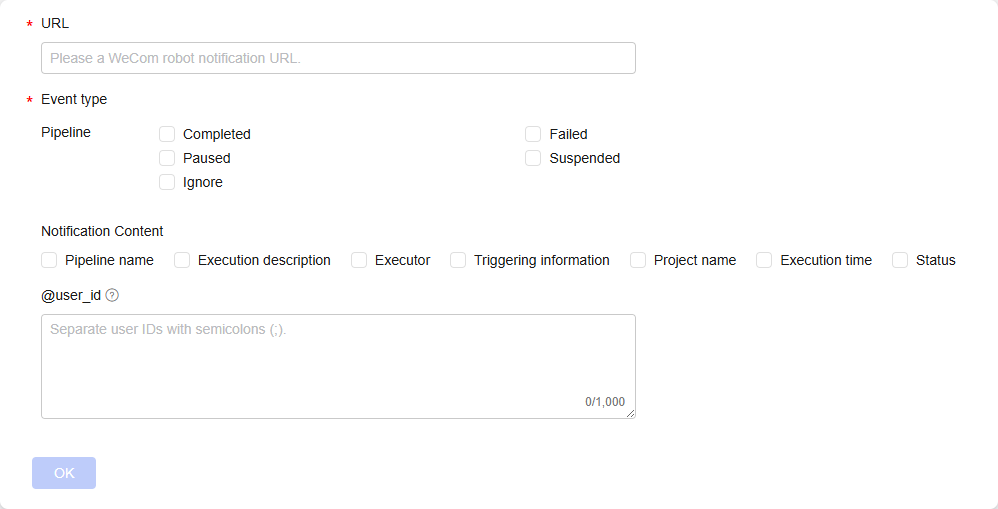
Table 6 Setting WeCom subscriptions Parameter
Description
URL
The webhook URL of your WeCom group robot. Start with http:// or https://. The URL cannot exceed 256 characters.
For details about how to obtain the webhook URL of your WeCom group robot, see section "How to set group robot" in the WeCom Help Center. (The section name is subject to updates of the WeCom Help Center.)
Event Types
Event types that can trigger a WeCom notification. For details about the supported event types, see Scenario.
Notification Content
Content of the WeCom notification. For details about the configurable content, see Scenario.
Optional. Configure it if a specific content notification is needed.
@user_id
WeCom user IDs of the members you want to mention. Separate the IDs with semicolons (;). The total IDs cannot exceed 1,000 characters. Digits, letters, semicolons (;), periods (.), hyphens (-), underscores (_), and at signs (@) are supported.
Optional. Configure it if you need to notify a specified member.
- After the configuration is complete, you can perform the following operations:
- Click Save to save the configuration.
 : The WeCom subscription configuration is saved but does not take effect. It will take effect only after the switch is toggled on.
 : The WeCom subscription configuration takes effect immediately.
Figure 2 Applying configurations

- Click Save and Enable Notification. The WeCom subscription configuration takes effect immediately.
- Click Cancel to cancel the configuration. The values of the parameters on the page are restored to the last saved settings. If this is the first configuration, all parameter values on the page are cleared.
- Click Save to save the configuration.
What is your overall rating for this page?
Thank you very much for your feedback. We will continue working to improve the documentation.See the reply and handling status in My Cloud VOC.
For any further questions, feel free to contact us through the chatbot.
Chatbot


