

Backing Up ClickHouse Service Data
Scenarios
To ensure ClickHouse service data security routinely or before a major operation on ClickHouse (such as upgrade or migration), you need to back up ClickHouse service data. The backup data can be used to recover the system if an exception occurs or the operation has not achieved the expected result, minimizing the adverse impacts on services.
ClickHouse service data backup tasks can be created on FusionInsight Manager. The system supports both automatic and manual backup modes.
MRS clusters support multiple data path types for backing up ClickHouse service data.
- RemoteHDFS: indicates that backup files are stored in the HDFS directory of the standby cluster.
- OBS: indicates that backup files are stored in OBS.
Notes and Constraints
- MRS 3.1.0 or later supports this function.
- MRS 3.3.0-LTS.1 and later patch versions support the backup of ClickHouse service data to OBS.
Prerequisites
- To back up data to a remote HDFS, the following conditions must be met:
- A standby cluster for backing up data has been created. Its authentication mode must be the same as that of the active cluster.
- If the active cluster is deployed in security mode and the active and standby clusters are not managed by the same FusionInsight Manager, mutual trust has been configured. For details, see Configuring Mutual Trust Between MRS Clusters. If the active cluster is deployed in normal mode, mutual trust is not required.
- Time is consistent between the active and standby clusters, with the NTP services on both clusters configured to use the same time source.
- The HDFS in the standby cluster has sufficient space. You are advised to save backup files in a custom directory.
- In active/standby mode, ensure that the value of HADOOP_RPC_PROTECTION of ClickHouse is the same as that of hadoop.rpc.protection of HDFS.
- When data is remotely backed up to HDFS, HDFS encrypted directories are not supported.
- If you want to back up data to OBS, you have connected the current cluster to OBS and have the permission to access OBS.
- You have planned the backup type, period, object, and directory based on service requirements.
Backing Up ClickHouse Service Data
- Log in to MRS Manager.
For details about how to log in to MRS Manager, see Accessing MRS Manager.
- Choose O&M > Backup and Restoration > Backup Management.
- Click Create.
- Set Name to the name of the backup task.
- Select the cluster to be operated from Backup Object.
- Set Mode to the type of the backup task.
Periodic indicates that the backup task is executed by the system periodically. Manual indicates that the backup task is executed manually.
Table 1 Periodic backup parameters Parameter
Example Value
Description
Started
2024/11/22 10:29:11
Time when the task should start for the first time.
Period
1 day
Task execution interval. Supported values are Hours and Days.
Backup Policy
Full backup at the first time and incremental backup subsequently
- Full backup at the first time and incremental backup subsequently
- Full backup every time
- Full backup once every n times
Incremental backup is not supported for Manager data and component metadata. Only Full backup every time is supported.
- In Configuration, select ClickHouse under Service Data.
- Select a backup directory type for Path Type of ClickHouse.
If Path Type is RemoteHDFS and the version is MRS 3.1.0 or MRS 3.1.2, configure the environment by referring to Configuring the Environment When the ClickHouse Backup Task's Path is RemoteHDFS.
Table 2 Path of backup data Path Type
Parameter
Description
RemoteHDFS
Destination NameService Name
Name of the NameService in the standby cluster.
You can obtain it from the NameService Management page of HDFS in the standby cluster. For example, the name is hacluster.
IP Mode
IP version of the target IP address. The system automatically determines the IP version, such as IPv4 or IPv6, based on the cluster network type.
Destination Active NameNode IP Address
Service plane IP address of the active NameNode in the standby cluster. Log in to MRS Manager of the standby cluster, choose Cluster > Services > HDFS, click the Instances tab, and check the service plane IP address of the active NameNode.
This parameter is available only for MRS 3.2.0 and later clusters.
Destination Standby NameNode IP Address
Service plane IP address of the standby NameNode in the standby cluster. Log in to MRS Manager of the standby cluster, choose Cluster > Services > HDFS, click the Instances tab, and check the service plane IP address of the standby NameNode.
This parameter is available only for MRS 3.2.0 and later clusters.
Target NameNode IP Address
Service plane IP address of the active or standby NameNode in the standby cluster. Log in to MRS Manager of the standby cluster, choose Cluster > Services > HDFS, click the Instances tab, and check the service plane IP address of the NameNode.
This parameter is available only for MRS 3.1.0 and MRS 3.1.2 clusters.
Destination NameNode RPC Port
Value of dfs.namenode.rpc.port in the HDFS basic configuration of the destination cluster.
This parameter is available only for MRS 3.2.0 and later clusters.
Target Path
HDFS directory in the standby cluster for storing backup data. The path cannot be configured as an HDFS hidden directory, such as a snapshot or recycle bin directory, nor as a default system directory, such as /hbase or /user/hbase/backup.
Maximum Number of Backup Copies
Number of backup files that can be retained in the backup directory.
This parameter is available only for MRS 3.1.0 and MRS 3.1.2 clusters.
Maximum Number of Maps
Maximum number of maps in a MapReduce task. The default value is 20.
This parameter is available only for MRS 3.1.0 and MRS 3.1.2 clusters.
Maximum Map Bandwidth (MB/s)
Maximum bandwidth of a map. The default value is 100.
This parameter is available only for MRS 3.1.0 and MRS 3.1.2 clusters.
OBS
Target Path
OBS directory for storing backup data.
Maximum Number of Backup Copies
Number of backup files that can be retained in the backup directory.
- Set Maximum Number of Recovery Points to the number of snapshots that can be retained in the cluster.
- Set Backup Content to one or multiple ClickHouse tables to be backed up.
You can select backup data using either of the following methods:
- Adding a backup data file
Click the name of a database in the navigation pane to show all the tables in the database, and select specified tables.
MRS 3.2.0 or later:
- Click Add.
- Select the table to be backed up under File Directory, and click Add to add the table to Backup Content.
- Click OK.
- MRS 3.2.0 or later: Regular expression filtering
- Click Query Regular Expression.
- Enter the logical cluster and database to which the ClickHouse table belongs in the first text box as prompted. The logical cluster and database must match the existing logical cluster and database, for example, /default_cluster/database.
- Enter a regular expression in the second text box. Standard regular expressions are supported. For example, to filter all tables that contain the keyword test in the database, enter test.*.
- Click Refresh to view the displayed tables in Directory Name.
- Click Synchronize to save the result.
- When entering regular expressions, click
 or
or  to add or delete an expression.
 - If the selected table or directory is incorrect, click Clear Selected Node to deselect it.
- Versions earlier than MRS 3.2.0: Regular expression filtering
- Click Query Regular Expression.
- In the first text box, enter the name of the database where the ClickHouse tables reside. Ensure that the database is an existing database. for example, default.
- Enter a regular expression in the second text box. Standard regular expressions are supported. For example, to get all tables in the database, enter ([\s\S]*?). To get tables whose names consist of letters and digits, for example, tb1, enter tb\d*.
- Click Refresh to view the displayed tables in Directory Name.
- Click Synchronize to save the result.
- When entering regular expressions, click
 or
or  to add or delete an expression.
 - If the selected table or directory is incorrect, click Clear Selected Node to deselect it.
- Adding a backup data file
- Click Verify to check whether the backup task is configured correctly.
The possible causes of the verification failure are as follows:
- The target NameNode IP address is incorrect.
- The directory or table to be backed up does not exist.
- The name of the NameService is incorrect.
- Click OK.
- In the Operation column of the created task in the backup task list, click More and select Back Up Now to execute the backup task.
After the backup task is executed, the system automatically creates a subdirectory for each backup task in the backup directory. The format of the subdirectory name is Data source_Task creation time, and the subdirectory is used to save latest data source backup files.
Configuring the Environment When the ClickHouse Backup Task's Path is RemoteHDFS
This topic is available for MRS 3.1.0 only.
- Log in to FusionInsight Manager of the standby cluster.
- Choose Cluster > Services > HDFS. Click More and select Download Client. Set Select Client Type to Configuration Files Only, select x86_64 for x86 or aarch64 for Arm based on the type of the node, and click OK.
- After the client file package is generated, download the client to the local PC as prompted and decompress the package.
For example, if the client file package is FusionInsight_Cluster_1_HDFS_Client.tar, decompress it to obtain FusionInsight_Cluster_1_HDFS_ClientConfig_ConfigFiles.tar. Then, decompress this file to the D:\FusionInsight_Cluster_1_HDFS_ClientConfig_ConfigFiles directory on the local PC. The directory name cannot contain spaces.
- Go to the FusionInsight_Cluster_1_HDFS_ClientConfig_ConfigFiles\ client directory and obtain the hosts file.
- Go to FusionInsight_Cluster_1_HDFS_ClientConfig_ConfigFiles\HDFS\config to obtain the core-site.xml and hdfs-site.xml files.
- Log in to FusionInsight Manager of the source cluster.
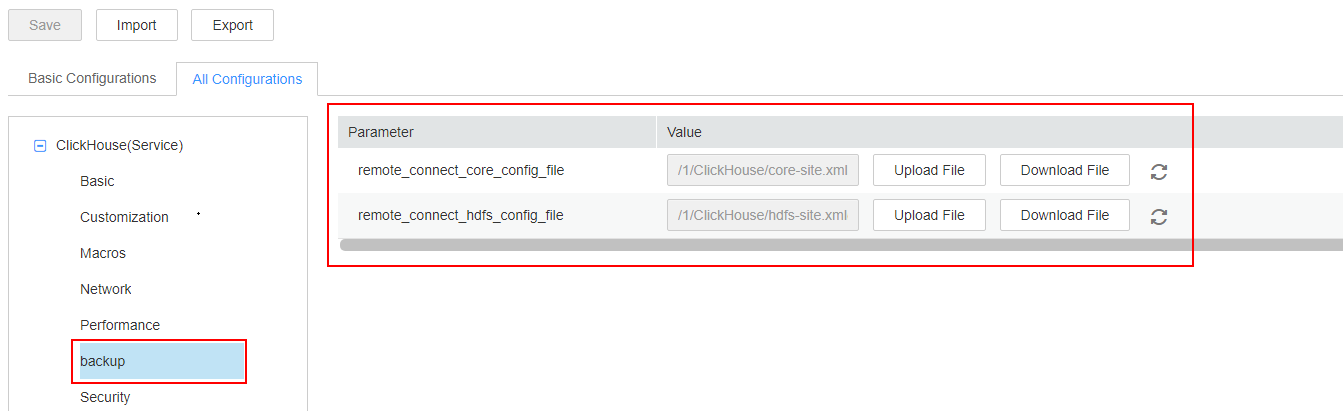
- Choose Cluster > Services > ClickHouse, choose Configurations > All Configurations, and select backup under ClickHouse(Service).
For remote_connect_core_config_file, click Upload File and select the core-site.xml file prepared in Step 5.
For remote_connect_hdfs_config_file, click Upload File and select the hdfs-site.xml file prepared in Step 5.
Figure 1 Configuring ClickHouse data backup parameters
- Click Save, confirm the information, and click OK to save the configuration. After saving the configurations, click Finish.
- Choose Cluster > Services > ClickHouse, click Instances, and view the instance IP address of ClickHouseServer.
- Log in to the host nodes of the ClickHouseServer instances as user root and check whether the /etc/hosts file contains the host information in Step 4. If not, add the host information in Step 4 to the /etc/hosts file.
Helpful Links
Backup ClickHouse service data may be restored if data is accidentally modified, deleted, or requires retrieval; if major ClickHouse operations (such as upgrades or significant data adjustments) cause exceptions in system data or fail to achieve the expected result; if all modules fail and become unavailable; or if data needs to be migrated to a new cluster. For detailed operations, refer to Restoring ClickHouse Service Data.


