Diagnosing OS Faults
Scenarios
Currently, the OS diagnosis plug-in can only be used for some OSs. For details, see the following table.
| VM Architecture | OS Type | Supported by holmes-agent (Y/N) | |
|---|---|---|---|
| x86 | Huawei Cloud EulerOS | Huawei Cloud EulerOS 2.0 Standard Edition 64-bit (40 GB) | Y |
| CentOS | CentOS 7.9 | Y | |
| CentOS 8.0 | Y | ||
| CentOS 8.2 64-bit | Y | ||
| CentOS 7.8 | Y | ||
| CentOS 7.7 | Y | ||
| CentOS 7.6 | Y | ||
| CentOS 7.5 | Y | ||
| CentOS 7.4 | Y | ||
| CentOS 7.3 | Y | ||
| CentOS 7.2 | Y | ||
| CentOS 6.10 | N | ||
| Ubuntu | Ubuntu 20.04 server 64-bit | Y | |
| Ubuntu 22.04 server 64-bit | Y | ||
| Ubuntu 18.04 server 64-bit | Y | ||
| Ubuntu 16.04 server 64-bit | Y | ||
| EulerOS | EulerOS 2.5 64-bit | Y | |
| Debian | Debian 9.0.0 64-bit | Y | |
| Debian 8.8.0 64-bit | Y | ||
| Debian 8.2.0 64-bit | Y | ||
| Debian 12.0.0 64-bit | N | ||
| Debian 11.1.0 64-bit | Y | ||
| Debian 10.0.0 64-bit | Y | ||
| OpenSUSE | openSUSE 15.0 64-bit | Y | |
| AlmaLinux | AlmaLinux 9.0 64-bit | N | |
| AlmaLinux 8.4 64-bit | N | ||
| AlmaLinux 8.3 64-bit | N | ||
| Rocky Linux | Rocky Linux 9.0 64-bit | N | |
| Rocky Linux 8.5 64-bit | N | ||
| Rocky Linux 8.4 64-bit | N | ||
| CentOS Stream | CentOS Stream 9 64-bit | Y | |
| CentOS Stream 8 64-bit | Y | ||
| CoreOS | CoreOS 2079.4.0 64-bit | N | |
| openEuler | openEuler 22.03 64-bit | Y | |
| openEuler 20.03 64-bit | Y | ||
| Others | FreeBSD 11.0-RELEASE 64-bit | N | |
| Arm | Huawei Cloud EulerOS | Huawei Cloud EulerOS 2.0 Standard Edition 64-bit (40 GB) | Y |
| Ubuntu | Ubuntu 18.04 server 64-bit | Y | |
| CentOS | CentOS 7.6 64-bit with Arm | N | |
| EulerOS | EulerOS: 2.8 64bit with Arm | N | |
| Debian | Debian 10.2.0 64bit with Arm | N | |
| KylinOS | Kylin Linux Advanced Server for Kunpeng V10 | N | |
| openEuler | openEuler 20.03 64bit with Arm | N | |
Diagnosing OS Faults
- Log in to COC.
- In the navigation pane, choose Fault Management > Diagnostic Tools. On the displayed page, in the OS Performance Diagnosis area, click Diagnose Now. The Create OS Performance Diagnosis Task page is displayed. Figure 1 OS diagnosis entry

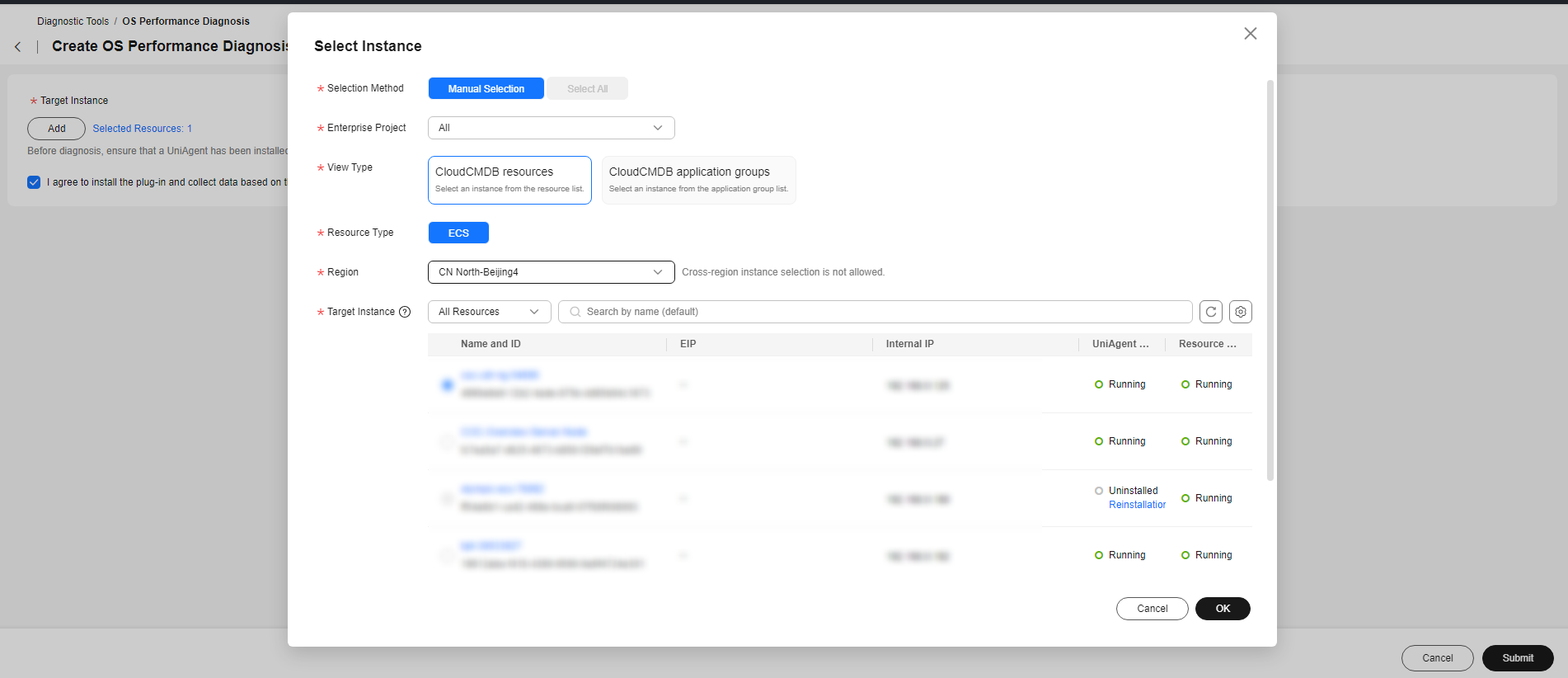
- On the Create OS Performance Diagnosis Task page, click Add. Ensure that you have installed a UniAgent in advance, and the image and specifications must meet the OS diagnosis requirements. Figure 2 Selecting instances
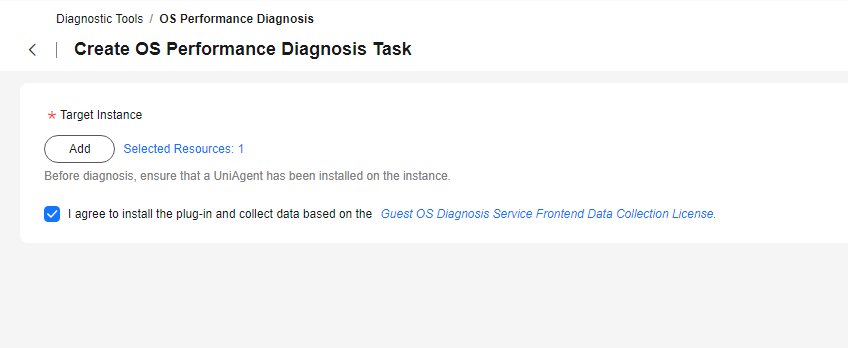
- On the Create OS Performance Diagnosis page, select I agree to install the plug-in and collect data based on the Guest OS Diagnosis Service Frontend Data Collection License, and click Submit. Figure 3 Agreeing to the authorization agreement and submitting for diagnosis
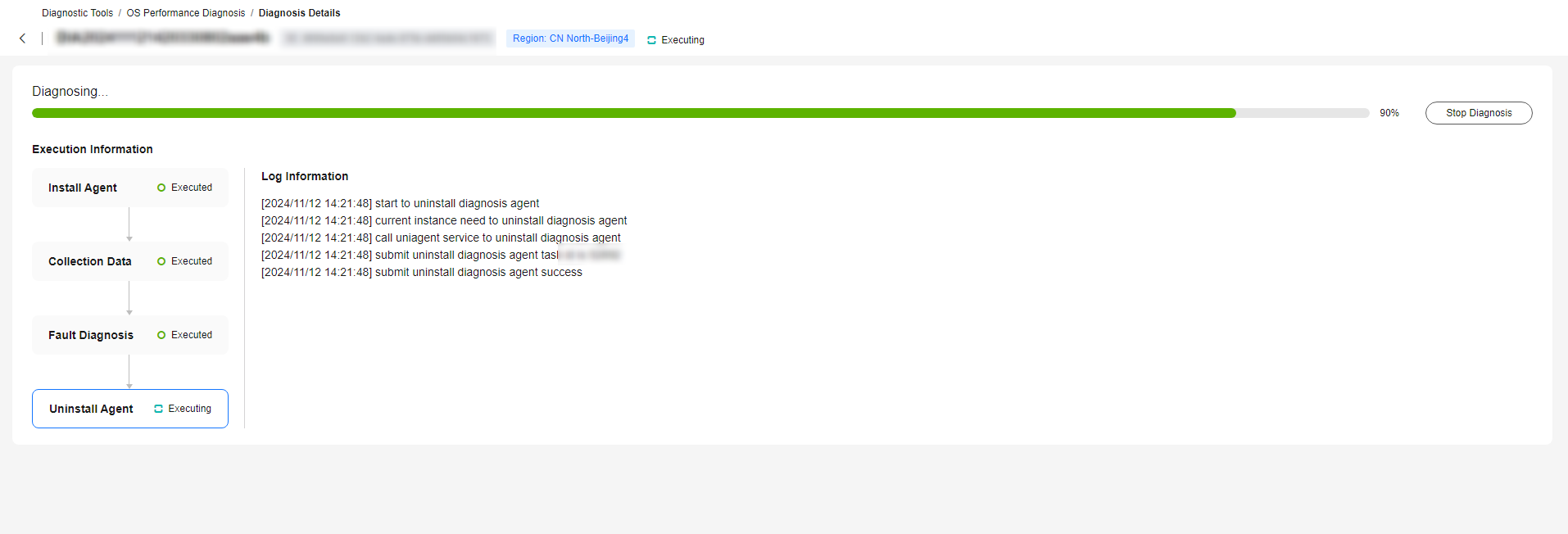
- Check the diagnosis step by step. progress bar. Figure 4 Diagnosis in progress
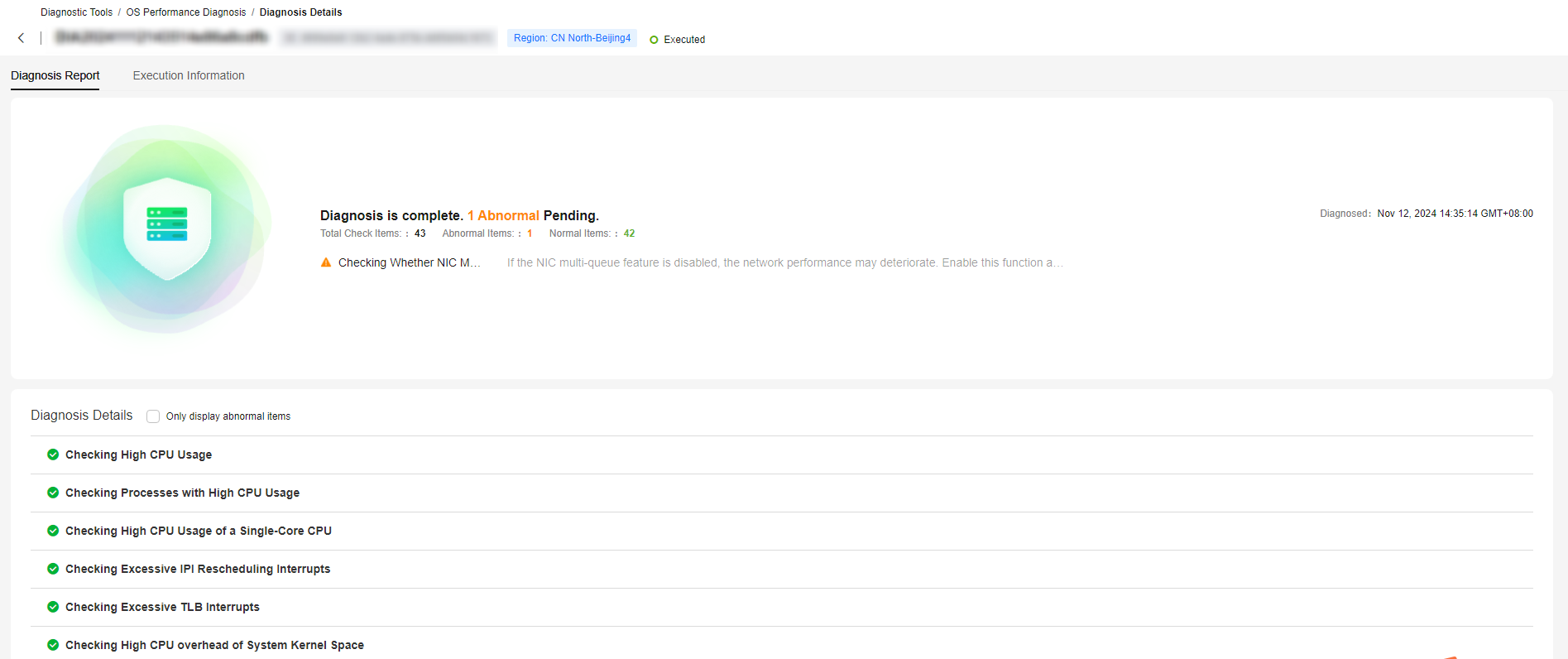
- After the diagnosis is complete, view the diagnosis report. Figure 5 Viewing the fiagnosis report