

Assigning a Custom Role to a User
You must assign a role to a user created. The user can have the default role or a custom role.

By default, you can create 10 roles as an administrator.
Procedure
- Use your account to sign in to Huawei Cloud.
- Click Partner Center in the drop-down list of your account name in the upper right corner.
- Choose Organization > Member Management in the menu on the top.
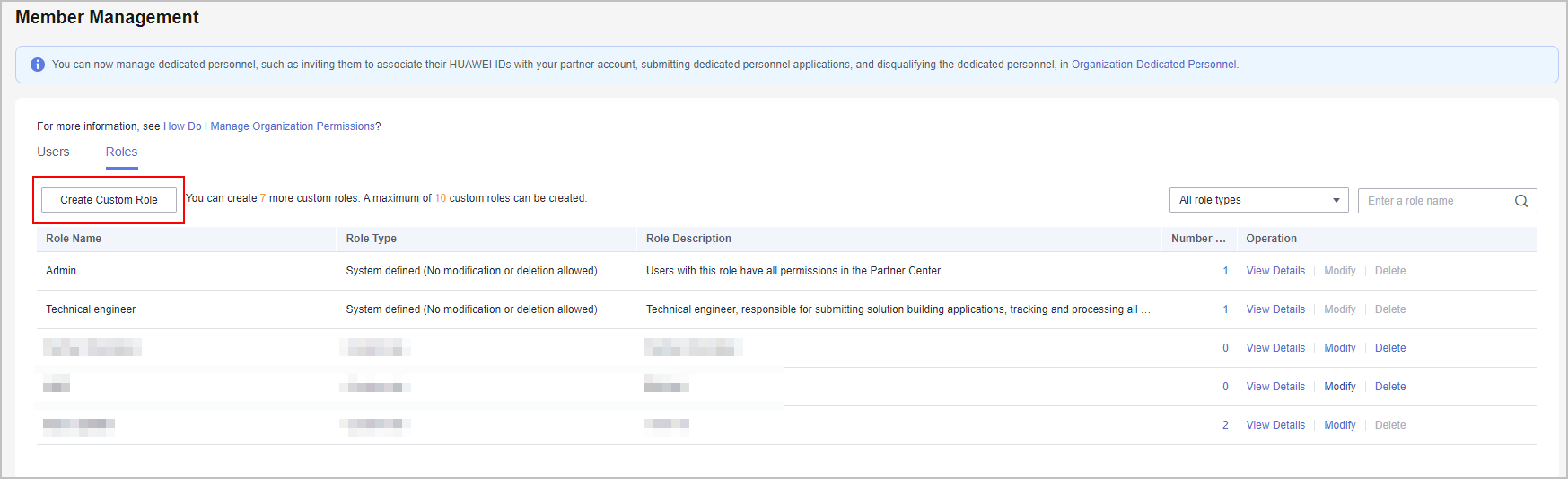
- Click Create Custom Role on the Roles tab page.
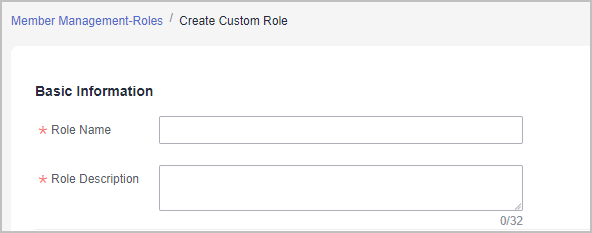
- Set the basic information about the new role.
- Select permissions for the new role.
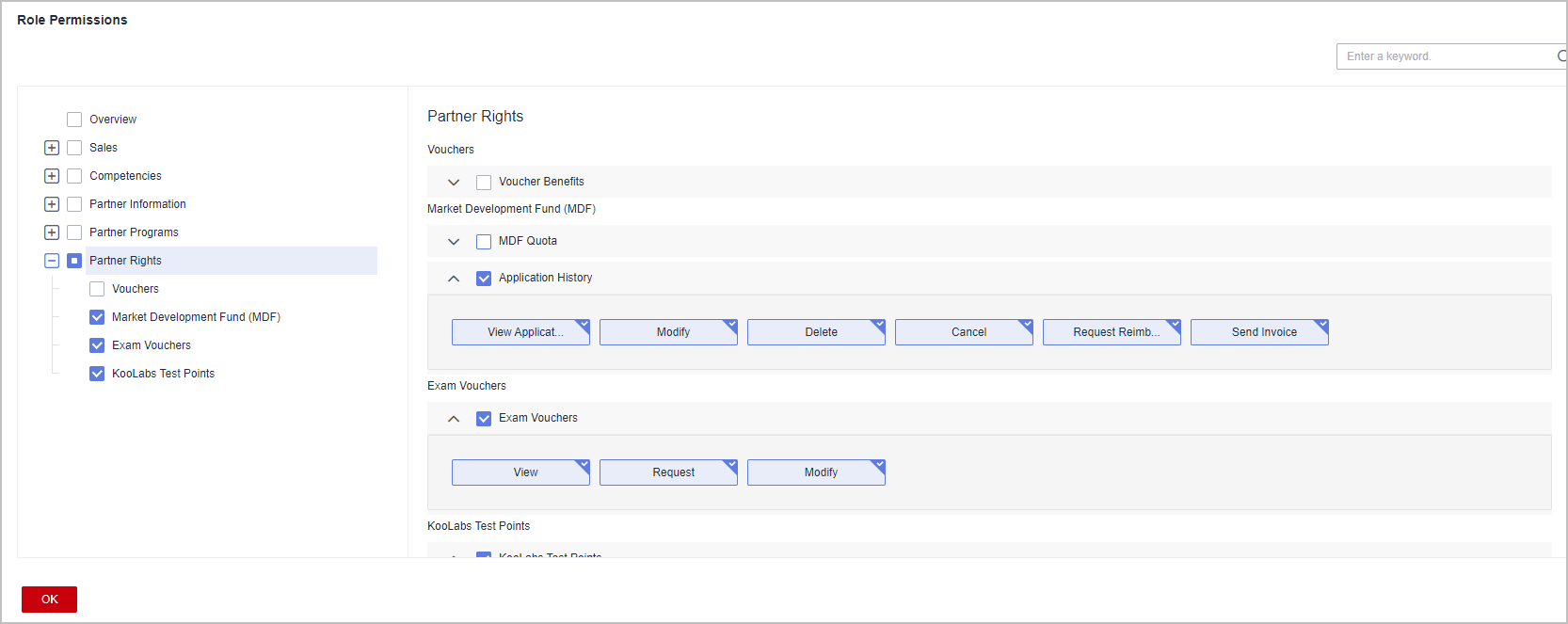
- When you assign permissions to a role, the system will automatically assign default permissions to the role even if you select only one permission for this role.
- Click OK.
A message is displayed indicating that the operation is successful. The new role appears in the role list.
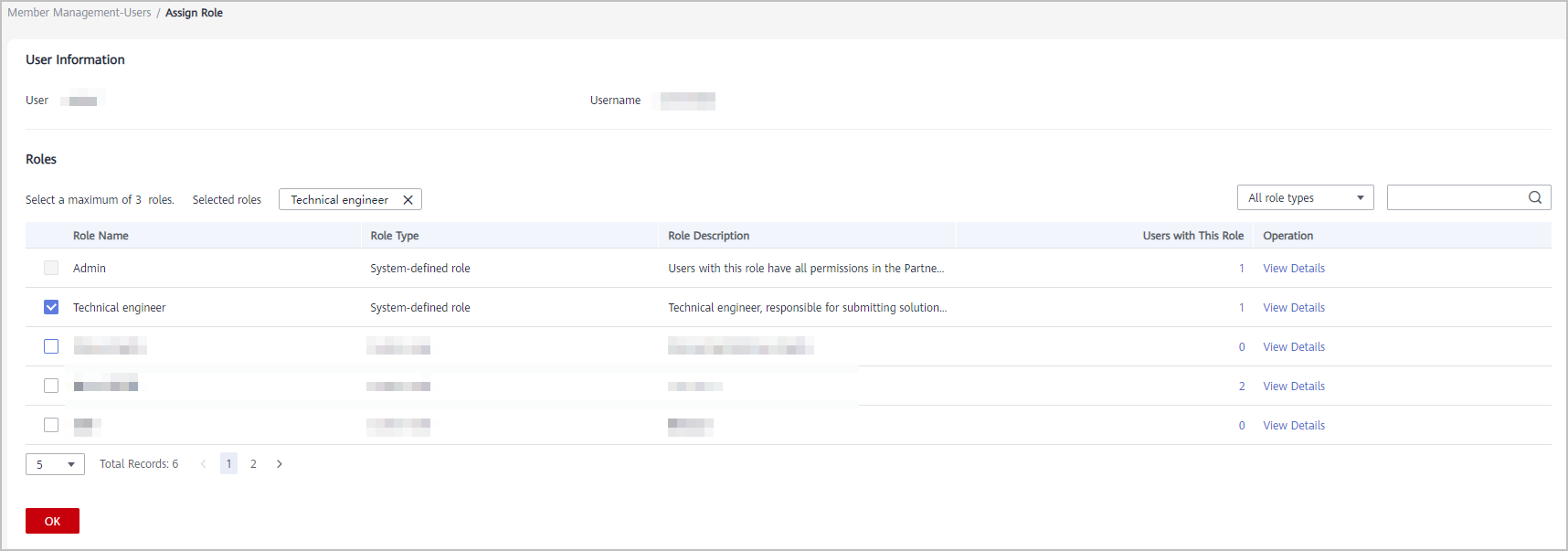
- Select a user on the Users tab page and click Assign Role in the Operation column.
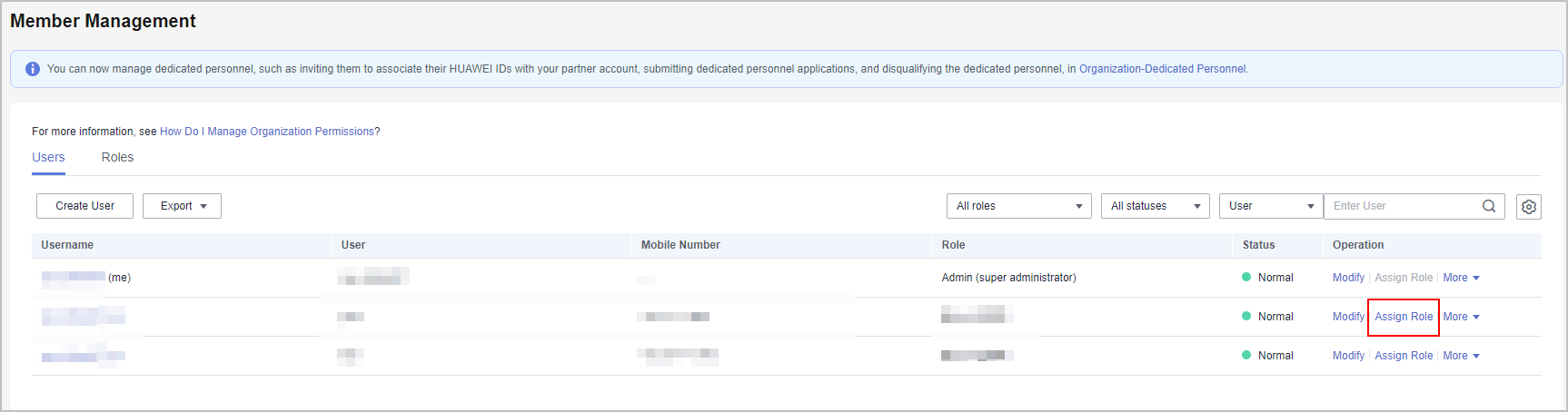
- Select the role you created and click OK.
Other Operations
- Viewing Users Associated with a Role
In the role list, click a number in the Number of Users column. In the Users with This Role dialog box that is displayed, you can see all the users that have this role.
- Viewing Details About a Role
In the role list, click View Details for a role in the Operation column. On the View Role Details page that is displayed, you can see the details about the role.
- Modifying a Custom Role
In the role list, click Modify for a role in the Operation column. On the Modify Role page that is displayed, you can modify the role settings.
- Deleting a Custom Role
When there are no users associated with a role, you can click Delete for the role in the Operation column. Then click OK to delete the role.


