

Creating a Synchronization Rule
Scenarios
Synchronization rules are used to automatically synchronize managed host accounts, making it easier for you to manage accounts of managed hosts, delete zombie accounts, and discover accounts that are not managed in a timely manner. This further strengthens management of resources.
With synchronization rules, you can:
- Synchronize accounts from managed hosts manually, periodically, or at a scheduled time.
- Pull accounts from managed hosts, check the validity of pulled accounts, and update the managed resource account status.
- Update the password of a host account, create a host account, or delete invalid host accounts by pushing managed resource account information to the corresponding hosts.
Notes and Constraints
- The account synchronization is supported only in professional editions.
- Account synchronization rules apply only to hosts using the SSH protocol.
- Only one managed resource account is allowed to log in to a managed host and pull its account information.
Prerequisites
Your role has the management permission for the Sync Rules module. For details about the permissions of each role, see Role.
Creating a Synchronization Rule
- Log in to your bastion host system.
- Choose Policy > Sync Rules. The Sync Rule tab page is displayed.
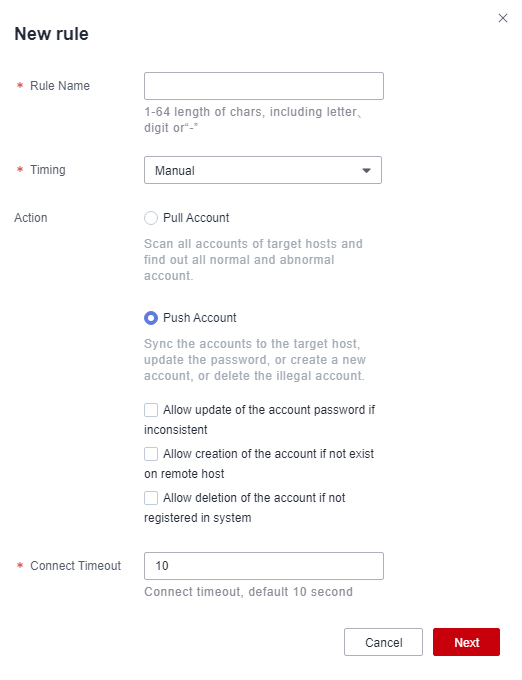
- Click New in the upper right corner of the Sync Rule area to switch to the New rule dialog box. Figure 1 New rule
- Configure the basic information.
Table 1 Parameters for configuring an account synchronization rule Parameter
Description
Rule Name
Name of an account synchronization rule. The rule name must be unique in a bastion host.
Naming rules: The value can contain 1 to 64 characters. Only letters, digits, and hyphens (-) are allowed.
Timing
Select an execution mode for account synchronization.
- Manual: Manually trigger the rule to change the password of the managed resource accounts.
- Fixed-Time: The rule is triggered by the bastion host to change the password of the managed resource account at a fixed time. This type of rule is executed only once.
- Cycle: The rule is periodically triggered by the bastion host to change the password of the managed resource account. This type of rule is triggered periodically.
Start Time
This parameter is available when Timing is set to Fixed-Time or Cycle.
Set the date and time when the policy is executed.
Cycle Frequency
This parameter is available when Timing is set to Cycle.
Set the period for executing the rule. The unit can be Minute, Hour, Day, Week, or Month.
End Time
This parameter is available when Timing is set to Cycle.
Set the end time of the policy. If this parameter is not set, the periodic password changes will be executed indefinitely.
Action
Synchronization mode. By default, Pull Account is selected.
- Pull Account: Scans all accounts of a host and collects statistics on all normal and abnormal accounts.
- Push Account: Pushes accounts to a host to automatically update account passwords, create accounts, or delete invalid accounts of the host.
If Action is set to Push Account, the following three options are available:
- Allow update of the account password if inconsistent
- Allow creation of the account if not exist on remote host
- Allow deletion of the account if not registered in system
Connect Timeout
Timeout interval for connecting to the target server, in seconds. The default value is 10 seconds.
If the connection to the target server exceeds the specified time, the connection is disconnected and the account synchronization task is interrupted.
- Click Next and configure the execution account or account group.
- You can associate a rule with multiple managed resource accounts or account groups at once.
- Select an execution account or account group: On the Execute Account or Execute Account Group tab, select a resource account or account group from the Selectable accounts or Selectable account groups area, and click
 to move it to the Selected accounts or Selected account groups area.
- Remove an execution account or account group: On the Execution Account or Execution Account Group tab page, select a resource account or account group from the Selected accounts or Selected account groups area, and click
 to move it to the Selectable accounts or Selectable account groups area.
- Select an execution account or account group: On the Execute Account or Execute Account Group tab, select a resource account or account group from the Selectable accounts or Selectable account groups area, and click
- After an account group is associated with a rule, accounts automatically obtain the permissions of the rule the instant they are added to the account group.
- You can associate a rule with multiple managed resource accounts or account groups at once.
- Click OK.
Return to the rule list page and view the created account synchronization rule.
Related Operations
To obtain the account synchronization details, download the synchronization logs after the synchronization.


