

Configuring Auto Scaling for xGPU Nodes
If there are not enough GPU virtualization resources in a cluster, xGPU nodes can be scaled out automatically. This section describes how to create an auto scaling policy for xGPU nodes.
Prerequisites
- A cluster of v1.27 or later is available.
- CCE AI Suite (NVIDIA GPU) (2.1.8, 2.7.5 or later), Volcano Scheduler (1.10.5 or later), and CCE Cluster Autoscaler (1.27.150, 1.28.78, 1.29.41, or later) have been installed in the cluster.
- The function of automatically adding nodes is enabled when pods in the cluster cannot be scheduled. To do so, go to Settings, click the Auto Scaling tab, enable Auto Scale-out when the load cannot be scheduled under Node Capacity Expansion Conditions.
Constraints
- Auto scaling is not supported for node pools containing workloads with both compute-memory isolation and memory isolation. If node pool auto scaling is enabled, scale-out behavior may become unpredictable.
Step 1: Configure the Node Pool
- Log in to the CCE console and click the cluster name to access the cluster console. In the navigation pane, choose Nodes.
- Click Create Node Pool to create an xGPU node pool. For details, see Creating a Node Pool.
For details about requirements on xGPU nodes, such as the specifications, OS, and container runtime, see Preparing Virtual GPU Resources.
- After the node pool is created, click Auto Scaling. In the AS Object area, enable Auto Scaling for the target specification and click OK.
Step 2: Configure Heterogeneous Resources
- In the navigation pane, choose Settings. Then, click the Heterogeneous Resources tab.
- In the GPU Settings area, locate Node Pool Configurations and select the created node pool.
- Select a driver that meets GPU virtualization requirements and enable GPU virtualization based on Preparing Virtual GPU Resources.
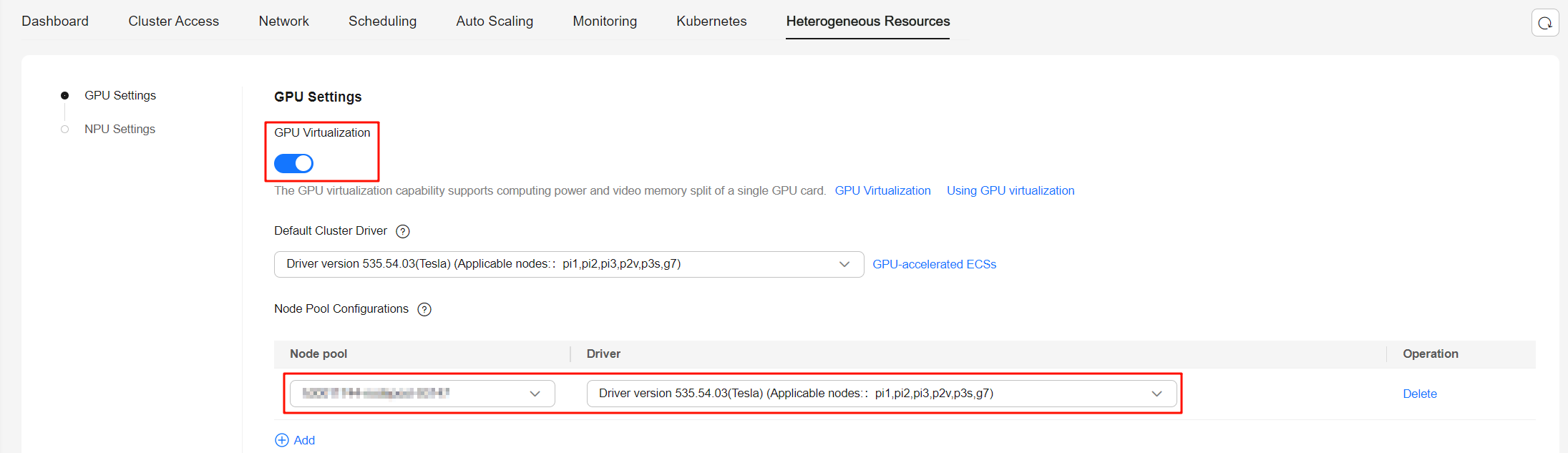
- Clusters of v1.27: GPU virtualization can only be enabled cluster-wide. Figure 1 Heterogeneous resource settings for v1.27 clusters
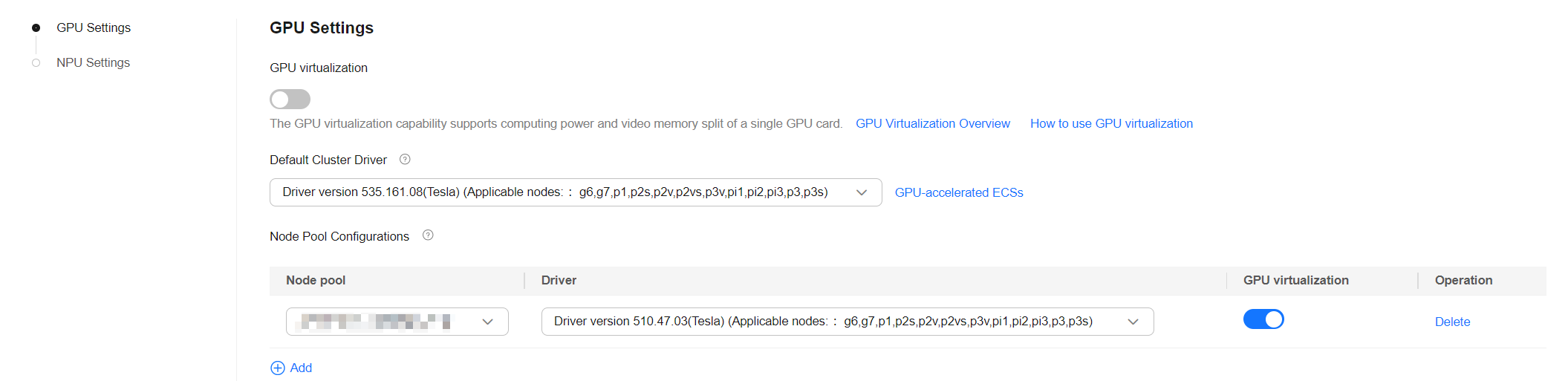
- Clusters of v1.28 or later: GPU virtualization can be enabled node-pool-wide. Figure 2 Heterogeneous resource settings for clusters of v1.28 or later
- Clusters of v1.27: GPU virtualization can only be enabled cluster-wide.
- Click Confirm configuration.
Step 3: Create a GPU Virtualization Workload and Trigger Capacity Expansion
Create a Deployment that uses GPU virtualization resources and requests a number of GPUs exceeding the current upper limit available in the cluster. For details, see Using GPU Virtualization. For example, there is a total of 16 GiB of GPU memory available, with each pod requiring 1 GiB. Then, configure 17 pods, which need a total of 17 GiB of GPU memory.
After a short period of time, you can find GPU node scale-out on the node pool details page.
Helpful Links
To configure workload auto scaling based on GPU metrics, see Configuring Workload Scaling Based on GPU Monitoring Metrics.


