

Huawei Cloud Multi-Factor Authentication Service (Virtual MFA)
Scenarios
After the administrator enables virtual multi-factor authentication (MFA), Huawei Cloud virtual MFA is used by default. When an end user uses the account and password to log in to a desktop from Huawei Cloud Workspace client, the end user must pass the MFA using a dynamic verification code.
Prerequisites
You have purchased desktops.
Constraints
The emergency mode is disabled.

The emergency mode is disabled by default.
If the emergency mode is enabled, multi-factor authentication cannot be used. Enter the service ticket information, obtain the emergency mode status of the current tenant, and disable the emergency mode as required.
Procedure
Enabling the Huawei Cloud Multi-factor Authentication Service
- In the navigation pane, choose Tenant Configuration > Authentication Configuration.
The Authentication Configuration page is displayed.
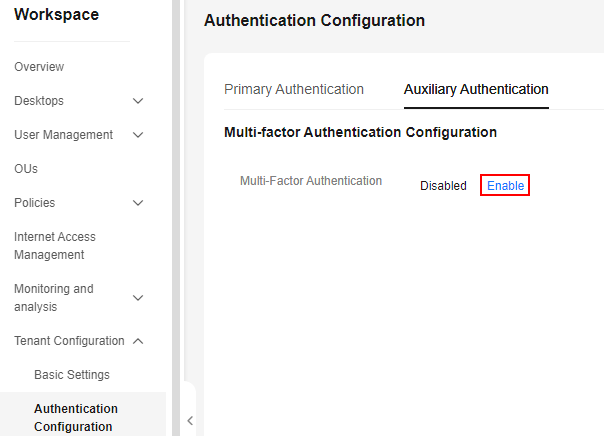
- Click the Auxiliary Authentication tab. Under Multi-Factor Authentication Configuration, click Enable.
Figure 1 Enabling MFA
- In the displayed dialog box, click OK.
- Multi-Factor Authentication: Set it to Huawei Cloud MFA service.
- MFA Type: The default value is Virtual MFA.
- Access Method:
- Internet access user
- Direct Connect access user
- Select target objects as required. The target objects can be users, user groups, or all users.
By default, All users is selected. You can choose specific users or user groups as target objects. Once selected, the default All users object can be removed so that only the specified objects take effect.
- Click OK.
After the administrator enables virtual MFA, end users need to use the virtual MFA device in a cloud application on a smart device (such as a mobile phone) or other TOTP-supported devices to obtain a dynamic verification code when logging in to the desktop from the Workspace client. (For the first login, the virtual MFA device must be bound to the smart device.) Then end users need to enter the dynamic verification code on the login page of the Workspace client. For details about the operations of end users for different device types, see Logging In to a Desktop Using an SC, Logging In to a Desktop Using a TC, or Logging In to a Desktop Using a Mobile Terminal.
Managing the configuration of auxiliary authentication
- In the navigation pane, choose Tenant Configuration > Authentication Configuration.
The Authentication Configuration page is displayed.
- Click the Auxiliary Authentication tab.
- Perform the operations in Table 1 as required.
Table 1 Operations for auxiliary authentication configuration Operation
Procedure
Description
Adding target objects
- Click Select on the right of the target object. The Select Target Object page is displayed.
- Select target objects as required. The target objects can be users, user groups, or all users.
- Click OK.
The administrator can add target objects to enable multi-factor authentication for individual users or users in a user group.
Removing a target object
- Single removal
- Locate the target object and click Remove in the Operation column. The Remove Target Object dialog box is displayed.
- If you want to perform this operation, enter DELETE or click Auto Enter for confirmation.
- Batch removal
Select users or user groups to be removed from the target object list.
- Click Remove above the list. The Remove Target Object dialog box is displayed.
- If you want to perform this operation, enter DELETE or click Auto Enter for confirmation.
- Click OK.
NOTE:
Removing a target object will disable auxiliary authentication for its users and user groups.
The administrator can remove users who do not need to be connected for multi-factor authentication.
Modifying the configuration of auxiliary authentication
- Click Modify on the right of the Huawei Cloud MFA service
- Modify the following configurations as required:
- Multi-Factor Authentication: You can change the authentication server to Enterprise's authentication system if needed. For details, see Enterprise's Authentication System.
- Access Method: Select Internet access user or Direct Connect access user as required.
NOTE:
You must select either of the access methods.
- Target Object: You can add or remove target objects.
- Click Save Configuration.
The administrator can modify the auxiliary authentication configuration as required.
Feedback
Was this page helpful?
Provide feedbackThank you very much for your feedback. We will continue working to improve the documentation.See the reply and handling status in My Cloud VOC.
For any further questions, feel free to contact us through the chatbot.
Chatbot


