

Issuing a Domain Controller Certificate via AD CS (Recommended)
Scenarios
If certificate-based authentication is enabled when an AD domain is interconnected with, the AD domain server must have a valid domain controller certificate, which can be issued by Active Directory Certificate Services (AD CS) of the AD server.
Procedure
Installing AD CS

- Log in to the AD server using the account and password.
- Press Win+R, enter servermanager in the displayed Run dialog box, and press Enter to go to the Server Manager page.
- On the left of the Server Manager page, click Dashboard and click Add Roles and Features to go to the Add Roles and Features Wizard page.
- Select Role-Based or feature-based installation for Select Installation Type and click Next.
- Select Select a server from the server pool and click Next.
- On the Select Server Roles page, select Active Directory Certificate Services to go to the Add Roles and Features Wizard page.
- Click Add Features and click Next.
- Click Next and then click Next again.
- In the Role Services area, select Certification Authority and Certification Authority Web Enrollment, and click Next.
- On the Confirm installation selections page, click Install.
Do not close the wizard during the installation.
- After the installation is complete, click Configure Active Directory Certificate Services on the Destination Server to go to the AD CS configuration wizard page.
- Click Next.
- In the Role Services area, select Certification Authority and Certification Authority Web Enrollment, and click Next.
- On the Setup Type page, select Enterprise CA and click Next.
- On the Specify the type of the CA page, select Root CA and click Next.
- On the Specify the type of the private key page, select Create a new private key and click Next.
- On the Cryptography for CA page, keep the default setting RSA#Microsoft Software Key Storage Provider and the default key character length (2,048).
The default hash algorithm is SHA256. Click Next.
- On the CA Name page, specify the CA name and click Next.
- Common name for this CA: You are advised to use the default name or change the name as required.
- Distinguished name suffix: This parameter is left blank by default. You can determine whether to specify it.
- Preview of distinguished name: You are advised to use the default name or change the name as required.
- On the Validity Period page, the default value of Specify the validity period is 5 years (recommended). You can change the value as needed. Click Next.
- In the Specify the database locations area on the CA Database page, specify the certificate database location and certificate database log location. If you specify a location other than the default one, ensure that you use an access control list (ACL) to protect folders by preventing unauthorized users or computers from accessing CA databases and log files. Click Next.
- On the confirmation page, click Configure. After the configuration is complete, click Close.
Issuing a domain controller certificate
- After AD CS is installed and configured in 1 to 21, the current AD server automatically issues a domain controller certificate.
- If there are multiple AD servers in the same domain, you can use one of the following methods to issue domain controller certificates for the remaining servers:
- Restart the remaining AD servers to issue domain controller certificates.
Restart the remaining AD servers in sequence during the maintenance period. You are advised to back up the AD servers before restarting them. To avoid impact on services, do not restart them in batches.
- Manually issue domain controller certificates to the remaining AD servers.
- Use the account and password to log in to the remaining AD servers.
- Press Win+R. In the Run dialog box, enter certlm.msc and press Enter.
- In the navigation pane on the left, choose Certificates - Local Computer > Personal > Certificates.
- Right-click Certificates and choose All Tasks > Request New Certificate to go to the certificate enrollment wizard.
- Click Next. Click Next again and select Kerberos Authentication or Domain Controller.
- Click Enroll.
- Restart the remaining AD servers to issue domain controller certificates.
Verifying a domain controller certificate
- On the AD server, press Win+R. In the displayed dialog box, enter eventvwr and press Enter.
- On the Event Viewer page, choose Applications and Services Logs > Microsoft > Windows > Kerberos-Key-Distribution-Center > Operational.
- View the event whose ID is 302. Under General, a message is displayed, indicating that the Key Distribution Center (KDC) uses the following KDC certificate for smart card or certificate authentication.
The domain controller certificate has been issued.
Multi-domain scenario
- Use the account and password to log in to an AD domain server to which the domain controller certificate has been issued.
- Press Win+R. In the Run dialog box, enter certlm.msc and press Enter.
- In the navigation pane on the left, choose Certificates - Local Computer > Personal > Certificates.
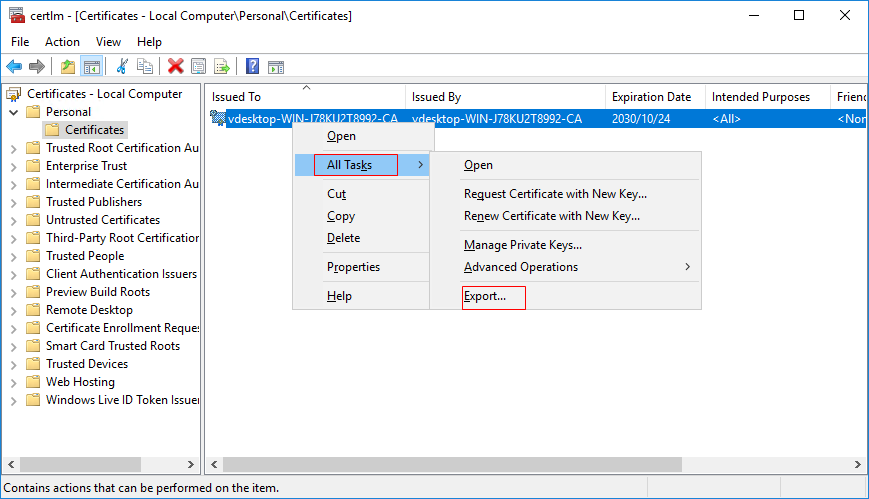
- Right-click the created CA certificate on the right and choose All Tasks > Export from the shortcut menu to go to the Certificate Export Wizard page, as shown in Figure 1.
- Click Next. The default prompt is displayed. Click Next again.
- Retain the default format of the exported file, and then click Next.
- Click Browse, select the export path, enter the name of the exported file (for example, adcsroot.cer), and click Save.
- Use the account and password to log in to the remaining AD domain servers.
- Copy the certificate exported in 7 to the AD server.
- Click
 in the lower left corner of the AD server, enter cmd, right-click Command Prompt and choose Run as administrator from the shortcut menu.
 - Go to the directory where the exported certificate is stored and run the following command to install the root CA certificate:
certutil -addstore root adcsroot.cer
Replace adcsroot.cer with the actual certificate name.
If there are multiple AD servers, repeat the preceding operations or apply the configuration to each AD server through the group policy. Procedure:
- On the taskbar in the lower left corner of the AD server logged in to in 8, click
 .
. - On the right of the Start menu, click to open Server Manager.
- In the upper right corner of the Server Manager page, choose Tools > Group Policy Management.
- On the Group Policy Management page, choose Forest > Domains.
- Expand the domain name, choose Group Policy Objects, right-click Default Domain Controllers Policy, and choose Edit from the shortcut menu.
- On the Group Policy Management Editor page, choose Computer Configuration > Preferences > Windows Settings > Registry.
- Right-click Registry and choose New > Registry Item from the shortcut menu.
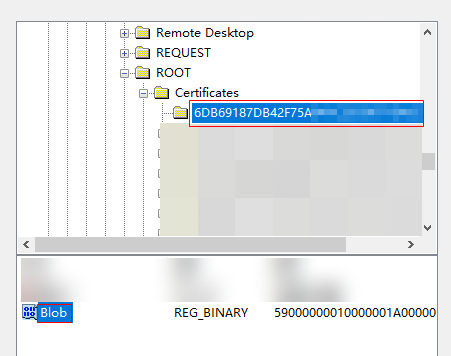
- On the New Registry Properties page, select the registry path HKEY_LOCAL_MACHINE\SOFTWARE\Microsoft\SystemCertificates\ROOT\Certificates\.
- Click the value of the Thumbprint field of the certificate downloaded in 7, select Blob, and click Select, as shown in the following figure.
- Double-click the certificate downloaded in 7 and view the value of the Thumbprint field in the Details drop-down list, as shown in the following figure.

- The default update period of the domain controller group policy is 5 minutes. It takes about 5 minutes to apply the update to all domain controllers.
What is your overall rating for this page?
Thank you very much for your feedback. We will continue working to improve the documentation.See the reply and handling status in My Cloud VOC.
For any further questions, feel free to contact us through the chatbot.
Chatbot


