

Querying and Downloading Binlogs
Scenarios
Binlogs record all DDL and DML statements (except data query statements). You can download binlogs to a local PC for further analysis.
This section describes how to enable binlog transfer to OBS, and then query and download binlogs on the TaurusDB console.
Billing
Binlogs transferred to OBS are stored in OBS buckets. For billing details, see How Is TaurusDB Backup Data Billed?
Prerequisites
You have enabled local binlogs. For details, see Enabling Local Binlogs.
Constraints
After binlogs are enabled, the instance's binlogs are transferred to OBS. To obtain the binlogs generated before binlogs are enabled, see Obtaining Binlogs Using mysqlbinlog.
Differences Between Binlogs Stored Within an Instance and Those Transferred to OBS
| Item | Binlogs Stored Within an Instance | Binlogs Transferred to OBS |
|---|---|---|
| Description | Binlogs are stored within an instance and consume its storage space. | Binlogs are transferred to OBS for storage. They consume OBS storage space instead of the instance's. |
| Status | By default, this function is disabled. To enable it, see Enabling Local Binlogs. | By default, this function is disabled. To enable it, see Enabling Binlog Dump. |
| Expiration time | The binlog_expire_logs_seconds parameter controls the expiration time. The default value is 3,600s. Binlogs that have been retained for a period longer than the value of this parameter will be automatically deleted. For details about how to change the parameter value, see Modifying Instance Parameters. | You can set the expiration time on the management console. The default value is 7 days. For details about how to change the expiration time, see Enabling Binlog Dump. |
| Billing | The binlogs consume the storage space of an instance. For details about the unit price of storage space, see "Storage Space Price" in TaurusDB Pricing Details. | If the free space OBS provides is used up, the additional space required will be billed. For billing details, see How Is TaurusDB Data Transferred to OBS Billed? |
Enabling Binlog and Querying and Downloading Binlogs
- Log in to the TaurusDB console.
- Click
 in the upper left corner and select a region.
 - On the Instances page, click the name of the target TaurusDB instance.
- In the navigation pane, choose Logs.
- Click the Binlog tab.
- Click Configure Binlog. In the displayed dialog box, enable Binlog and set Retention Period. The retention period ranges from 1 to 180 days. Figure 1 Configuring binlog

- Click OK.
- Log in to the TaurusDB console.
- Click in the upper left corner and select a region.
- On the Instances page, click the name of the target TaurusDB instance.
- In the navigation pane, choose Logs.
- Click the Binlog tab.
- View binlogs generated in the last 15 minutes, last 30 minutes, last 1 hour, last 24 hours, last 7 days, last 30 days, or a custom time range. Figure 2 Selecting a time range
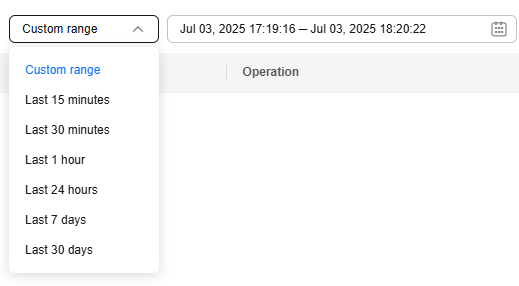
- Click Download in the Operation column to download a binlog to a local PC.
- View binlogs generated in the last 15 minutes, last 30 minutes, last 1 hour, last 24 hours, last 7 days, last 30 days, or a custom time range.
Disabling Binlog
- Log in to the TaurusDB console.
- Click in the upper left corner and select a region.
- On the Instances page, click the name of the target TaurusDB instance.
- In the navigation pane, choose Logs.
- Click the Binlog tab.
- Click Configure Binlog. In the displayed dialog box, disable Binlog.
Existing binlogs will be automatically deleted at the end of the retention period. Deleted logs cannot be restored. Exercise caution when disabling binlog.
- Click OK.
What is your overall rating for this page?
Thank you very much for your feedback. We will continue working to improve the documentation.See the reply and handling status in My Cloud VOC.
For any further questions, feel free to contact us through the chatbot.
Chatbot


