

Help Center/ Customer Engagement Center/ User Guide/ Tenant Administrator Guide/ Managing Cases/ Case 2.0 Operation Guide/ Administrator Guide/ Case Configuration/ Case Closure Reason
Updated on 2025-11-07 GMT+08:00
Case Closure Reason
A tenant space administrator can set case closure reasons.
Procedure
- Sign in to the AICC as a tenant space administrator and choose . Figure 1 Case Close Reason page

- Click
 and create a case closure reason by referring to Table 1. Figure 2 Create Case Close Reason

Table 1 Parameters for creating a case closure reason Element/Component
Description
Remarks
Organization
- After the tenant parameter Has the tenant enabled inter-organization data isolation enforcement is set to Yes, use either of the following methods to configure the OU data scope based on site requirements:
- For accounts without the View All Organization Data permission under System Public Permissions configured:
- If the Viewing and Editing Home Organization Data and View Lower-Level Organization Data permissions under System Public Permissions are not configured, only the OUs specified by Accessable Organizations configured on the Employee Info or Organization Unit page can be selected. NOTE:
If accessible OUs are configured on the Employee Info or Organization Unit page, the accessible OU configuration permission on the Employee Info page is used.
- If the Viewing and Editing Home Organization Data permission under System Public Permissions is configured, the OU (excluding sub-OUs) to which the current business account belongs can be viewed.
- If the View Lower-Level Organization Data permission under System Public Permissions is configured, the sub-OUs of the OU to which the current business account belongs can be viewed.
- If the Viewing and Editing Home Organization Data and View Lower-Level Organization Data permissions under System Public Permissions are not configured, only the OUs specified by Accessable Organizations configured on the Employee Info or Organization Unit page can be selected.
- For accounts with the View All Organization Data permission under System Public Permissions configured, all OUs can be selected.
- The number of OUs that can be selected is specified by the value of the system-level parameter Maximum number of OU organizational unit queries on the page.
- For accounts without the View All Organization Data permission under System Public Permissions configured:
- After the tenant parameter is set to No, all OUs can be selected.
-
Close Reason
Closure reason.
- The value contains a maximum of 128 characters.
- The value must be unique.
Upper-level reason
Reasons are displayed by layer, for example, Resolved > Design change > Insufficient budget.
A maximum of five layers are supported.
Description
Description.
-
- After the tenant parameter Has the tenant enabled inter-organization data isolation enforcement is set to Yes, use either of the following methods to configure the OU data scope based on site requirements:
- Click
 .
. - In the case closure reason list, click
 corresponding to the new closure reason to change the status to
  .
. - Choose Case 2.0 > Case Workbench and click a case to be closed in the case list. On the case details page that is displayed, click
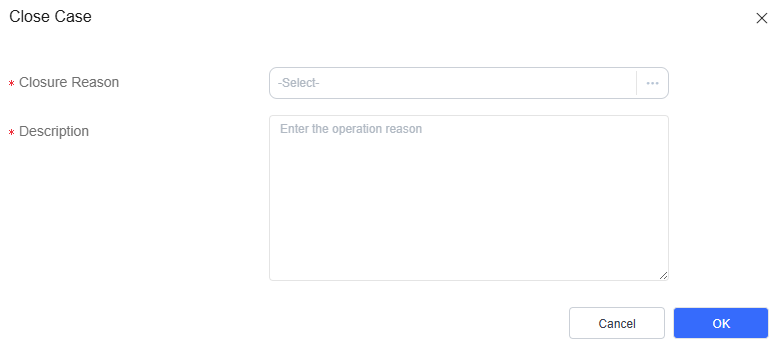
 . In the dialog box that is displayed, select a closure reason. Figure 3 Selecting a case closure reason
- Choose , select cases to be closed in the case list, and click
 . In the dialog box that is displayed, select a closure reason. Figure 4 Selecting a case closure reason when the Batch Closure function is used


Cases to be closed in batches must belong to the same OU.
Parent topic: Case Configuration
What is your overall rating for this page?
0
1
2
3
4
5
6
7
8
9
10
Very dissatisfiedVery satisfied
Thank you very much for your feedback. We will continue working to improve the documentation.See the reply and handling status in My Cloud VOC.
The system is busy. Please try again later.
For any further questions, feel free to contact us through the chatbot.
Chatbot


