

Image Repositories
Can I Export or Pull Public Images?
You cannot export or pull images uploaded by other users.
- To pull official images, run the corresponding container command. For example, to pull the Nginx image, run the following command:
- To pull the images that you have pushed to SWR, take the following steps:
- Log in to the SWR console.
- In the navigation pane, choose My Images. Click the image to be pulled. The image details page is displayed.
- Click the Pull/Push tab, and run the docker pull command to pull the desired image as prompted.
How Do I Create a Container Image?
You can use Dockerfile to create a container image for a simple web workload. After you create a containerized workload using an official Nginx image, the default Nginx welcome page is displayed. The following describes how to create an image to change the default welcome message to "Hello, CCI!"
- Log in to the VM running Docker as root.
- Create a file named Dockerfile.
mkdir mynginx
cd mynginx
touch Dockerfile
- Edit the Dockerfile file.
vi Dockerfile
Example file content:
FROM nginx
RUN echo '<h1>Hello,CCI!</h1>' > /usr/share/nginx/html/index.html
Where,
- FROM statement: specifies that an Nginx image is used as a base image.
- RUN statement: indicates that the echo command is executed to display "Hello, CCI!"
- Build a container image.
docker build -t nginx:v3 .
- Check the created image. The command output shows that the image has been created with a tag of v3.
docker images
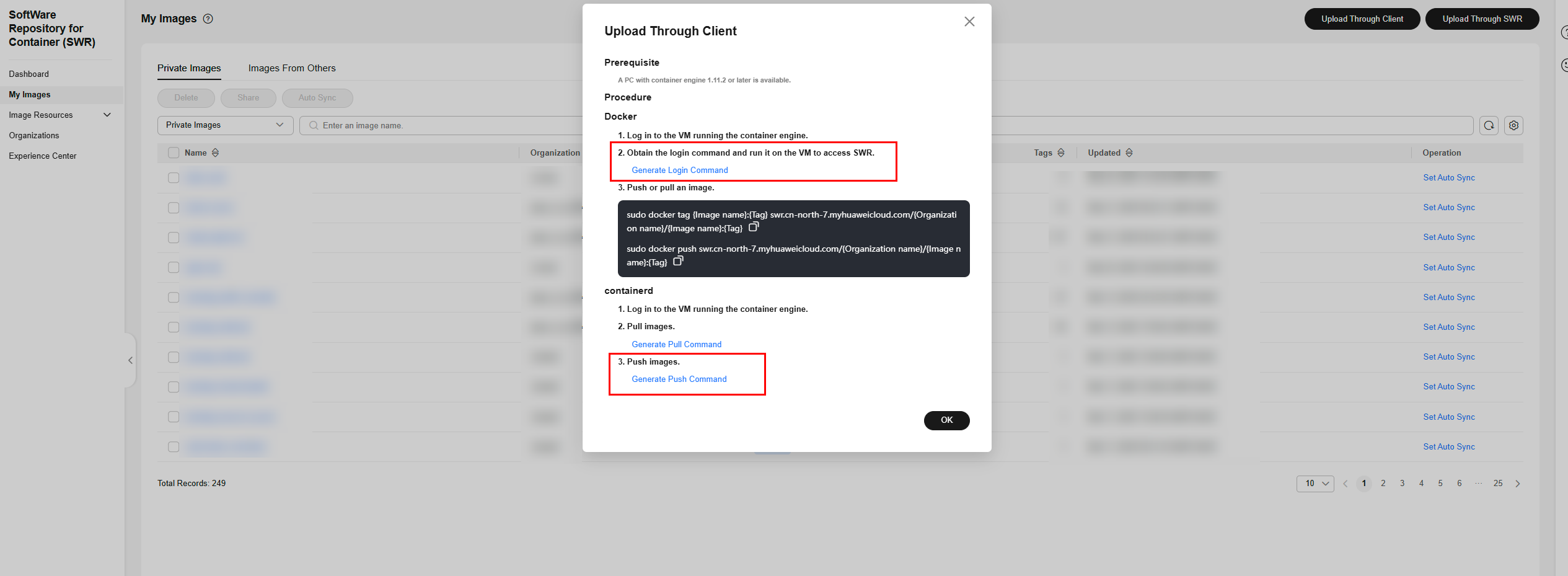
How Do I Push Images to SWR?
There are two methods to push images to SWR:
Does CCI Provide Base Container Images?
CCI's image repository is provided by SWR, which provides base container images.
Does CCI Administrator Have the Permission to Push Image Packages?
To push images for CCI, you need to use SWR.
You also need to add the swr:repo:upload permission for the account.
What Permissions Are Required for Pushing Image Packages for CCI?
To push images for CCI, you need to use SWR.
You need the swr:repo:upload permission. For details, see SWR permissions.
For details about how to push an image, see Pushing an Image Through a Container Engine Client or Uploading an Image Through SWR Console.
What Do I Do If Authentication Is Required During Image Push?
To push images for CCI, you need to use SWR.
To push images to SWR, you need the permission to access SWR. For details about how to push images, see Pushing an Image Through a Container Engine Client.
Is There a Way for CCI to Avoid Image Pull During Workload Startup?
CCI provides image snapshots. You can create an image snapshot using the image to be used, which avoids image pull when the workload is started. For details, see Image Snapshots.
What Should I Do If the Image Fails to Be Pulled and an Error Message Is Displayed Indicating that the Access to the 100.x IP Address Times Out?
This issue usually occurs when there is no VPC endpoint for accessing SWR in the VPC where the CCI pods are running and the pods cannot access the Internet. As a result, the image repository cannot be connected.
Solution: Create a VPC endpoint in the VPC where the CCI pods are running to access SWR.
- Log in to the management console, select a region in the upper left corner, and access VPC Endpoint.
- Click Buy VPC Endpoint and configure the parameters as follows:
- Region and VPC: Select the region and VPC where the CCI pods are running.
- Service Category: Select Cloud services.
- Name: Search for and select com.myhuaweicloud.{region}.swr (for example, com.myhuaweicloud.cn-north-4.swr).
After the purchase is complete, CCI can pull images from SWR over the private network.

If CCI pods have EIPs or a NAT gateway bound, they can pull images over the Internet. In this case, you do not need to configure the VPC endpoint for accessing SWR. However, you are advised to use VPC Endpoint for faster and more secure access.
What is your overall rating for this page?
Thank you very much for your feedback. We will continue working to improve the documentation.See the reply and handling status in My Cloud VOC.
For any further questions, feel free to contact us through the chatbot.
Chatbot


