

Updated on 2026-02-13 GMT+08:00
Viewing and Removing Mappings
You can view the mapping list on the Memory Acceleration Management page and remove mappings.
Usage Notes
- After mappings are removed, applications cannot obtain the latest data from the source instance. Exercise caution when performing this operation.
- The corresponding mapping rule will be cleared after a mapping is removed.
- If the source instance or acceleration instance is not normal, the mapping cannot be removed.
Querying the Mapping List
- Log in to the GeminiDB console.
- In the navigation pane on the left, choose Memory Acceleration Management. On the displayed page, search for your target mapping by keyword (such as the mapping name or mapping ID). Figure 1 Mapping list

Removing a Mapping
- Log in to the GeminiDB console.
- In the navigation pane, choose Memory Acceleration Management. On the displayed page, locate the target mapping and click Remove in the Operation column. Figure 2 Memory acceleration management

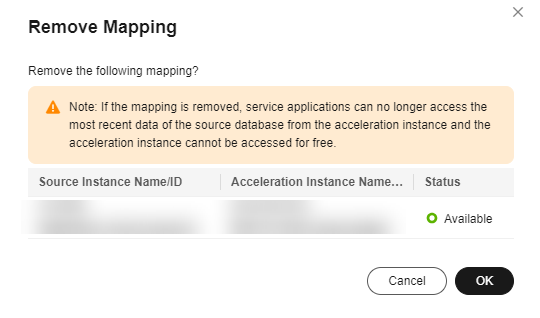
- In the displayed dialog box, click OK. Figure 3 Removing a mapping
Feedback
Was this page helpful?
Provide feedbackThank you very much for your feedback. We will continue working to improve the documentation.See the reply and handling status in My Cloud VOC.
The system is busy. Please try again later.
For any further questions, feel free to contact us through the chatbot.
Chatbot


