

Extracting Indicators from Alerts (Fetching Indicator from alert)
Playbook Overview
If new alerts reported to SecMaster contain specific attack source or target IP addresses, the Fetching Indicator from alert playbook automatically extracts them from the new alerts, generates corresponding IP indicators, and associates these indicators with the source alerts.
- If you have purchased ThreatBook, the Fetching Indicator from alert playbook automatically verifies extracted attack source and target IP addresses with ThreatBook, synchronizes the threat level and confidence of IP indicators when generating IP indicators in SecMaster. For details about how to configure ThreatBook, see Procedure for Configuring ThreatBook. For more information about ThreatBook, see ThreatBook Online Cloud API Introduction.
- If you have not purchased ThreatBook, the Fetching Indicator from alert playbook directly generates IP indicators after extracting the attack source and target IP addresses from new alerts and uses default threat level and confidence for the IP indicators. The default values are as follows:
- The default threat level is Blacklist for the attack source IP address and Whitelist for the attack target IP address.
- The default confidence is 80.
This playbook is applied to alerts only. Attacks cannot trigger it. For details about the differences between alerts and attacks, see Overview.
You need to enable the Fetching Indicator from alert playbook. Then, this playbook can be triggered when there are attack source or target IP addresses detected in new alerts reported to SecMaster.
Prerequisites
Your SecMaster professional edition is available.
Procedure for Configuring ThreatBook
If you have purchased ThreatBook, you need to configure the API key of the ThreatBook plugin in SecMaster so that the ThreatBook plugin can be called by the playbook.
- Log in to the SecMaster console.
- Click
 in the upper left corner of the management console and select a region or project.
 - In the navigation pane on the left, choose Workspaces > Management. In the workspace list, click the name of the target workspace. Figure 1 Workspace management page

- In the navigation pane on the left, choose . Figure 2 Plugins page
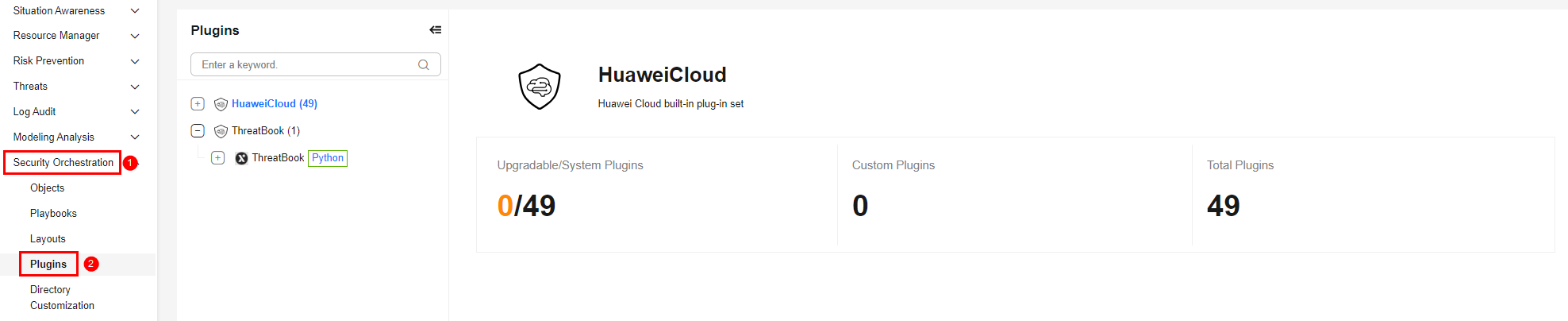
- On the Plugins page, enter ThreatBook to search for the ThreatBook plugin. Click the ThreatBook plugin name to go to the plugin details page.
- On the details page, click the Operation Connection tab, and click Edit in the Operation column of the row where the threatbook authentication token connection is located. The Edit Connection page is displayed. Figure 3 Editing the ThreatBook authentication token connection

- On the Edit Connection page, enter the ThreatBook authentication token API key. For details about how to obtain the ThreatBook API key, see Obtaining the API Key. You only need to enter either freeApiKey or paidApiKey. Other parameters are optional.
- freeApiKey: If you use the free version ThreatBook, enter freeApiKey.
- paidApiKey: If you use the paid version ThreatBook, enter paidApiKey.
Enabling a Playbook
- Log in to the SecMaster console.
- Click in the upper left corner of the management console and select a region or project.
- In the navigation pane on the left, choose Workspaces > Management. In the workspace list, click the name of the target workspace. Figure 4 Workspace management page
- In the navigation pane on the left, choose Security Orchestration > Playbooks. Figure 5 Accessing the Playbooks tab

- On the Playbooks page, search for the Fetching Indicator from alert playbook, and click Enable in the Operation column of the playbook. The confirmation dialog box is displayed.
- Select the playbook version you want to enable and click OK. After the playbook is enabled, its status changes to Enabled.
Implementation Effect
If new alerts reported to SecMaster contain specific attack source or target IP addresses, the Fetching Indicator from alert playbook automatically extracts them from the new alerts, generates corresponding IP indicators, and associates these indicators with the source alerts.
- For details about how to view indicators, see Viewing Indicators. On the Indicators page, click an indicator to go to the Indicator Overview page.
- On the Indicator Overview page, click Associated Alerts in the Associated Information area and view the associated alerts of the indicator.
What is your overall rating for this page?
Thank you very much for your feedback. We will continue working to improve the documentation.See the reply and handling status in My Cloud VOC.
For any further questions, feel free to contact us through the chatbot.
Chatbot


