

Identity Policy Versions
The system retains multiple versions of each identity policy. Policy versioning allows you to retrieve and restore earlier versions of an identity policy, quickly recover data in the event of accidental changes, and trace policy modification history during audits.
By default, editing an identity policy automatically generates a new version, sequentially numbered starting from v1. System-defined identity policy versions can only be viewed and cannot be modified. While you cannot delete any version of a system-defined policy, you can delete only non-default versions of custom identity policies.
Only the content of custom identity policies can be modified. The content of system-defined identity policies cannot be modified. A maximum of five versions of a custom identity policy can be retained.

Viewing Identity Policy Versions
- Log in to the new IAM console.
- Choose Identity Policies in the navigation pane.
- Click the name of the target identity policy. On the identity policy details page, click the Policy Versions tab. Figure 2 Viewing identity policy versions

Modifying an Identity Policy based on an Identity Policy Version
- Log in to the new IAM console.
- Choose Identity Policies in the navigation pane.
- Click the name of the target identity policy. On the identity policy details page, click the Policy Versions tab. Figure 3 Viewing identity policy versions

- Click
 next to an identity policy version, view the content, and copy it.
 - On the identity policy details page, click the Policy Content tab.
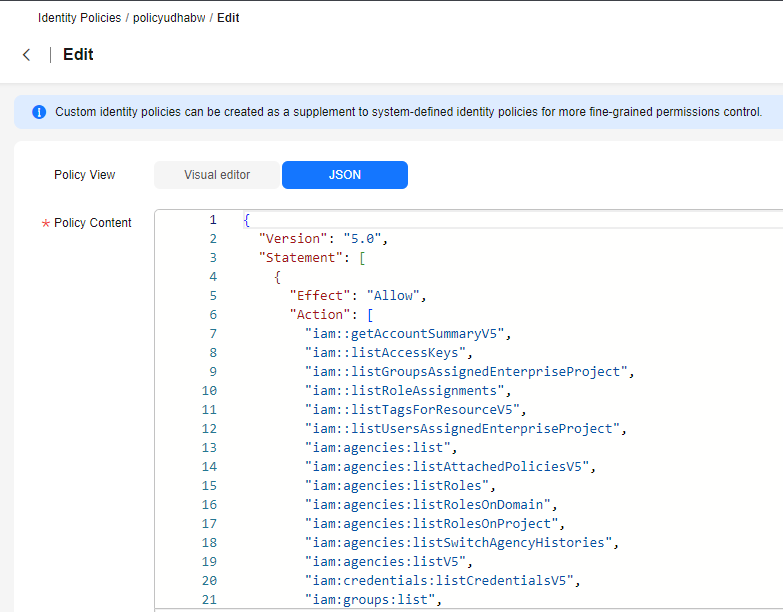
- Click Edit, select the JSON view, and paste the identity policy content. Figure 4 Modifying an identity policy
- Click OK.
Check the content of the identity policy to verify that the modifications are applied.
Setting the Default Policy Version
- Log in to the new IAM console.
- Choose Identity Policies in the navigation pane.
- Click the name of the target identity policy. On the identity policy details page, click the Policy Versions tab.
- Select a non-default version and click Set as Default. Figure 5 Setting the default policy version

- Click OK.
Verify that the modified version has a default mark after its name in the list of the Policy Versions tab.
What is your overall rating for this page?
Thank you very much for your feedback. We will continue working to improve the documentation.See the reply and handling status in My Cloud VOC.
For any further questions, feel free to contact us through the chatbot.
Chatbot


