

Logging In to the Instance Web Console
After logging in to the web console, the system administrator can manage and maintain API data security protection.
Prerequisites
- You have obtained the username and password from technical support engineers.
- The following table lists the default usernames. Obtain the actual usernames and passwords from the technical support.
Table 1 Default system account information Default Account
Description
System administrator
sysadmin
Responsible for routine operation and maintenance of the system.
Security administrator
secadmin
Responsible for routine security and confidentiality management of the system, including granting and revoking system user rights, and configuring security for platform login, account passwords, and network access.
Audit administrator
audadmin
Audits, traces, analyzes, supervises, and checks the operations of system administrators and security administrators.
Procedure
- Log in to an instance.
- Method 1: Log in to the service management console, go to the API Data Security Protection page, and click Local Login in the Operation column of the target instance.
- Method 2: Obtain EIP from the database O&M page displayed in method 1. Enter the address in the address box of the browser and press Enter. The login page is displayed. Address: https://<server-EIP>:<port-number>, for example, https://172.xx.xx.44:8441.
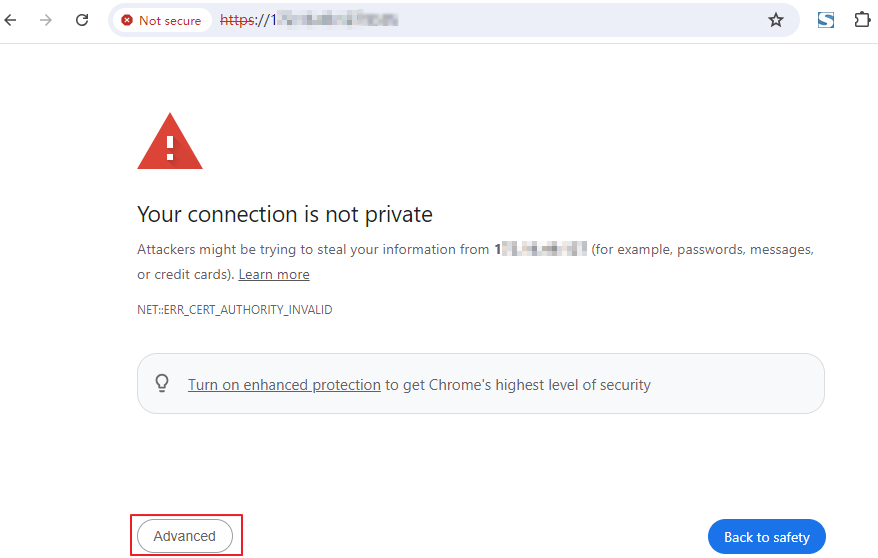
- On the security warning page, click Advanced. Figure 1 Security warning
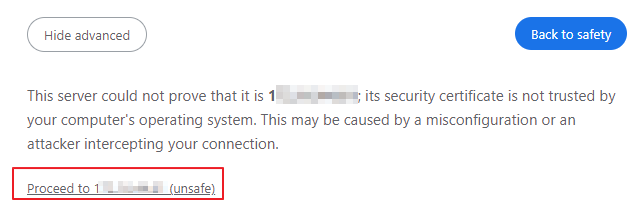
- (Optional) Click Proceed to xx.xx.xx.xx (unsafe). Figure 2 Accessing the login page
- (Optional) Click the drop-down arrow in the upper right corner and select a language.
- On the login page, enter the username and password, and click Log In.
- After the login is successful, check and configure API data security protection on the web console.
- Change the default password upon the first login. You are advised to change the password periodically to ensure login security. For details, see Changing the Login Password.
Changing the Login Password
- Log in to the web console and click the username in the upper right corner.
- Select Change Password from the drop-down list.
- In the displayed dialog box, set Old Password, New Password, and Confirm Password, and click Confirm.
Table 2 Description Parameter
Description
Old Password
Enter the original login password.
New Password
Enter the new password.
NOTE:To ensure login security, you are advised to set the password to a complex one, for example, a combination of the following characters:
- Uppercase letters (from A to Z)
- Lowercase letters (from a to z)
- Digital (0-9)
- Special characters (for example: !@#$)
Confirm Password
Enter the new password again.
Related Operations
If the Deployed Location is Off-cloud, click Obtain Interconnection Information in the Operation column of the instance list to obtain the Cloud Proxy Domain Name, Cloud Proxy Node IP Address, and Cloud Proxy Node Port, Off-cloud Primary Node ID, and Off-cloud Standby Node ID.
What is your overall rating for this page?
Thank you very much for your feedback. We will continue working to improve the documentation.See the reply and handling status in My Cloud VOC.
For any further questions, feel free to contact us through the chatbot.
Chatbot


