

Process
Figure 1 and Table 1 describe how to use Teleport-based DES.
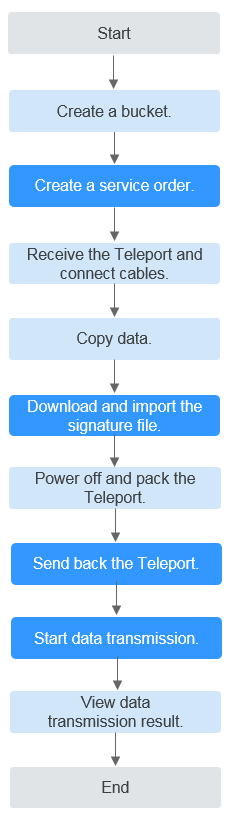
| Procedure | Description |
|---|---|
| Logging in to DES Console | Sign up for a HUAWEI ID and log in to DES Console. |
| Creating a bucket | Data is stored in OBS buckets. You must create a bucket on OBS before using DES. |
| Creating a DES order | You are advised to select a Huawei DC nearby and create a Teleport-based order. |
| Receiving the Teleport and connecting cables | Unpack and configure the device after receiving the Teleport from a Huawei DC. |
| Copying data | Copy local data to the Teleport storage system. |
| Downloading and importing the signature file | A signature file is the unique identifier of the Teleport in a service order. Before returning the Teleport, you must store the signature file in the teleportshare root directory. |
| Powering off and packing the Teleport | After all local data has been transmitted to the Teleport, power it off and pack it. |
| Sending back the Teleport | Send the Teleport back to the Huawei DC. The Teleport storage system that is sent back must contain the signature file. |
| Starting data transmission | Data upload starts after the administrator mounts the Teleport to a server and you enter the AK/SK. |
| Viewing the data transmission result | After data transmission is complete, you can download the generated data transmission report to check whether all data is successfully uploaded. |
What is your overall rating for this page?
Thank you very much for your feedback. We will continue working to improve the documentation.See the reply and handling status in My Cloud VOC.
For any further questions, feel free to contact us through the chatbot.
Chatbot


