

Connecting to a Cluster Instance Using Mongo Shell (Private Network)
Scenarios
Mongo Shell is the default client for the MongoDB database server. You can use Mongo Shell to connect to DB instances, and query, update, and manage data in databases. DDS is compatible with MongoDB. Mongo Shell is a part of the MongoDB client. To use Mongo Shell, download and install the MongoDB client first, and then use Mongo Shell to connect to a DB instance.
By default, a DDS instance provides a private IP address. If your applications are deployed on an ECS that is in the same region and VPC as your DDS instance, you can connect to the DDS instance using a private IP address to achieve a fast transmission rate and high security.
This section describes how to use Mongo Shell to connect to a cluster instance over a private network.
You can connect to a cluster instance using an SSL connection or an unencrypted connection. The SSL connection is encrypted and more secure. To improve data transmission security, connect to instances using SSL.
Prerequisites
- For details about how to create and log in to an ECS, see Purchasing an ECS and Logging In to an ECS.
- You have installed a MongoDB client on the ECS. To ensure successful authentication, install the MongoDB client of the same version as the target instance.
For details about how to install a MongoDB client, see How Can I Install a MongoDB Client?
- The ECS can communicate with the DDS instance. For details, see Configuring Security Group Rules.
Procedure

If you connect to an instance over the SSL connection, enable SSL first. Otherwise, an error is reported. For details about how to enable SSL, see Enabling and Disabling SSL.
- Log in to the management console.
- Click
 in the upper left corner and select a region and a project.
 - Click
 in the upper left corner of the page and choose Databases > Document Database Service.
 - On the Instances page, click the instance name.
- In the navigation pane, choose Connections.
- In the Basic Information area, click
 next to the SSL field.
 - Upload the root certificate to the ECS to be connected to the instance.
Choose the corresponding upload method based on whether the ECS runs Linux or Windows.
- In Linux, run the following command: scp <IDENTITY_FILE><REMOTE_USER>@<REMOTE_ADDRESS>:<REMOTE_DIR>

- IDENTITY_FILE is the directory where the root certificate resides. The file access permission is 600.
- REMOTE_USER is the ECS OS user.
- REMOTE_ADDRESS is the ECS address.
- REMOTE_DIR is the directory of the ECS to which the root certificate is uploaded.
- In Windows, upload the root certificate using a remote connection tool.
- In Linux, run the following command:
- Connect to the instance from the directory where the MongoDB client is located.
Method 1: Using the private HA connection address (recommended)
DDS provides a private HA connection address that consists of IP addresses and ports of all dds mongos nodes in a cluster instance. You can use this address to connect to the cluster instance to improve availability of the cluster instance.
Example command:
./mongo "<private-HA-connection-address>" --ssl --sslCAFile <FILE_PATH> --sslAllowInvalidHostnames
Parameter description:
- Private HA Connection Address: On the Instances page, click the instance name. The Basic Information page is displayed. Choose Connections. Click the Private Connection tab and obtain the connection address of the current instance from the Private HA Connection Address field. Figure 1 Obtaining the private HA connection address
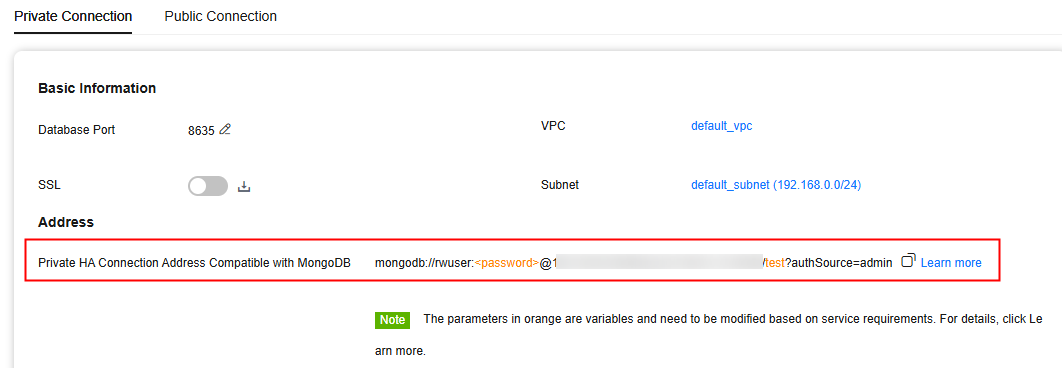
The format of the private HA connection address is as follows. The database username rwuser and authentication database admin cannot be changed.
mongodb://rwuser:<password>@192.168.xx.xx:8635,192.168.xx.xx:8635/test?authSource=admin
The following table lists the required parameters in the private HA address.
Table 1 Parameter information Parameter
Description
rwuser
Database username
<password>
Password for the database username. Replace it with the actual password.
If the password contains at signs (@), exclamation marks (!), dollar signs ($), percent signs (%), or plus signs (+), replace them with hexadecimal URL codes (ASCII) %40, %21, %24, %25, and %2B respectively.
For example, if the password is ****@%***!$+, the corresponding URL code is ****%40%25***%21%24%2B.
192.168.***.***:8635,192.168.***.***:8635
IP addresses and ports of the dds mongos nodes of the cluster instance to be connected.
test
The name of the test database. You can set this parameter based on your service requirements.
authSource=admin
The authentication database of user rwuser must be admin. authSource=admin is fixed in the command.
- FILE_PATH is the path for storing the root certificate.
- --sslAllowInvalidHostnames: To ensure that internal cluster communication does not consume user IP addresses or bandwidth resources, the cluster certificate is generated using the internal management IP address. --sslAllowInvalidHostnames is needed for the SSL connection through a private network.
Command example:
./mongo "mongodb://rwuser:<password>@192.168.xx.xx:8635,192.168.xx.xx:8635/test?authSource=admin" --ssl --sslCAFile /tmp/ca.crt --sslAllowInvalidHostnames
Method 2: Using the private HA connection address (user-defined database and account)
Example command:
./mongo "<private-HA-connection-address>" --ssl --sslCAFile <FILE_PATH> --sslAllowInvalidHostnames
Parameter description:
- Private HA Connection Address: On the Instances page, click the instance name. The Basic Information page is displayed. Choose Connections. Click the Private Connection tab and obtain the connection address of the current instance from the Private HA Connection Address field. Figure 2 Obtaining the private HA connection address
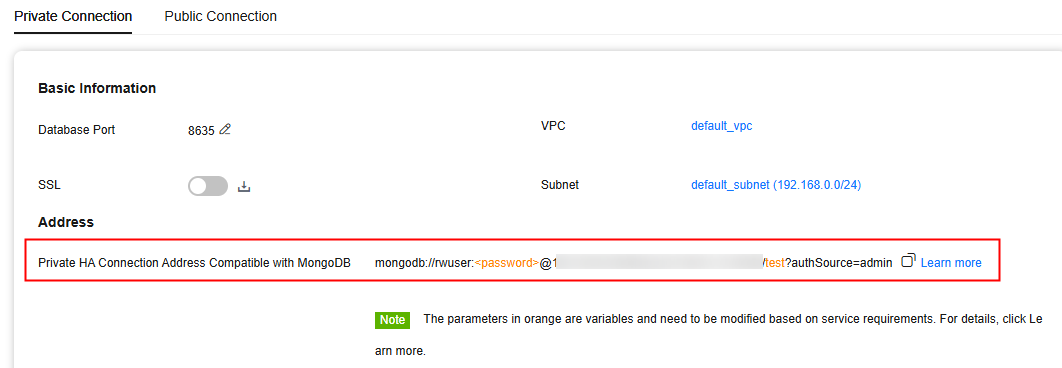
The format of the obtained private HA connection address is as follows:
mongodb://rwuser:<password>@192.168.xx.xx:8635,192.168.xx.xx:8635/test?authSource=admin
The following table lists the required parameters in the private HA address.
Table 2 Parameter information Parameter
Description
rwuser
Database username. The default value is rwuser. You can change the value to the username based on your service requirements.
<password>
Password for the database username. Replace it with the actual password.
If the password contains at signs (@), exclamation marks (!), dollar signs ($), percent signs (%), or plus signs (+), replace them with hexadecimal URL codes (ASCII) %40, %21, %24, %25, and %2B respectively.
For example, if the password is ****@%***!$+, the corresponding URL code is ****%40%25***%21%24%2B.
192.168.***.***:8635,192.168.***.***:8635
IP addresses and ports of the dds mongos nodes of the cluster instance to be connected.
test
The name of the test database. You can set this parameter based on your service requirements.
authSource=admin
The authentication database of user rwuser is admin.
NOTE:If you use a user-defined database for authentication, change the authentication database in the HA connection address to the name of the user-defined database. In addition, replace rwuser with the username created in the user-defined database.
- FILE_PATH is the path for storing the root certificate.
- --sslAllowInvalidHostnames: To ensure that internal cluster communication does not consume user IP addresses or bandwidth resources, the cluster certificate is generated using the internal management IP address. You must add --sslAllowInvalidHostnames when connecting to a cluster instance over a private network using SSL.
For example, if you create a user-defined database Database and user test1 in the database, the connection command is as follows:
./mongo "mongodb://test1:<password>@192.168.xx.xx:8635,192.168.xx.xx:8635/Database?authSource=Database" --ssl --sslCAFile /tmp/ca.crt --sslAllowInvalidHostnames
Method 3: Using a private IP address
Example command:
./mongo --host <DB_HOST> --port <DB_PORT> -u <DB_USER> -p --authenticationDatabase admin --ssl --sslCAFile <FILE_PATH> --sslAllowInvalidHostnames
Parameter description:
Enter the database account password when prompted:
Enter password:
Command example:
./mongo "--host 192.168.1.6 --port 8635 -u rwuser -p --authenticationDatabase admin" --ssl --sslCAFile /tmp/ca.crt --sslAllowInvalidHostnames
- Private HA Connection Address: On the Instances page, click the instance name. The Basic Information page is displayed. Choose Connections. Click the Private Connection tab and obtain the connection address of the current instance from the Private HA Connection Address field.
- Check the connection result. If the following information is displayed, the connection is successful.
mongos>


If you connect to an instance over an unencrypted connection, disable SSL first. Otherwise, an error is reported. For details about how to disable SSL, see Enabling and Disabling SSL.
- Connect to the ECS.
- Connect to the instance from the directory where the MongoDB client is located.
Method 1: Private HA connection address (recommended)
Example command:
./mongo "<Private HA Connection Address>"
Private HA Connection Address: On the Instances page, click the instance name. The Basic Information page is displayed. Choose Connections. Click the Private Connection tab and obtain the connection address of the current instance from the Private HA Connection Address field.
Figure 5 Obtaining the private HA connection address

The format of the private HA connection address is as follows. The database username rwuser and authentication database admin cannot be changed.
mongodb://rwuser:<password>@192.168.xx.xx:8635,192.168.xx.xx:8635/test?authSource=admin
The following table lists the required parameters in the private HA address.
Table 4 Parameter information Parameter
Description
rwuser
Database username
<password>
Password for the database username. Replace it with the actual password.
If the password contains at signs (@), exclamation marks (!), dollar signs ($), percent signs (%), or plus signs (+), replace them with hexadecimal URL codes (ASCII) %40, %21, %24, %25, and %2B respectively.
For example, if the password is ****@%***!$+, the corresponding URL code is ****%40%25***%21%24%2B.
192.168.***.***:8635,192.168.***.***:8635
IP addresses and ports of the dds mongos nodes of the cluster instance to be connected.
test
The name of the test database. You can set this parameter based on your service requirements.
authSource=admin
The authentication database of user rwuser must be admin. authSource=admin is fixed in the command.
Command example:
./mongo "mongodb://rwuser:<password>@192.168.xx.xx:8635,192.168.xx.xx:8635/test?authSource=admin"
Method 2: Private HA connection (user-defined database and account)
Example command:
./mongo "<private-HA-connection-address>"
Private HA Connection Address: On the Instances page, click the instance name. The Basic Information page is displayed. Choose Connections. Click the Private Connection tab and obtain the connection address of the current instance from the Private HA Connection Address field.
Figure 6 Obtaining the private HA connection address

The format of the obtained private HA connection address is as follows:
mongodb://rwuser:<password>@192.168.xx.xx:8635,192.168.xx.xx:8635/test?authSource=admin
The following table lists the required parameters in the private HA address.
Table 5 Parameter information Parameter
Description
rwuser
Database username. The default value is rwuser. You can change the value to the username based on your service requirements.
<password>
Password for the database username. Replace it with the actual password.
If the password contains at signs (@), exclamation marks (!), dollar signs ($), percent signs (%), or plus signs (+), replace them with hexadecimal URL codes (ASCII) %40, %21, %24, %25, and %2B respectively.
For example, if the password is ****@%***!$+, the corresponding URL code is ****%40%25***%21%24%2B.
192.168.***.***:8635,192.168.***.***:8635
IP addresses and ports of the dds mongos nodes of the cluster instance to be connected.
test
The name of the test database. You can set this parameter based on your service requirements.
authSource=admin
The authentication database of user rwuser is admin.
NOTE:If you use a user-defined database for authentication, change the authentication database in the HA connection address to the name of the user-defined database. In addition, replace rwuser with the username created in the user-defined database.
For example, if you create a user-defined database Database and user test1 in the database, the connection command is as follows:
./mongo "mongodb://test1:<password>@192.168.xx.xx:8635,192.168.xx.xx:8635/Database?authSource=Database"
Method 3: Using a private IP address
Example command:
./mongo --host <DB_HOST> --port <DB_PORT> -u <DB_USER> -p --authenticationDatabase admin
Parameter description:
Enter the database account password when prompted:Enter password:
Command example:
./mongo --host 192.168.1.6 --port 8635 -u rwuser -p --authenticationDatabase admin
- Check the connection result. If the following information is displayed, the connection is successful.
mongos>


Helpful Links
What is your overall rating for this page?
Thank you very much for your feedback. We will continue working to improve the documentation.See the reply and handling status in My Cloud VOC.
For any further questions, feel free to contact us through the chatbot.
Chatbot


