

Configuring Public Network Access
For enterprise applications, to make CSS Elasticsearch clusters securely accessible from the Internet, you can enable public network access for them. When public network access is enabled for a cluster, the cluster is automatically assigned a public IP address with dedicated dynamic BGP bandwidth, making it accessible from the Internet via HTTPS. You can configure public network access control by IP addresses or IP address ranges.
To enable public network access for Elasticsearch clusters, a shared load balancer is typically used for load balancing. If your workloads require quicker access, you are advised to use a dedicated load balancer to connect to your clusters. For details about its configuration, see Configuring a Dedicated Load Balancer.
Impact on Billing
When public network access is enabled for an Elasticsearch cluster, the cluster is automatically assigned an EIP and public network bandwidth, which will both incur expenses.
Constraints
- Public network access can be enabled for an Elasticsearch cluster only if the cluster version is 6.5.4 or later, and Security Mode and HTTPS Access are both enabled.
- Public network access and VPC Endpoint share the same shared load balancer. If you configure a whitelist for public network access control, this whitelist is deployed to the shared load balancer. As such, it will control access not only from the public network but also from private IP addresses through VPCEP. In this case, you need to add IP address 198.19.128.0/17 to the public access control whitelist to allow traffic through VPCEP.
Enabling Public Network Access
To enable public network access for an existing cluster, perform the following steps:
- Log in to the CSS management console.
- In the navigation pane on the left, choose Clusters > Elasticsearch.
- In the cluster list, click the name of the target cluster. The cluster information page is displayed.
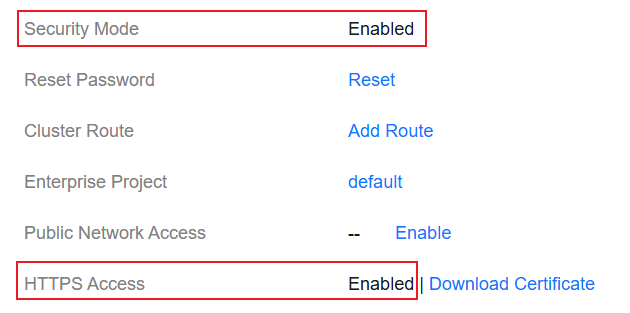
- On the Overview tab, go to the Network Information area, and check whether Security Mode and HTTPS Access are enabled.
- If they are enabled, go to the next step to enable public network access.
- If either one is disabled, public network access cannot be enabled for the cluster.
Figure 1 Checking whether public network access can be enabled for the cluster
- Click Enable next to Public Network Access. In the displayed dialog box, configure the necessary settings.
- Click OK to enable public network access.
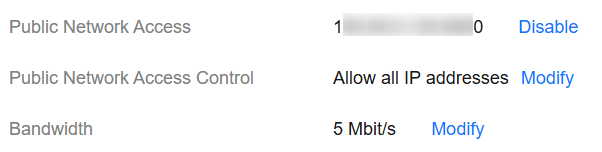
After public network access is enabled, the Network Information area shows the public IP address, public network access control, and bandwidth information.
Managing Public Network Access
When public network access is enabled, you can check the public IP address, and modify the bandwidth and access control settings.
- Log in to the CSS management console.
- In the navigation pane on the left, choose Clusters > Elasticsearch.
- In the cluster list, click the name of the target cluster. The cluster information page is displayed.
- On the Overview tab, manage public network access settings in the Network Information area. Figure 2 Managing public network access
- Checking the public IP address
Record the IP address and port under Public Network Access for later use.
- Modifying public network access control settings
Click Modify under Public Network Access Control. In the displayed dialog box, add or remove IP addresses or CIDR blocks to or from the whitelist. Click OK to save the change.
- Modifying public network bandwidth
Click Modify under Bandwidth. In the displayed dialog box, change the bandwidth for optimal network performance. Click OK to save the change.
- Checking the public IP address
Disabling Public Network Access
If public network access is no longer required for a cluster, disable it to release resources.

After the public IP address is disassociated, the cluster can no longer be accessed from the Internet through this IP address. If you disable public network access for a cluster and then re-enable it, the public IP address for accessing the cluster may change. Exercise caution.
- Log in to the CSS management console.
- In the navigation pane on the left, choose Clusters > Elasticsearch.
- In the cluster list, click the name of the target cluster. The cluster information page is displayed.
- On the Overview tab, find Public Network Access in the Network Information area, and click Disable under it. In the displayed dialog box, enter CONFIRM and click OK.
After public network access is disabled, the Network Information area no longer shows the public IP address, public network access control, or bandwidth information.
Accessing a Cluster Through the Public IP Address
After public network access is enabled, the cluster is assigned a public IP address. External users can securely access this cluster through this IP address plus a port number.
curl -u username:password -k 'https://10.62.xxx.xxx:9200/_cat/indices'
where, username and password indicate the username and password of the HTTPS-enabled security-mode cluster.
What is your overall rating for this page?
Thank you very much for your feedback. We will continue working to improve the documentation.See the reply and handling status in My Cloud VOC.
For any further questions, feel free to contact us through the chatbot.
Chatbot


