

Creating a VPC Border Firewall
Scenario
Before enabling traffic protection via a VPC border firewall, you must plan the CIDR blocks dedicated to traffic redirection. The traffic diversion VPC does not occupy the VPC protection quotas under your account.
Deploying and configuring a VPC border firewall enables visualization and security control over east-west traffic between VPCs and on-premises IDCs, or between separate VPCs. It enforces access control, intrusion prevention, and anomaly interception to safeguard internal cloud networks.
This section describes how to create a VPC border firewall.
Prerequisites
- For details about Enterprise Router pricing, see Billing.
- For details about how to create an enterprise router, see Creating an Enterprise Router. You are advised to deselect Default Route Table Association and Default Route Table Propagation during creation.
Constraints
Only the professional edition supports VPC border firewalls.
Precautions
- An enterprise router is used for traffic diversion. It must meet the following requirements:
- Not associated with other firewall instances.
- Belongs to the current account and is not shared with other users.
- Default Route Table Association, Default Route Table Propagation, and Auto Accept Shared Attachments must be disabled.
- A CIDR block is used to forward traffic to CFW. Pay attention to the following restrictions:
- This CIDR block cannot overlap with the private network segment to be protected, or routing conflicts may occur.
- The CIDR block 10.6.0.0/16-10.7.0.0/16 is reserved for CFW and cannot be specified.
Creating a VPC Border Firewall
- Log in to the CFW console.
- Click
 in the upper left corner of the management console and select a region.
 - (Optional) Switch to another firewall instance. If there are multiple firewall instances, you can select a desired instance from the drop-down list in the upper left corner of the page.
- In the navigation pane, choose Assets > Inter-VPC Border Firewalls.
- Click Create Inter-VPC Firewall.
- On the displayed page, set the route type to Enterprise Router and click Next.
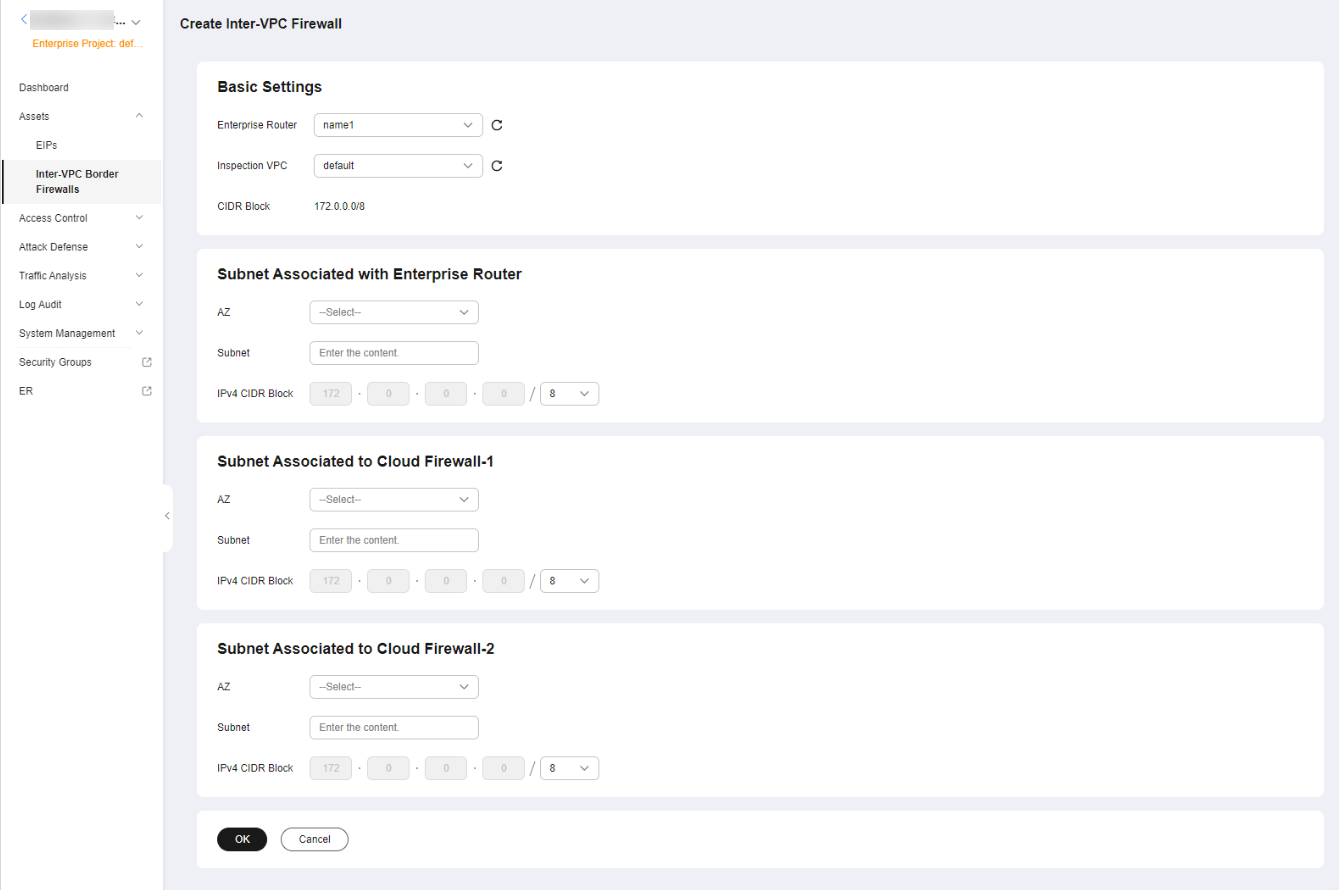
- Select an enterprise router and configure a proper CIDR block. Figure 1 Creating a VPC Border Firewall

- An enterprise router is used for traffic diversion. It must meet the following requirements:
- Not associated with other firewall instances.
- Belongs to the current account and is not shared with other users.
- Default Route Table Association, Default Route Table Propagation, and Auto Accept Shared Attachments must be disabled.
- After a CIDR block is configured, an inspection VPC is created by default to forward traffic to CFW. A CFW-associated subnet is automatically allocated to forward traffic to an enterprise router. Pay attention to the following restrictions:
- Resource ownership and CIDR block planning: The inspection VPC does not belong to your account (it is not displayed in the resource list of your account), but you need to specify its CIDR blocks. The larger the available space in the CIDR block, the more flexibility it will have in expanding CFW capacity, such as adding protected nodes or increasing traffic processing capacity.
- CIDR block conflict prevention: The planned CIDR block of the inspection VPC must not overlap with the CIDR blocks of the services that are already protected or scheduled for protection. Otherwise, traffic routing will be abnormal.
- Only private network address segments (10.0.0.0/8, 172.16.0.0/12, and 192.168.0.0/16) are supported. Otherwise, route conflicts may occur in public network access scenarios, such as SNAT.
- The CIDR block 10.6.0.0/16-10.7.0.0/16 is reserved for CFW and cannot be specified.
- Restriction on CIDR block masks: CFW needs to reserve some addresses for critical operations including O&M management and system update. Therefore, the CIDR block mask of the inspection VPC cannot be less than /24 (that is, the subnet mask cannot be greater than 255.255.255.0), or CFW cannot run properly.
- CIDR blocks cannot be modified after saving. In the east-west traffic diversion scenario, the CIDR block of the inspection VPC cannot be modified once saved. You are strongly advised to fully evaluate the subsequent service expansion requirements and reserve sufficient CIDR blocks before the configuration. To ensure your CIDR block can support long-term use, refer to the following table when configuring the CIDR block mask of the inspection VPC.
CIDR block mask
Max. Protected Traffic
/ 24
20 Gbps
/ 23
45 Gbps
/ 22
95 Gbps
/ 21
195 Gbps
/ 20
395 Gbps
- If the page shown in Figure 2 is displayed, you are using the old CFW version. For details about how to configure the VPC border firewall, see Enterprise Router Mode (Old).
- An enterprise router is used for traffic diversion. It must meet the following requirements:
- Click OK. The firewall will be created in 3 to 5 minutes.
During the creation, you can only check the Dashboard page. The firewall status will change to Upgrading.
Follow-up Operations
After creating the VPC border firewall and associating it with the ER, you must configure the router to redirect traffic to CFW. For detailed instructions, see Configuring the Enterprise Router to Divert Traffic to CFW.
Related Operations
Disabling a firewall: After a firewall is created, it cannot be deleted or unsubscribed from. You can disable firewall protection. For details, see Disabling a VPC Border Firewall. If VPC border protection is no longer required, after you disable protection, you still need to manually restore the configuration of the enterprise router.
What is your overall rating for this page?
Thank you very much for your feedback. We will continue working to improve the documentation.See the reply and handling status in My Cloud VOC.
For any further questions, feel free to contact us through the chatbot.
Chatbot


