

Help Center/
GeminiDB/
GeminiDB Redis API/
Working with GeminiDB Redis API/
Modifying Instance Settings/
Changing vCPUs and Memory
Updated on 2025-12-05 GMT+08:00
Changing vCPUs and Memory
Scenarios
You can change instance vCPUs and memory on the console to accommodate your workloads. If your instance is overloaded, you are advised to add compute nodes.
Usage Notes
- Second-level intermittent disconnection occurs once when the specifications are changed on a single node. Therefore, the entire instance is intermittently disconnected several times. Ensure that the client can be reconnected. You are advised to perform the specification change during off-peak hours.
- For a node whose specifications are being changed, its computing tasks are handed over to other nodes. Change specifications of nodes during off-peak hours to prevent the instance from overload.
Video Tutorial
This video shows you how to change instance vCPUs and memory.
Procedure
- Log in to the GeminiDB console.
- In the navigation pane, choose Instances.
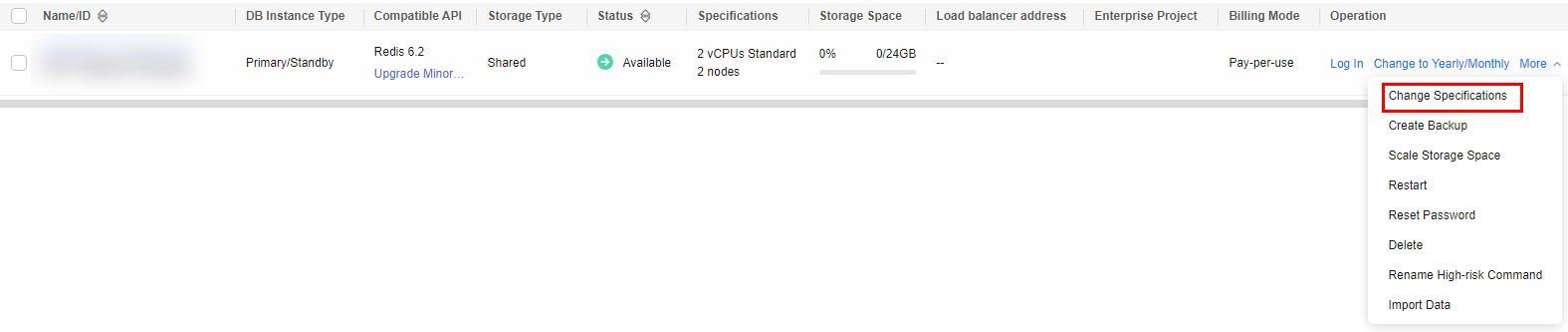
- Locate an instance with classic storage. Choose More > Change Specifications in the Operation column.
Figure 1 Changing specifications
- Locate an instance with cloud native storage, Click Change Specifications in the Operation column.
Figure 2 Changing instance specifications

In the DB Information area on the Basic Information page, click Change under Node Specifications.
- Instance with classic storage
Figure 3 Changing specifications

- Capacity-oriented instance with cloud native storage
Figure 4 Changing specifications

- Locate an instance with classic storage. Choose More > Change Specifications in the Operation column.
- On the displayed page, select a specification change mode and required specifications, and click Next.
- Online change: During the change, instance nodes are upgraded in rolling mode, which has the minimum impact on services. The change duration is positively related to the number of nodes. Each node takes about 5 to 10 minutes. If there are a large number of nodes, wait patiently.
- Offline change: During offline change, all nodes are changed concurrently, which interrupts services for 10 to 20 minutes. Exercise caution when performing this operation. For your online production services, you are advised to perform the change online.
- Instance with classic storage
Figure 5 Changing specifications

- Capacity-oriented instance with cloud native storage
Figure 6 Changing specifications

- On the displayed page, confirm the specifications.
- If you need to modify your settings, click Previous.
- If you do not need to modify your settings, click Submit.
- View the change results.
In the DB Information area on the Basic Information page, you can see the new specifications.
Feedback
Was this page helpful?
Provide feedbackThank you very much for your feedback. We will continue working to improve the documentation.See the reply and handling status in My Cloud VOC.
The system is busy. Please try again later.
For any further questions, feel free to contact us through the chatbot.
Chatbot


