

Creating an External Table in a Directory (Read and Execute Permission Granted)
Scenarios
When creating a Hive external table, you must be the owner of the table's location directory. However, if the hive.restrict.create.grant.external.table parameter is enabled, any user or user group with Read and Execute permissions on that directory can create external tables. Note that the location directory cannot be the default warehouse directory. In addition, do not modify location directory permissions while authorizing an external table.
You can create or authorize an external table only if you have the required permissions. This mechanism effectively prevents unauthorized users from accessing sensitive data paths. In the production environment, especially where multiple users share a cluster, you are advised to use HDFS permission management to improve data security.

Enabling this feature significantly changes external table behavior. Evaluate your requirements carefully before enabling it.
Notes and Constraints
This section applies only when Ranger authentication is not enabled for Hive.
Procedure
- Log in to Manager and choose System > Permission > User. On the displayed page, create two users with the same permissions, for example, test and test1. Add The two users to the hive and hadoop user groups.
- Log in to the node where the client is installed as the client installation user.
For details about how to download and install the cluster client, see Installing an MRS Cluster Client.
- Go to the client installation directory, configure environment variables, and authenticate the user.
- Go to the client installation directory.
cd /opt/hadoopclient
- Configure environment variables.
source bigdata_env
- Authenticate the user. Skip this step if Kerberos authentication is disabled for the cluster (in normal mode).
kinit Component service userExample:
kinit test
- Go to the client installation directory.
- Create an HDFS directory for storing Hive external tables:
hdfs dfs -mkdir /user/test
View the HDFS directory.
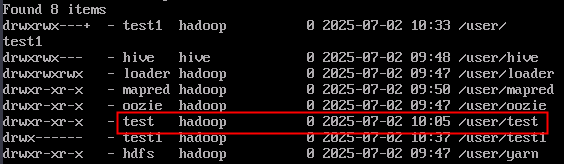
- Run the following command to log in to the Hive client as another user. Create a Hive external table and save it to the HDFS directory created in 4.
- Authenticate the user. Skip this step if Kerberos authentication is disabled for the cluster (in normal mode).
kinit Component service userExample:
kinit test1
- Log in to the Hive client.
beeline
- Create a Hive external table.
create external table test(name string) location "hdfs://hacluster/user/test";
After the command is executed, an error message is displayed, indicating that the user does not have the required permission.
Figure 1 Insufficient permissions reported

- Authenticate the user. Skip this step if Kerberos authentication is disabled for the cluster (in normal mode).
- Log in to FusionInsight Manager, choose Cluster > Services > Hive, and click Configurations and then All Configurations.
- Choose HiveServer(Role) > Customization, add a customized parameter to the hive-site.xml parameter file, set Name to hive.restrict.create.grant.external.table, and set Value to true.
MRS 3.6.0-LTS or later: Click Save to save the settings. After the message "Operation succeeded" is displayed, click Finish. This parameter takes effect dynamically. You do not need to restart the HiveServer instance.
- Choose MetaStore(Role) > Customization, add a customized parameter to the hivemetastore-site.xml parameter file, set Name to hive.restrict.create.grant.external.table, and set Value to true.
- Click Save to save the settings. Click Instances, select all Hive instances (or select all MetaStore instances for MRS 3.6.0-LTS and later), choose More > Restart Instance, enter the password of the current user, and click OK.
- Determine whether to enable this function on the Spark/Spark2x client.
- If yes, download and install the Spark/Spark2x client again.
- If no, no further action is required.
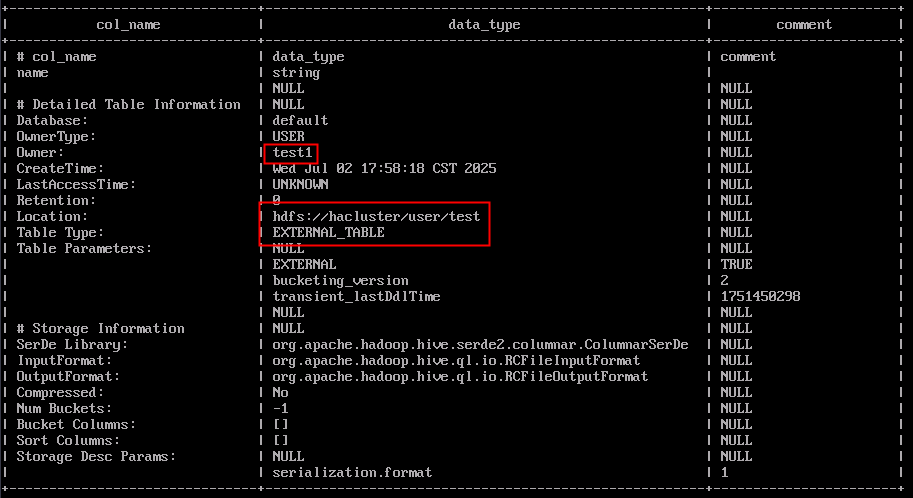
- Repeat 5 to create a Hive external table. The table is created successfully. You can run the following command to view the details about the Hive table:
desc formatted test;
Figure 2 Viewing Hive table details
Run the following command to create a Hive external table in the /user/hive/warehouse directory. An error message will appear, stating that external tables cannot be located in the default warehouse directory.
create external table test1(name string) location "hdfs://hacluster/user/hive/warehouse";
Figure 3 Table creation error

What is your overall rating for this page?
Thank you very much for your feedback. We will continue working to improve the documentation.See the reply and handling status in My Cloud VOC.
For any further questions, feel free to contact us through the chatbot.
Chatbot


