

Exporting an Image
Scenarios
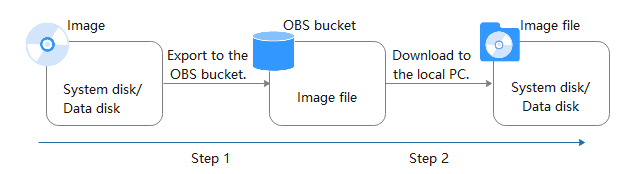
You can export a private image to a standard OBS bucket and then download it to your local PC.
Background
Constraints
| Item | Description |
|---|---|
| Region | An image can only be exported to a Standard bucket that is in the same region as the image. |
| Image type | The following private images cannot be exported:
NOTE:
|
| Image format |
|
| Image size | The image size must be less than 1 TiB. Images larger than 128 GiB and smaller than 1 TiB only support fast export. For details about the differences between standard and fast export, see What Are the Differences Between Standard and Fast Import/Export? NOTE: In some regions, an image larger than 128 GiB can be exported without enabling fast export. You can see on the console if such a large image can be exported in that way. |
| Time | The time required for exporting an image depends on the image size and the number of concurrent export tasks. |
| Billing | You will be billed for storing exported images in the OBS bucket. For details, see OBS Pricing Details. |
Prerequisites
- You have Administrator permissions for OBS. For details, see Using IAM to Grant Access to OBS.
- An OBS bucket is available for storing the private image in the region where the private image is located.
If no OBS bucket is available, create one by referring to Creating a Bucket. Select Standard for Storage Class.
Procedure
- Log in to the IMS console.
- Locate the row that contains the image to be exported, click More in the Operation column and select Export.
- In the displayed dialog box, specify the parameters as required. Figure 2 Exporting an Image

Table 2 Image export parameters Parameter
Description
Example Value
Fast Export
To export an image larger than 128 GiB, you must enable fast export. The exported format is ZVHD2. After the image is exported, you can use the qemu-img-hw tool to convert the image to another format.
For details, see Converting the Image Format Using qemu-img-hw.
NOTE:For details about the differences between standard and fast export, see What Are the Differences Between Standard and Fast Import/Export?
-
Format
The image can be exported in QCOW2, VMDK, VHD, or ZVHD format. Select the image format as required.
qcow2
Name
Enter a name that is easy to identify.
-
Storage Path
Click
 to expand the bucket list and select an OBS bucket for storing the image.NOTE:
An image can only be exported to a Standard bucket that is in the same region as the image. So, only such buckets are listed.
-
- Click OK. You can view the image export progress above the private image list.
Follow-up Procedure
After the image is exported, you can download it from the OBS bucket through the management console or OBS Browser+. For details, see Downloading an Object.
What is your overall rating for this page?
Thank you very much for your feedback. We will continue working to improve the documentation.See the reply and handling status in My Cloud VOC.
For any further questions, feel free to contact us through the chatbot.
Chatbot


