

Managing Subdomains
Scenarios
A subdomain and its primary domain name are indeed part of the same registered domain. A subdomain is essentially an extension of the primary domain name, created by adding a prefix (one or more parts) before the primary domain name. You can use subdomains to categorize and separate different types of services, languages, and brands on your website, while also allowing for flexibility in DNS management.
The DNS service supports subdomain hosting and subdomain NS delegation. A subdomain is derived from a primary domain, for example, if the primary domain is example.com, the subdomain is www.example.com. By configuring NS record sets for the primary domain, you can delegate the subdomains to Huawei Cloud DNS. This allows you to manage the record sets and resource permissions of the subdomains separately from the primary domain.
- Independent management of subdomains: Each subdomain has its own authoritative DNS servers. Changing record sets of a subdomain does not affect the primary domain or other subdomains at the same level.
- Flexible ownership: A subdomain name can be in the same Huawei Cloud account as the primary domain name, or in another Huawei Cloud account or third-party DNS service provider.
| Scenarios | Description |
|---|---|
| Enterprise service isolation | Different business units of an enterprise manage app.example.com and ops.example.com independently. Hosting the subdomains separately ensures O&M isolation and prevents changes in one service from affecting the other. |
| Isolation of test and production environments | test.example.com is hosted separately. Frequent changes in the test environment do not affect the record sets of the primary domain. |
| Step-by-step domain transfer in hybrid cloud | The primary domain remains with the original registrar or third-party DNS service provider, while only the subdomains are migrated to Huawei Cloud DNS. This enables a phased cloud migration strategy without moving the entire primary domain at once. |
| O&M by third-party service providers | The management rights of the primary domain are retained, and some subdomains are delegated to a partner for separate hosting and resolution on Huawei Cloud. |
Constraints
- The primary domain of a subdomain has been registered with a domain name registrar.
- Subdomain levels follow standard DNS specifications. The DNS service supports the creation of multi-level subdomains.
- A subdomain can only be hosted by one Huawei Cloud account. If a subdomain is occupied by another account, you can reclaim the management rights through public zone reclaim.
- If NS delegation is not configured for a subdomain, the record sets of the primary domain take effect, and the record sets of the subdomain are managed by the primary domain.
- If NS delegation has been configured for a subdomain (meaning NS records have been added for that subdomain), and the subdomain is hosted on Huawei Cloud DNS, the A, AAAA, CNAME or other record sets configured for the subdomain will take precedence and be served for resolution.
Adding a Subdomain to a Public Zone
- Go to the Public Zones page.
- In the upper right corner of the page, click Create Public Zone. Configure parameters based on Table 1.Figure 1 Creating a public zone
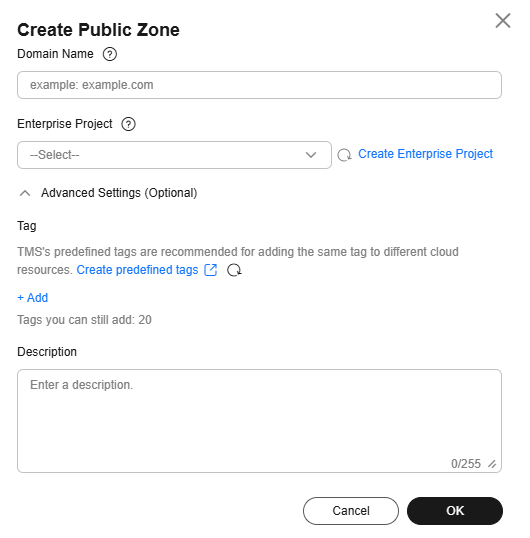
Table 1 Parameters for creating a subdomain Parameter
Description
Example
Domain Name
Subdomain of the domain name purchased from a domain name registrar.
For details about the domain name format, see Domain Name Format and DNS Hierarchy.
www.example.com
Enterprise Project
Enterprise project associated with the public zone. You can manage public zones by enterprise project.
This parameter is available and mandatory only when Account Type is set to Enterprise Account.
When setting this parameter, note the following:
- If you do not want to manage zones by enterprise project, select the default enterprise project.
- If you want to manage zones by enterprise project, select an existing enterprise project.
Before you configure this parameter, create an enterprise project.
default
Tag
Optional.
Identifier of the zone. Each tag contains a key and a value. You can add up to 20 tags to a zone.
For details about tag key and value requirements, see Table 2.
NOTE:If your organization has configured tag policies for the DNS service, add tags for your public zones based on the tag policies. If a tag does not comply with the tag policies, creation of the public zone may fail. Contact the administrator to learn more about the tag policies.
example_key1
example_value1
Description
Optional.
Supplementary information about the zone.
You can enter a maximum of 255 characters.
Subdomain of example.com
Table 2 Tag key and value requirements Parameter
Requirements
Example
Key
- Cannot be left blank.
- Must be unique for each resource.
- Can contain a maximum of 128 characters.
- Cannot start or end with a space, or cannot start with _sys_. Only letters, digits, spaces, and the following special characters are allowed: _.:=+-@
example_key1
Value
- Can be left blank.
- Can contain a maximum of 255 characters.
- Can contain letters, digits, spaces, and special characters _.:/=+-@
example_value1
- Click OK. The message This public zone conflicts with a public zone created by another account. Request permissions on the public zone using a TXT record set. is displayed.

- Click Request permissions on the public zone using a TXT record set. and take a note of the TXT verification information provided by the system, including Name and Value.

- Log in to the console of the DNS service provider that the primary domain belongs to and add a TXT record set for the primary domain.
For example, if the DNS service provider of the primary domain is Huawei Cloud DNS, add a TXT record set by referring to Adding Record Sets for a Public Zone.
- Return to the current account and click OK in the Authorize Public Zone dialog box.
- After the verification is successful, click OK in the Create Public Zone dialog box.
Adding NS Record Sets for a Subdomain
Generally, after a public zone is created for a subdomain, the DNS service automatically obtains the record sets of the subdomain from the primary domain and synchronizes them to the subdomain. You need to add NS record sets for the subdomain at the DNS service provider of the primary domain to delegate the resolution authority of the subdomain to Huawei Cloud.

After a public zone is created for a subdomain, any new record sets added in the primary domain for a name identical to that subdomain will not be automatically synchronized to the subdomain.
The Primary Domain Uses a Third-Party DNS Service, and the Subdomain Uses Huawei Cloud DNS
- Log in to the console of the DNS service provider that the primary domain name belongs to.
- On the record set configuration page of the primary domain, add NS record sets for the subdomain.
Table 3 shows an example of adding record sets for the subdomain www.example.com.
Table 3 NS record sets added for a subdomain Name
Type
Value
www
NS
ns1.huaweicloud-dns.com
www
NS
ns1.huaweicloud-dns.cn
www
NS
ns1.huaweicloud-dns.net
www
NS
ns1.huaweicloud-dns.org
After the record sets are added, wait for the global DNS cache to be updated, which usually takes several minutes to 24 hours. Once the delegation takes effect, the resolution is completely managed by Huawei Cloud.
Both the Primary Domain and Subdomain Use Huawei Cloud DNS
- Go to the Public Zones page of the account that the primary domain belongs to.
- Locate the row that contains the primary domain and click Manage Record Sets in the Operation column.
- On the record set configuration page of the primary domain, add NS record sets for the subdomain.
Table 4 shows an example of adding record sets for the subdomain www.example.com.
Table 4 NS record sets added for a subdomain Name
Type
Value
www
NS
ns1.huaweicloud-dns.com
www
NS
ns1.huaweicloud-dns.cn
www
NS
ns1.huaweicloud-dns.net
www
NS
ns1.huaweicloud-dns.org
After the record sets are added, wait for the global DNS cache to be updated, which usually takes several minutes to 24 hours.
- (Optional) Delete all subdomain-related record sets from the primary domain, except the required NS record set, because creating a public zone for the subdomain will affect the resolution of the record sets under the primary domain.
If the primary domain does not have subdomains, skip this step.
Reclaiming a Public Zone for a Subdomain
If a public zone is configured for a subdomain and this public zone is already created by another Huawei Cloud account, the domain name holder can reclaim the public zone of the subdomain by verifying the ownership of the primary domain.
For details, see Process.
Deleting a Public Zone for the Subdomain
If you no longer need to manage a subdomain separately, you can delete the public zone created for it.

Deleting the public zone created for a subdomain will also delete its record sets. Deleted public zones cannot be recovered. Exercise caution when performing this operation.
- Go to the Public Zones page.
- Locate the row that contains the target subdomain, choose More > Delete in the Operation column.
- In the displayed dialog box, confirm the public zone created for the subdomain to be deleted.
Helpful Links
For details about how to add record sets for a subdomain, see Adding Record Sets for a Public Zone. The resolution priority rules for the primary domain and subdomain are as follows:
- If the primary domain and subdomain use the same DNS service provider, the record sets of the subdomain take priority to respond to resolution requests. If the subdomain does not have the required record set, the record sets of the primary domain are used.
- If the primary domain name and subdomain name use different DNS service providers, the record sets of the primary domain take priority to respond to resolution requests. If the primary domain does not have the required record set, the record sets of the subdomain are used.
What is your overall rating for this page?
Thank you very much for your feedback. We will continue working to improve the documentation.See the reply and handling status in My Cloud VOC.
For any further questions, feel free to contact us through the chatbot.
Chatbot


