

Creating and Deleting a VPC Endpoint
Scenarios
When you access GeminiDB Serverless using APIs or SDKs, you need to use VPC endpoints. This section describes how to access GeminiDB Serverless using a VPC endpoint.
Usage Notes
- Professional VPC endpoints will be preferentially created if they are supported at your site. For details about professional VPC endpoints, see VPC Endpoint.
- Do not delete a created VPC endpoint, or GeminiDB Serverless cannot be accessed via the VPC endpoint.
Billing
You need to pay for creating a VPC endpoint. For details, see VPC Endpoint Billing.
Configuring Permissions
If you are using an IAM user, configure GeminiDB permissions before you access DynamoDB Serverless via VPC endpoints. For details about the permissions, see GeminiDB Permission Management. The procedure is as follows:
- System-defined policy: Configure GeminiDB FullAccess and GeminiDBServerlessFullAccessPolicy permissions.
- If you do not configure GeminiDB FullAccess, you can create a custom policy and configure the following permissions on the IAM console. For details, see Creating a Custom Policy.
If the JSON view is used to configure a custom policy, the policy content is as follows. Table 1 lists the details.
{ "Version": "5.0", "Statement": [ { "Effect": "Allow", "Action": [ "vpcep:endpoints:create", "vpcep:endpoints:delete", "vpcep:endpoints:get", "gaussdbfornosql:serverless:createEndpoint", "gaussdbfornosql:serverless:deleteEndpoint", "gaussdbfornosql:serverless:listEndpoints" ] } ] } - You can assign the custom policy created in 2 to the user on the IAM console.
| Service | Permission | Description |
|---|---|---|
| gaussdbfornosql | gaussdbfornosql:serverless:listEndpoints gaussdbfornosql:serverless:createEndpoint gaussdbfornosql:serverless:deleteEndpoint | Manages VPC endpoints of GeminiDB Serverless. |
| VPCEP | vpcep:endpoints:create vpcep:endpoints:delete vpcep:endpoints:get | Grants GeminiDB the permissions of VPC endpoint services. |
Procedure
- Log in to the GeminiDB console.
- In the navigation pane, choose Serverless > VPC Endpoint.
- On the displayed page, click Create VPC Endpoint. On the displayed page, set the parameters described in Table 2. Figure 1 Creating a VPC endpoint
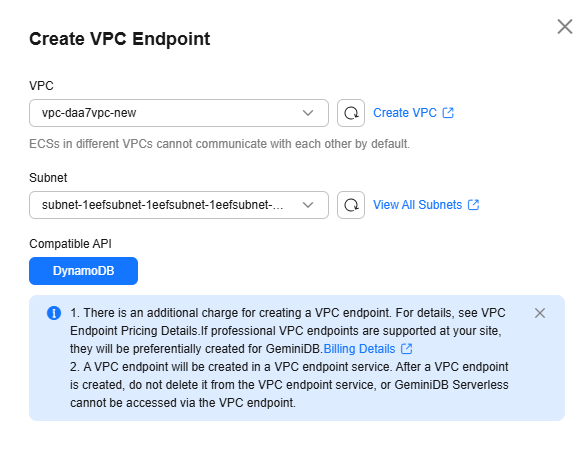
Table 2 Creating a VPC endpoint Parameter
Description
VPC
Virtual private network where your endpoints are located. A VPC isolates networks for different services. You can select an existing VPC or create a VPC.
For details about how to create a VPC, see Creating a VPC with a Subnet in Virtual Private Cloud User Guide.
NOTE:After the endpoint is created, its VPC cannot be changed.
To connect an endpoint to an ECS over a private network, ensure they are in the same VPC. If they are not, create a VPC peering connection between them.
Subnet
A subnet provides dedicated network resources that are logically isolated from other networks, improving network security.
Compatible API
Compatible database API type. Currently, only DynamoDB is supported.
- After confirming the settings, click Create Now.
- On the VPC Endpoint page, you can view and manage endpoints.
It takes about 1 to 3 minutes to create a VPC endpoint. After it is created, its status changes to Available.
If the page is not refreshed for a long time, you can click
 in the upper right corner to view the VPC endpoint status.
- Log in to the GeminiDB console.
- In the navigation pane, choose Serverless > VPC Endpoint.
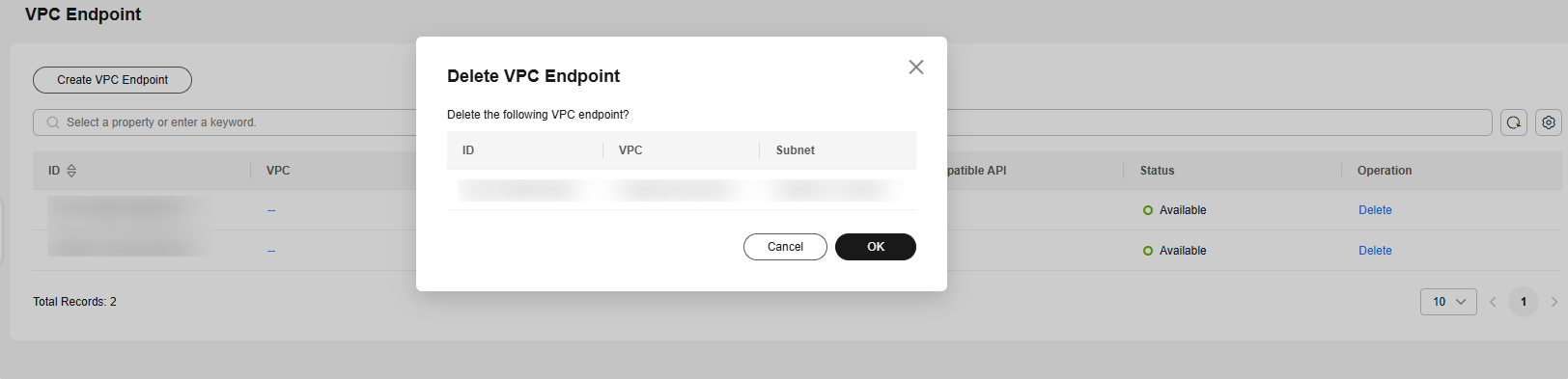
- On the VPC Endpoint page, locate the target VPC endpoint and click Delete.
- If you have enabled operation protection, click Start Verification in the Delete VPC Endpoint dialog box. On the displayed page, click Send Code, enter the verification code, and click Verify. The page is closed automatically.

If you have enabled operation protection, two-factor authentication is required for sensitive operations to secure your account and cloud products. For details about how to enable operation protection, see Identity and Access Management User Guide.
- In the displayed dialog box, click OK. Deleted VPC endpoints are not displayed in the list. Figure 2 Deleting a VPC endpoint
Follow-up Operations
What is your overall rating for this page?
Thank you very much for your feedback. We will continue working to improve the documentation.See the reply and handling status in My Cloud VOC.
For any further questions, feel free to contact us through the chatbot.
Chatbot


