

Configuring Hotlink Protection to Control Who Can Play Media
Scenarios
VOD provides hotlink protection to control who can play the distributed media file. With hotlink protection enabled, CDN verifies key information carried in playback requests. Only the requests that pass the verification are responded. For other illegitimate requests, a status code 403 is returned. Hotlink protection is implemented by referer validation or URL validation.
Referer validation allows you to control access sources based on the referer field carried in an HTTP request. CDN filters requests based on the configured blacklist or whitelist. Referer validation is easy to configure, requires no extra development, and takes effect quickly. It is used for scenarios where audios and videos are mainly referenced on the web pages.
Because the HTTP header content can be forged, referer validation can only achieve the most basic protection, and the security is low. In this case, you can configure URL validation to safeguard your VOD assets. The key value for authentication is time-sensitive. Therefore, URL validation is used for scenarios that have high requirements on media security.
In this example, referer validation is enabled. Only domain names in the whitelist are allowed to access video files. Then configure URL validation to create authentication playback URLs.
Implementation
Referer validation works in a simple way. After a blacklist or whitelist is configured on the VOD console, VOD distributes the blacklist or whitelist to CDN. When receiving a request, CDN checks whether the request is valid based on the list. If the request is valid, CDN accesses the requested resource. If the request is invalid, CDN rejects the request and returns a status code 403.
URL validation is implemented by VOD edge nodes and origin server in VOD. It is a more secure and reliable anti-piracy solution than referer validation. Figure 1 shows how URL validation works.
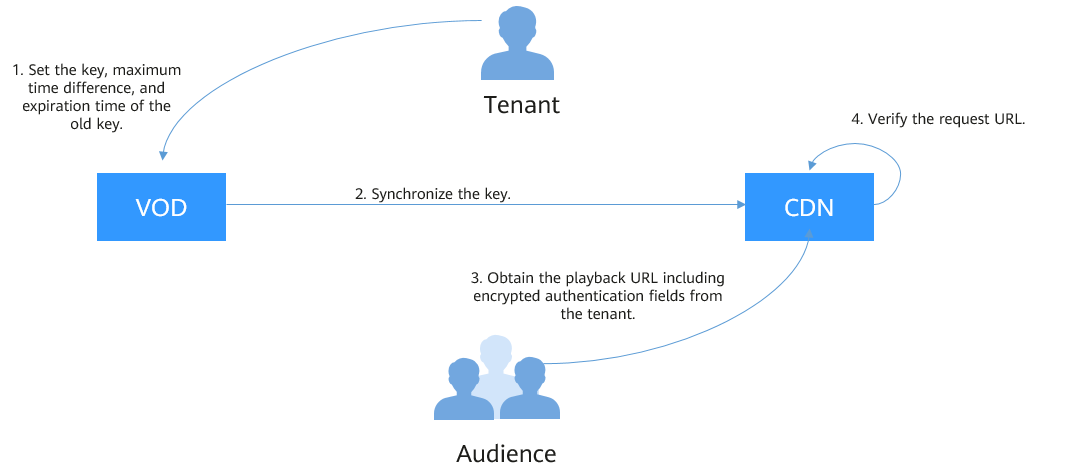
The process is as follows:
- You enable URL validation on the VOD console and configure the allowed time difference and algorithm.
- VOD delivers the configured key value to CDN nodes.
- You obtain the authentication URL of a VOD media file.
- Viewers request CDN to play a video through the authentication playback URL.
- CDN verifies the request based on authentication information carried in the playback URL. Only requests that pass the verification are allowed.
Configuring Referer Validation
Configure referer validation to limit access for basic security of VOD resources.

Domain names with ports cannot be added to referer whitelists/blacklists.
- Log in to the VOD console.
- In the navigation pane, choose Domain Name Management.
- Locate the desired domain name and click Configure in the Operation column. On the displayed page, choose the Hotlink Protection Settings tab. Figure 2 Hotlink protection settings

- Click Edit on the right of Referer Validation. The Referer Validation dialog box is displayed, as shown in Figure 3. Configure referer validation parameters by referring to Table 1.
Table 1 Parameters Parameter
Description
Status
Whether to enable referer validation. By default, referer validation is enabled.
Type
Blacklists and whitelists are supported.
- Blacklist: Domains on the blacklist are blocked from accessing VOD resources. All other domains are allowed. If Include empty referer is selected, requests with empty referer in the HTTP header are also blocked.
- Whitelist: Only domains on the whitelist are allowed to access VOD resources. All other domains are blocked. If Include empty referer is selected, requests with empty referer in the HTTP header are also allowed.
Rule
Domain names in the blacklist or whitelist.
Domain names and IP addresses can be input at the same time and separated with semicolons (;). Wildcard domain names are allowed. A maximum of 100 domain names and IP addresses in total can be entered.
Example:
www.example.com;*.test.com;192.168.0.0
- Click OK.
It takes about 3 to 5 minutes for the referer validation settings to take effect.

Configuring URL Validation
Configure URL validation to further enhance the security of VOD resources.
- Log in to the VOD console.
- In the navigation pane, choose Domain Name Management.
- Locate the desired domain name and click Configure in the Operation column. On the displayed page, choose the Hotlink Protection Settings tab. Figure 4 Hotlink protection settings
- Click Edit on the right of URL Validation. The URL Validation dialog box is displayed, as shown in Figure 5. Configure URL validation settings based on Table 2.
Table 2 Parameter description Parameter
Description
Key
Click Generate to generate a key value.
Maximum Time Difference
How long an authentication URL remains valid. The default value is 120 minutes.
For example, if the authentication URL generation time is 1573806090 (Nov. 15, 2019 16:21:30 GMT+08:00) and the allowed time difference is 120 minutes, the authentication URL expires at Nov. 15, 2019 18:21:30 GMT+08:00.
Expiration Time of the Old Key
By default, the old key expires 60 minutes later since the new key takes effect.
For example, if the effective time of the new key is Nov. 15, 2019 16:21:30 GMT+08:00 and Expiration Time of the Old Key is 60 minutes, the old authentication URL expires at Nov. 15, 2019 17:21:30 GMT+08:00.
Algorithm
Four algorithms are supported: A, B, C, D, and E. The generated authentication URL varies depending on the selected algorithm. For details about how to create an authentication URL, see URL Validation.
NOTE:Algorithms A, B, and C do not support HLS or DASH playback. For these formats, algorithm D or E is recommended.
- Click OK.
- If you select algorithm D, you need to submit a service ticket for approval after configuring the parameters. The submitted information must contain the configured domain name and information listed in Table 2.
URL validation settings take effect once your request is approved. If the URL validation settings are modified, you need to submit a service ticket for approval again.

Verifying Whether Hotlink Protection Has Taken Effect
- Verify whether referer validation settings have taken effect.
Add www.huaweicloud.com to the whitelist and deselect Exclude empty referer. Reference the video file in VOD https://1280.cdn-vod.huaweicloud.com/input/1.mp4 on the http://www.example.com/test/test.html web page, access the web page, and play the video. If the playback fails, referer validation settings have taken effect.
- Verify whether URL validation settings have taken effect.
- Log in to the VOD console.
- In the navigation pane, choose Management > Audio and Video Management.
- Click Details in the row containing a media file and click the Playback tab to obtain the playback URL. Figure 6 Playback URL

URL is the original playback URL. Click
 to obtain the authentication playback URL.
 - Play the original playback URL and authentication playback URL on the player. If the original playback URL fails to be played but the authentication playback URL can be played, URL validation settings have taken effect.
What is your overall rating for this page?
Thank you very much for your feedback. We will continue working to improve the documentation.See the reply and handling status in My Cloud VOC.
For any further questions, feel free to contact us through the chatbot.
Chatbot


