

ALM-38005 GC Duration of the Broker Process Exceeds the Threshold
Alarm Description
The system checks the garbage collection (GC) duration of the Broker process every 60 seconds. This alarm is generated when the GC duration exceeds the threshold (12 seconds by default) for 3 consecutive times.
When the Trigger Count is 1, this alarm is cleared when the GC duration is less than or equal to the threshold. When the Trigger Count is greater than 1, this alarm is cleared when the GC duration is less than or equal to 90% of the threshold.
Alarm Attributes
| Alarm ID | Alarm Severity | Auto Cleared |
|---|---|---|
| 38005 | Major (default value: 10s) Critical (default value: 12s) | Yes |
Alarm Parameters
| Parameter | Description |
|---|---|
| Source | Specifies the cluster for which the alarm was generated. |
| ServiceName | Specifies the service for which the alarm was generated. |
| RoleName | Specifies the role for which the alarm was generated. |
| HostName | Specifies the host for which the alarm was generated. |
| Trigger Condition | Specifies the threshold for triggering the alarm. |
Impact on the System
A long GC duration of the Broker process may interrupt the services.
Possible Causes
The GC duration of the Kafka instance process on the node is too long, or the heap memory is not properly configured. As a result, GCs occur frequently.
Handling Procedure
Check the GC duration of the Broker process.
- On FusionInsight Manager, choose O&M > Alarm > Alarms > GC Duration of the Broker Process Exceeds the Threshold > Location. Check the name of the host for which the alarm is generated.
- On the FusionInsight Manager, choose Cluster > Services > Kafka > Instances. Click the role of the instance for which this alarm is generated. Click the drop-down list in the upper right corner of the chart area, choose Customize > Process > Broker GC Duration per Minute, and click OK. Figure 1 Broker GC Duration per Minute
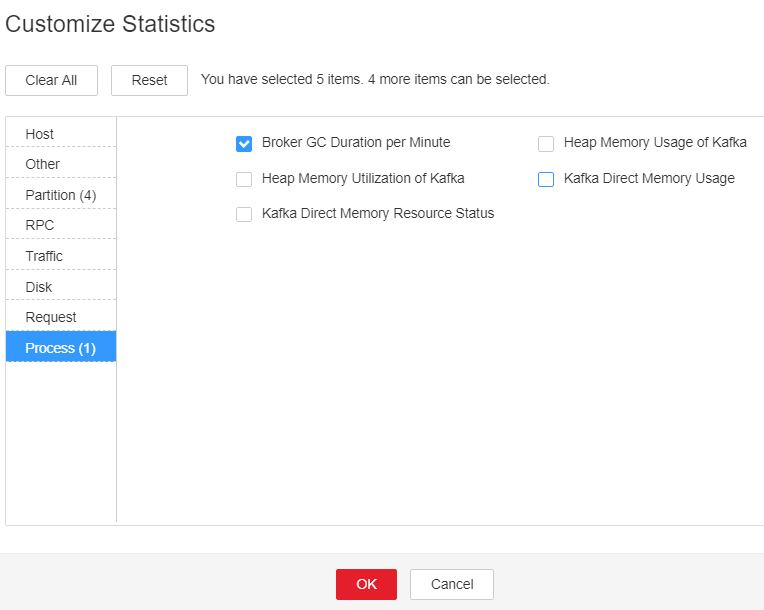
- Check whether the GC duration of the Broker process collected every minute exceeds the threshold (12 seconds by default).
Check the heap memory size configured for Kafka.
- On the FusionInsight Manager, choose Cluster > Services > Kafka. On the displayed page, click Configurations and then choose All Configurations > Broker(Role) > Environment. Increase the value of -Xmx in the KAFKA_HEAP_OPTS parameter.

- It is recommended that -Xmx and -Xms be set to the same value.
- It is recommended that you set the value of KAFKA_HEAP_OPTS to twice the value of Heap Memory Usage of Kafka based on Kafka heap memory data. To check the Kafka heap memory data, choose Cluster > Services > Kafka on the FusionInsight Manager homepage, click Instances, and select the role corresponding to the host name of the instance for which the alarm is generated. Click the drop-down list in the upper right corner of the chart area and choose Customize. In the displayed window, choose Process, and select Heap Memory Utilization of Kafka to check its data.
- Save the configuration and restart the Kafka service.
If rolling restart is performed and the current Topic has multiple copies, services are not affected. Otherwise, the Kafka service will be unavailable during the restart, and upper-layer services that depend on the service will be affected.
- Check whether the alarm is cleared.
- If yes, no further action is required.
- If no, go to Step 7.
Collect fault information.
- On FusionInsight Manager, choose O&M. In the navigation pane on the left, choose Log > Download.
- Expand the Service drop-down list, and select Kafka for the target cluster.
- Click
 in the upper right corner, and set Start Date and End Date for log collection to 10 minutes before and after the alarm generation time, respectively. Then, click Download.
 - Send the collected fault logs to O&M personnel for help.
Alarm Clearance
After the fault is rectified, the system automatically clears this alarm.
Related Information
None
What is your overall rating for this page?
Thank you very much for your feedback. We will continue working to improve the documentation.See the reply and handling status in My Cloud VOC.
For any further questions, feel free to contact us through the chatbot.
Chatbot


