

Changing a KVM ECS to a QingTian ECS (Windows)
Scenarios
Changing a KVM ECS to a QingTian ECS involves a virtualization type change. Drive letters and driver dependencies will also change, so you need to check the startup dependencies and installed drivers first before modifying the specifications. Otherwise, after the specifications are modified, the ECS will be unavailable, such as OS startup failures.
- Xen ECS flavors: S1, C1, C2, and M1.
- KVM and QingTian ECS flavors: See the Virtualization column in A Summary List of x86 ECS Specifications.
This section describes how to change a KVM ECS that runs Windows to a QingTian ECS.
Constraints
- Rules for changing ECSs with different CPU architectures:
- x86 ECSs cannot be changed to Kunpeng ECSs.
- Kunpeng ECSs cannot be changed to x86 ECSs.
- Rules for changing ECSs with different virtualization types:
- A Xen ECS can be changed to a KVM ECS, but a KVM ECS cannot be changed to a Xen ECS.
- A KVM ECS can be changed to a QingTian ECS, but a QingTian ECS cannot be changed to a KVM ECS.
Certain QingTian C6 ECSs can be changed to KVM ECSs. For details, see Changing a QingTian ECS to a KVM ECS (Windows).
- A Xen ECS cannot be changed to a QingTian ECS, and a QingTian ECS cannot be changed to a Xen ECS, either.
- The ECS needs to be stopped during the specification modification, so you are advised to perform this operation during off-peak hours.
- The network type cannot be changed during the specification modification.
- QingTian ECSs can only have SCSI disks attached, and the disks use WWN identifiers.
- For Windows ECSs, the specifications can be modified only by API calls.
Process
Figure 1 shows the flowchart for changing a KVM ECS to a QingTian ECS.
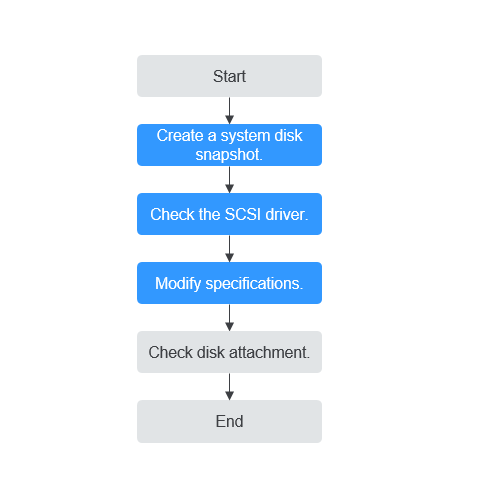
| Step | Description |
|---|---|
| 1 | |
| 2 | |
| 3 | |
| 4 |
Step 1: Back Up an ECS
If you modify the specifications of an ECS without installing the driver, the ECS may become unavailable and the data on the system disk may be lost. You are advised to back up the ECS first to prevent data loss.
- Check the ECS.
Before backing up the ECS, stop and then start the ECS to ensure that services can run properly after the ECS is started.
- Back up the ECS. Backing up ECSs will generate storage costs. There are two types of EVS snapshots: standard snapshots and legacy snapshots. Legacy snapshots are in OBT and free of charge. Standard snapshots are billed. Select the one type as required.
- Method 1: Create a backup for the ECS.
For details, see Procedure for Backing Up an ECS.
- Method 2: Create a system disk snapshot and a data disk snapshot.
For details about how to create a snapshot, see Creating an EVS Snapshot in the Elastic Volume Service User Guide.
- Method 1: Create a backup for the ECS.

Backups and snapshots created for the ECS are used to restore data. If the specifications fail to be modified, you can use the backups or snapshots to restore data.
- To use backups to restore data, see Restoring from a Cloud Server Backup.
- To use snapshots to roll back data, see Rolling Back Disk Data from a Snapshot.
After the specifications are modified, if services are running properly, delete the ECS backups or snapshots from the corresponding service console.
Step 2: Check the SCSI Driver
- Log in to the ECS.
For details, see Login Overview (Windows).
- In the Run dialog box, enter regedit to access the registry editor.
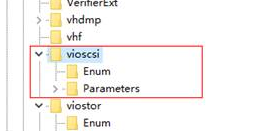
- In the registry, check whether StartOverride exists in the following directory:
Computer\HKEY_LOCAL_MACHINE\SYSTEM\ControlSet001\Services\vioscsi
- If StartOverride does not exist and there are only Enum and Parameters in the directory, no changes need to be made. Figure 2 Registry
- If StartOverride exists in the directory, go to step 4.
- If StartOverride does not exist and there are only Enum and Parameters in the directory, no changes need to be made.
- In StartOverride, double-click REG_DWORD and change the value 3 to 0.
- Stop the ECS.
Step 3: Modify Specifications
You can modify specifications using APIs. For details, see Modifying the Specifications of an ECS.
- Log in to the ECS console and access the ECS list page.
- On the Elastic Cloud Server page, view the status of the target ECS.
If the ECS is not in Stopped state, choose More > Stop in the Operation column.
- Choose More > Modify Specifications in the Operation column.
The Modify ECS Specifications page is displayed.
- Select the new ECS type, vCPUs, and memory.
- (Optional) Set DeH.
If the ECS is created on a DeH, you can change the DeH where the ECS resides.
To do so, select the target DeH from the drop-down list. If no DeH is available in the drop-down list, it indicates that DeH resources are insufficient and cannot be used to create the ECS with new specifications.
- Click Next.
- Confirm the new specifications, read and agree to the agreement, and then click Submit Application.
- The cloud platform automatically creates a system disk snapshot for you. After the specifications are modified, manually delete the snapshot on the snapshot page if you have verified that services are running properly.
- If ECS specifications fail to be modified and the ECS becomes unavailable, reinstall the OS. This operation will clear the data on the system disk while the data on data disks is retained.
(Optional) Step 4: Check Disk Attachment
After a KVM ECS is changed to a QingTian ECS, disk attachment may fail. Therefore, check disk attachment after the ECS specifications are modified. If disks are properly attached, the specifications are modified successfully.
- Windows ECS
For details, see Why Do the Disks of a Windows ECS Go Offline After I Modify the ECS Specifications?
Follow-up Procedure
If the ECS specifications have been modified but the OS cannot be started after you remotely log in to the ECS, contact customer service or reinstall the OS to resolve this issue. For details, see Reinstalling the OS.
Reinstalling the OS will clear the system disk data, but the data on data disks is not affected.
After specifications are modified, check that services are running properly and then manually delete the snapshot on the snapshot page.
What is your overall rating for this page?
Thank you very much for your feedback. We will continue working to improve the documentation.See the reply and handling status in My Cloud VOC.
For any further questions, feel free to contact us through the chatbot.
Chatbot


