

Managing Workflow Versions
Scenarios
This section describes how to manage workflow versions, including Copying a Workflow Version, Editing a Workflow Version, Submitting a Workflow Version, Activating/Deactivating a Workflow Version, and Deleting a Workflow Version.
To configure and enable a custom workflow version, perform the following steps:
- Copy a workflow version.
- Editing a Workflow Version
- Submitting a Workflow Version
- Review the workflow version.
- Enable the workflow.
Activating/Deactivating a Workflow Version: Each workflow can have only one activated version. Only workflow versions in the Inactive state can be activated. Once the current version is activated, the previously activated version will be deactivated. For example, if you activate version V2, version V1 in the Activated state will be deactivated. You can change the workflow version by referring to Activating/Deactivating a Workflow Version.
Deleting a Workflow Version: Deleted workflow versions cannot be restored. Exercise caution when performing this operation. If a workflow version is no longer used, you can delete it.
Copying a Workflow Version
- Log in to the SecMaster console.
- Click
 in the upper left corner of the management console and select a region or project.
 - In the navigation pane on the left, choose Workspaces > Management. In the workspace list, click the name of the target workspace. Figure 1 Workspace management page

- In the navigation pane on the left, choose Security Orchestration > Playbooks. On the displayed page, select the Workflows tab. Figure 2 Workflows tab

- In the Operation column of the target workflow, click More and select Version Management. Figure 3 Version management page

- On the Version Management slide-out panel, in the version information area, locate the row containing the desired workflow version, and click Copy in the Operation column.
- In the dialog box displayed, click OK.
- Then, check the workflow version. If its version is Draft Version and Status is Draft, the version has been copied.
Editing a Workflow Version

You can only edit a workflow version whose version status is To be submitted or Rejected.
- Log in to the SecMaster console.
- Click in the upper left corner of the management console and select a region or project.
- In the navigation pane on the left, choose Workspaces > Management. In the workspace list, click the name of the target workspace. Figure 4 Workspace management page
- In the navigation pane on the left, choose Security Orchestration > Playbooks. On the displayed page, select the Workflows tab. Figure 5 Workflows tab
- In the Operation column of the target workflow, click More and select Version Management. Figure 6 Version management page
- On the Version Management slide-out panel, in the version information area, locate the row containing the desired workflow version, and click Edit in the Operation column.
- On the workflow canvas, drag basic, workflow, and plug-in nodes from Resource Libraries on the left to the canvas on the right.
Table 1 Resource Libraries parameters Parameter
Description
Basic
Basic Node
StartEvent
The start of the workflow. Each workflow can have only one start node. The entire workflow starts from the start node.
EndEvent
The end of the workflow.
Each workflow can have one or more end nodes.
A workflow must always end with an end node. End nodes cannot appear before other nodes are executed.
UserTask
When the workflow execution reaches this node, the workflow is suspended and a to-do task is generated on the Task Center page.
After processing the to-do task, you can choose to end the workflow or continue to execute subsequent nodes.
Table 3 describes the manual review parameters.
Sub Process
A loop body nested in a workflow. It has the same structure as the workflow and is mainly used to perform loop operations. It is equivalent to the loop body in the workflow.
System Gateway
ExclusiveGateway
- For an exclusive, diverging gateway, the workflow chooses only the path that matches the conditional expression to proceed.
- For an exclusive, converging gateway, the workflow chooses the path that arrives at the gateway first to proceed.
ParallelGateway
- For a parallel, diverging gateway, the workflow executes all lines that have arrived at the gateway.
- During line converging, the subsequent nodes can be executed only when all lines have arrived at the gateway.
- Parallel gateways appear in pairs.
InclusiveGateway
- During line diverging, all lines that match conditional expressions are executed.
- During line converging, the subsequent nodes can be executed only when all executed diverged lines have arrived at the inclusive gateway.
Workflows
You can select all released workflows in the current workspace as the functional module of a node in the workflow.
Plug-ins
You can select all plug-ins in the current workspace as the functional module of a node in the workflow.
Table 2 UserTask parameters Parameter
Description
Primary key ID
A primary key ID is generated by the system. You can change it if needed.
Name
Name of the manual review node.
Valid Till
Time the manual review node expires.
Workflow Expiration Policy
The way to handle the task when the workflow expires.
- Continue: The subsequent nodes are executed.
- Terminate: The workflow ends.
Description
Description of the manual review node.
View Parameters
Click
 . On the Select Context pane displayed, select a parameter. To add a parameter, click Add Parameter.
Manual Processing Parameters
Input Parameter Key. To add a parameter, click Add Parameter.
- After the design is complete, click Save and Submit in the upper right corner. In the automatic workflow verification dialog box displayed, click OK.
If the workflow verification fails, check the workflow based on the failure message.
Submitting a Workflow Version
- Log in to the SecMaster console.
- Click in the upper left corner of the management console and select a region or project.
- In the navigation pane on the left, choose Workspaces > Management. In the workspace list, click the name of the target workspace. Figure 7 Workspace management page
- In the navigation pane on the left, choose Security Orchestration > Playbooks. On the displayed page, select the Workflows tab. Figure 8 Workflows tab
- In the Operation column of the target workflow, click More and select Version Management. Figure 9 Version management page
- On the Version Management slide-out panel, in the version information area, locate the row containing the desired workflow version, and click Submit in the Operation column. Figure 10 Submitting a workflow version
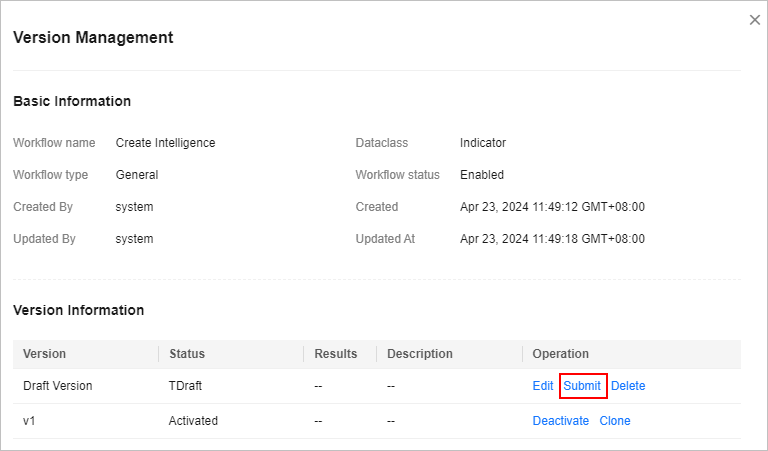
- In the confirmation dialog box, click OK to submit the workflow version.
- After the submission, check the version information on the workflow version management page. If the version status changes from Draft to Pending review, the workflow version is submitted successfully.
- After a workflow version is submitted, it cannot be edited. If you need to edit it, you can reject it during review or create another version.
Activating/Deactivating a Workflow Version
- Only workflow versions in the Inactive state can be activated.
- Each workflow can have only one activated version.
- After the current version is activated, the previously activated version is deactivated. For example, if the V2 version is activated this time, the V1 version in the activated state is deactivated and changes to the deactivated state.
- Log in to the SecMaster console.
- Click in the upper left corner of the management console and select a region or project.
- In the navigation pane on the left, choose Workspaces > Management. In the workspace list, click the name of the target workspace. Figure 11 Workspace management page
- In the navigation pane on the left, choose Security Orchestration > Playbooks. On the displayed page, select the Workflows tab. Figure 12 Workflows tab
- In the Operation column of the target workflow, click More and select Version Management. Figure 13 Version management page
- On the Version Management slide-out panel, in the version information area, locate the row containing the desired workflow version, and click Activate or Deactivate in the Operation column. Figure 14 Example deactivating a workflow version
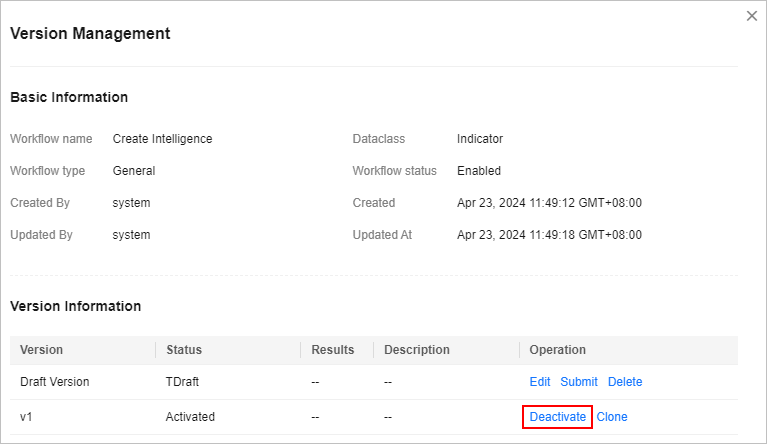
- In the dialog box that is displayed, click OK.
- After the operation is complete, view the version information on the workflow version management page and check the Status of the workflow version.
Deleting a Workflow Version
- Log in to the SecMaster console.
- Click in the upper left corner of the management console and select a region or project.
- In the navigation pane on the left, choose Workspaces > Management. In the workspace list, click the name of the target workspace. Figure 15 Workspace management page
- In the navigation pane on the left, choose Security Orchestration > Playbooks. On the displayed page, select the Workflows tab. Figure 16 Workflows tab
- In the Operation column of the target workflow, click More and select Version Management. Figure 17 Version management page
- On the Version Management slide-out panel, in the version information area, locate the row of the target workflow version, and click Delete in the Operation column.
- In the displayed dialog box, click OK.
Deleted workflow versions cannot be retrieved. Exercise caution when performing this operation.
What is your overall rating for this page?
Thank you very much for your feedback. We will continue working to improve the documentation.See the reply and handling status in My Cloud VOC.
For any further questions, feel free to contact us through the chatbot.
Chatbot


