

Downloading an Instance-Level Backup
Scenarios
This section describes how to download a manual or an automated backup file to a local device and restore data from the backup file.
RDS for PostgreSQL enables you to download full backup files.
Constraints
- If the size of the backup data is greater than 400 MB, you are advised to use OBS Browser+ to download the backup data.
- When you use OBS Browser+ to download backup data, there is no charge for the generated outbound traffic.
Procedure
- Log in to the RDS console.
- Click
 in the upper left corner and select a region.
 - In the navigation pane, choose Backups.
- On the Backups page, locate the backup to be downloaded and click Download in the Operation column.
Alternatively, click the target instance name. In the navigation pane, choose Backups & Restorations. On the Full Backups tab page, locate the backup to be downloaded and click Download in the Operation column.
- If you have enabled operation protection, click Send Code in the displayed Identity Verification dialog box and enter the obtained verification code. Then, click OK.
Two-factor authentication improves the security of your account. For details about how to enable operation protection, see Identity and Access Management User Guide.
- In the displayed dialog box, select Use OBS Browser+ for Download Method and download the backup as prompted. Figure 1 Using OBS Browser+

- Download OBS Browser+.
- Decompress and install OBS Browser+.
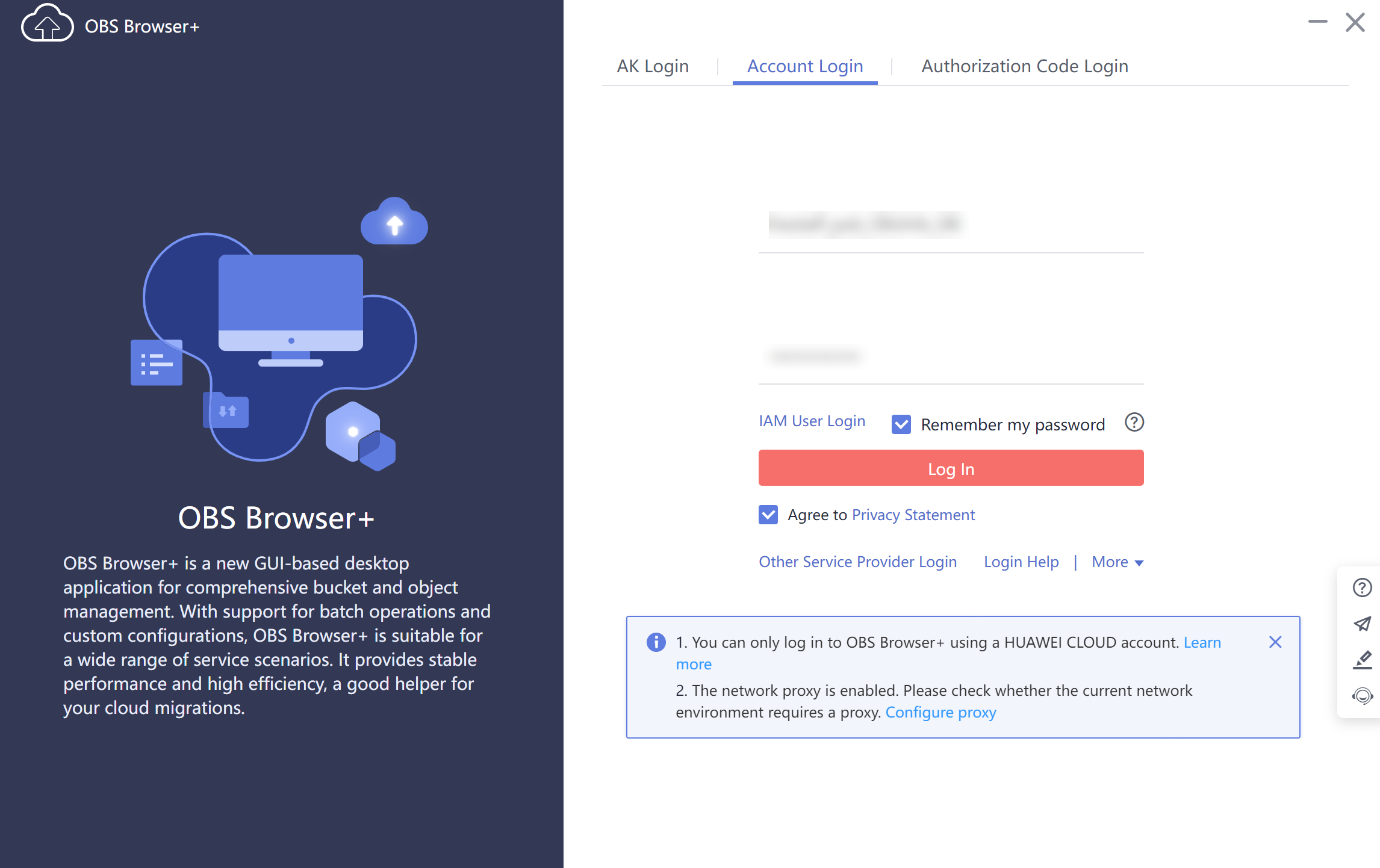
- Log in to OBS Browser+ using the username provided in Step 2 on the download guide page. Figure 2 Logging in to OBS Browser+
- Add an external bucket using the bucket name provided in Step 2 on the download guide page. Figure 3 Adding an external bucket
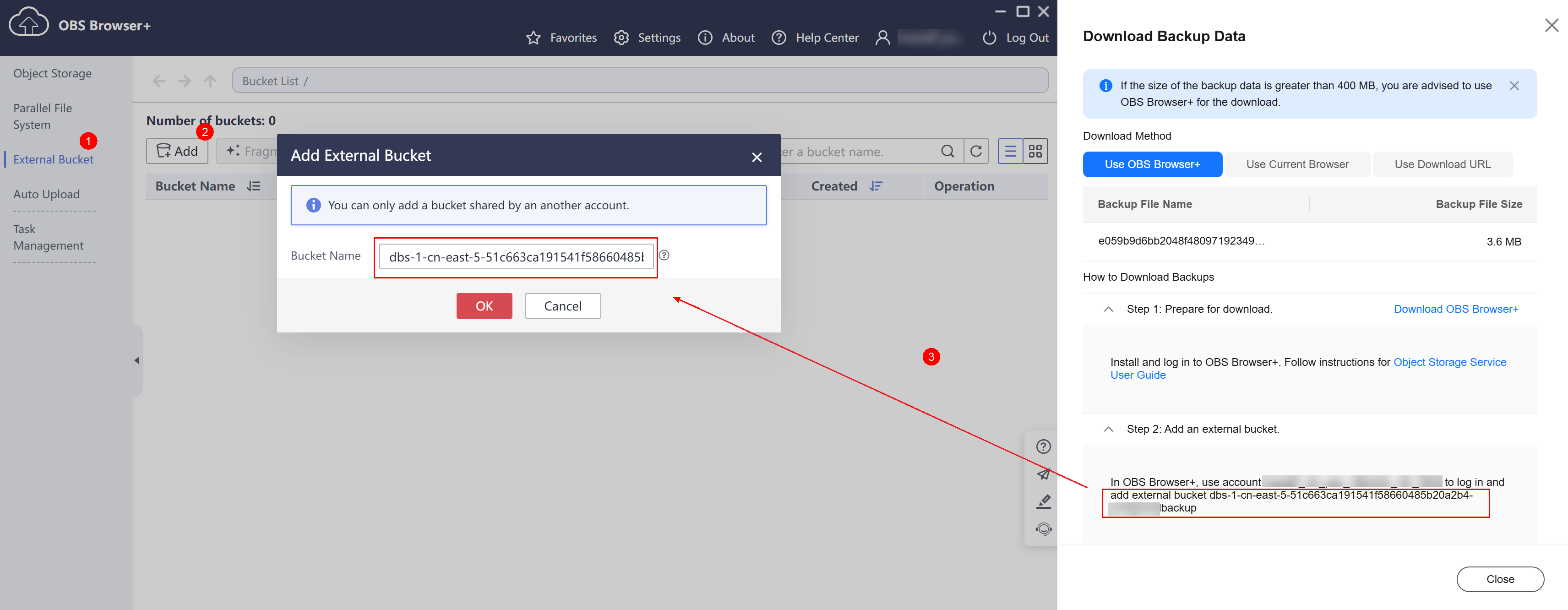

If you want to access OBS external buckets across accounts, the access permission is required. For details, see Granting IAM Users Under an Account the Access to a Bucket and Resources in the Bucket.
- Download the backup file.
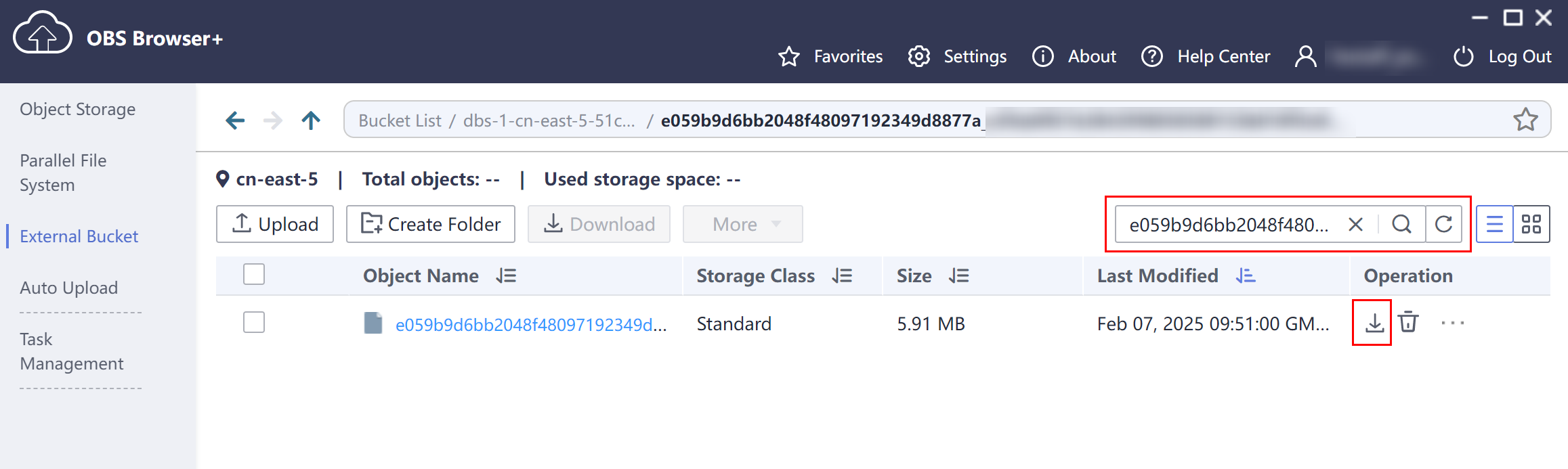
On the OBS Browser+ page, click the bucket that you added. In the search box on the right of the object list page, enter the backup file name and start a search. In the search result, locate the target backup and click
 in the Operation column.Figure 4 Downloading a backup
- Log in to the RDS console.
- Click in the upper left corner and select a region.
- In the navigation pane, choose Backups.
- On the Backups page, locate the backup to be downloaded and click Download in the Operation column.
Alternatively, click the target instance name. In the navigation pane, choose Backups & Restorations. On the Full Backups tab page, locate the backup to be downloaded and click Download in the Operation column.
- If you have enabled operation protection, click Send Code in the displayed Identity Verification dialog box and enter the obtained verification code. Then, click OK.
Two-factor authentication improves the security of your account. For details about how to enable operation protection, see Identity and Access Management User Guide.
- In the displayed dialog box, select Use Current Browser for Download Method and click OK. Figure 5 Using the current browser

- Log in to the RDS console.
- Click in the upper left corner and select a region.
- In the navigation pane, choose Backups.
- On the Backups page, locate the backup to be downloaded and click Download in the Operation column.
Alternatively, click the target instance name. In the navigation pane, choose Backups & Restorations. On the Full Backups tab page, locate the backup to be downloaded and click Download in the Operation column.
- If you have enabled operation protection, click Send Code in the displayed Identity Verification dialog box and enter the obtained verification code. Then, click OK.
Two-factor authentication improves the security of your account. For details about how to enable operation protection, see Identity and Access Management User Guide.
- In the displayed dialog box, select Use Download URL for Download Method, click
 to copy the URL, and enter the URL in your browser. Figure 6 Using the download URL

A valid URL for downloading the backup data is displayed.
- You can use various download tools, such as your browser to download backup files.
- You can also run a wget command to download backup files:
wget -O FILE_NAME --no-check-certificate "DOWNLOAD_URL"
Variables in the command are described as follows:
FILE_NAME: indicates the new backup file name after the download is successful. The original backup file name may be too long and exceed the maximum characters allowed by the client file system. You are advised to use the -O argument with wget to rename the backup file.
DOWNLOAD_URL: indicates the location of the backup file to be downloaded. If the location contains special characters, escape is required.
- Log in to the RDS console.
- Click in the upper left corner and select a region.
- In the navigation pane, choose Backups. On the displayed page, locate the target backup and click Download in the Operation column.
Alternatively, click the target instance name. In the navigation pane, choose Backups & Restorations. On the Full Backups tab page, locate the backup to be downloaded and click Download in the Operation column.
- If you have enabled operation protection, click Send Code in the displayed Identity Verification dialog box and enter the obtained verification code. Then, click OK.
Two-factor authentication improves the security of your account. For details about how to enable operation protection, see Identity and Access Management User Guide.
- In the displayed dialog box, select Transfer to OBS Bucket for Download Method, select an OBS bucket and the bucket prefix, and click OK. Figure 7 Transferring a backup to an OBS bucket

What is your overall rating for this page?
Thank you very much for your feedback. We will continue working to improve the documentation.See the reply and handling status in My Cloud VOC.
For any further questions, feel free to contact us through the chatbot.
Chatbot


