

ALM-12061 Process Usage Exceeds the Threshold
Alarm Description
The system checks the usage of the omm process every 30 seconds. You can run the ps -o nlwp,pid,args, -u omm | awk '{sum+=$1} END {print "", sum}' command to obtain the number of concurrent processes of user omm. Run the ulimit -u command to obtain the allowed maximum number of concurrent processes as user omm.
Divide the number of concurrent processes by the allowed maximum number of concurrent processes to obtain the process usage of user omm. The process usage has a default threshold. The alarm is generated when the process usage exceeds the threshold.
This alarm is cleared when the Trigger Count is 3 and the process usage is no more than the threshold. When the Trigger Count is greater than 1, this alarm is cleared when the process usage is no more than 90% of the threshold.
Alarm Attributes
| Alarm ID | Alarm Severity | Auto Cleared |
|---|---|---|
| 12061 | Critical (default threshold: 95) Major (default threshold: 90) | Yes |
Alarm Parameters
| Parameter | Description |
|---|---|
| Source | Specifies the cluster or system for which the alarm was generated. |
| ServiceName | Specifies the service for which the alarm was generated. |
| RoleName | Specifies the role for which the alarm was generated. |
| HostName | Specifies the host for which the alarm was generated. |
| Trigger Condition | Specifies the threshold for triggering the alarm. |
Impact on the System
When the process usage exceeds the threshold, you cannot switch to user omm and create new omm threads. As a result, jobs may fail to run.
Possible Causes
- The alarm threshold is improperly configured.
- The maximum number of processes (including threads) that can be concurrently opened by user omm is inappropriate.
- An excessive number of threads are opened at the same time.
Handling Procedure
Check whether the alarm threshold or alarm trigger count is properly configured.
- On the FusionInsight Manager, change the alarm threshold and Trigger Count based on the actual CPU usage.
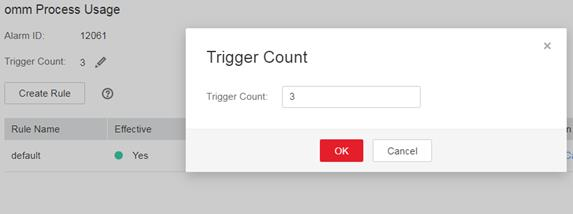
Specifically, choose O&M > Alarm > Thresholds > Name of the desired cluster > Host > Process > omm Process Usage to change Trigger Count, as shown in Figure 1.

Trigger Count indicates how many consecutive times the threshold is reached when the alarm is triggered.
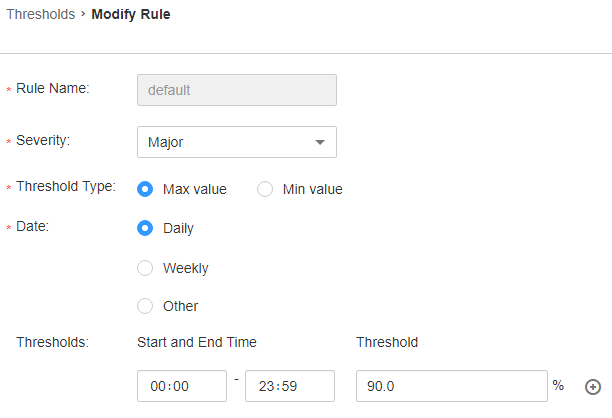
Set the alarm threshold based on the actual process usage. To check the process usage, choose O&M > Alarm > Thresholds > Name of the desired cluster > Host > Process > omm Process Usage, as shown in Figure 2.
- Wait 2 minutes and check whether the alarm is automatically cleared.
- If yes, no further action is required.
- If no, go to Step 3.
Check whether the maximum number of processes (including threads) that can be concurrently opened by user omm is properly configured.
- In the alarm list on FusionInsight Manager, locate the row that contains the alarm, and view the IP address of the host for which the alarm is generated.
- Log in to the host for which the alarm is generated as user root.
- Run the following command to check whether the maximum number of threads that can be concurrently opened by user omm is greater than or equal to 60000:
su - omm -c "ulimit -u"
- Run the following command to change the maximum number of threads that can be concurrently opened by user omm to 60000:
vi /etc/security/limits.d/omm-nproc.conf
Run the following commands to switch to user omm, and restart the NodeAgent process. After two minutes, check whether the alarm is cleared.
su - omm
sh $BIGDATA_HOME/om-agent/nodeagent/bin/restart-agent.sh
- If yes, no further action is required.
- If no, go to Step 11.
Check whether an excessive number of processes are opened at the same time.
- In the alarm list on FusionInsight Manager, locate the row that contains the alarm, and view the IP address of the host for which the alarm is generated.
- Log in to the host for which the alarm is generated as user root.
- Run the ps -o nlwp,pid,lwp,args, -u omm|sort -n command to check the number of threads in use.
The result is sorted based on the thread number. Identify the top 5 thread numbers and check whether the threads are incorrectly used. (The PID column indicates the process ID.)
- If yes, perform the following operations to stop the parent processes of the top 5 abnormally used processes without affecting services. Then, go to Step 10.
- If no, run the ulimit -u command to change the allowed maximum number of threads to a value greater than 60000.
- Wait 5 minutes and check whether the alarm is cleared.
- If yes, no further action is required.
- If no, go to Step 11.
Collect fault information.
- On FusionInsight Manager of the cluster, choose O&M. In the navigation pane on the left, choose Log > Download.
- Expand the Service drop-down list, select OmmServer and NodeAgent for the target cluster, and click OK.
- Click
 in the upper right corner, set Start Date and End Date for log collection to 10 minutes before and after the alarm generation time, respectively, and click Download.
 - Send the collected fault logs to O&M personnel for help.
Alarm Clearance
This alarm is automatically cleared after the fault is rectified.
Related Information
None
What is your overall rating for this page?
Thank you very much for your feedback. We will continue working to improve the documentation.See the reply and handling status in My Cloud VOC.
For any further questions, feel free to contact us through the chatbot.
Chatbot


