

Creating a Build Task with Code
CodeArts Build allows you to define your build as code using YAML. Your configurations, such as build environments, parameters, commands, and actions, reside in a YAML file named build.yml. After creating this file, add it along with the source code to a code repository. The file will be used as a script by the system to run a build.
Constraints
You can only use the code hosted in CodeArts Repo for YAML builds.
Preparations
- Obtain permissions for CodeArts Repo. For details, see Granting Permissions for Using CodeArts Repo.
- Create a CodeArts project by referring to CodeArts User Guide > "Preparations" > "Creating a CodeArts Project".
If you already have a project available, skip this step.
Creating a YAML File for Your Code-based Build
- Access the CodeArts Build homepage from the project page.
- In the navigation pane, choose . Create a code repository by referring to Creating a Custom Repository.
- Click the repository name. On the displayed page, choose Create > Create Directory and name the directory .cloudbuild.
- In the .cloudbuild directory, choose to create a file named build.yml. Figure 1 shows the directory that stores files of the code repository.
If the YAML file is not stored in the .cloudbuild directory, you can use parameter CB_BUILD_YAML_PATH to specify the path of the YAML file in the code repository. For details about parameter settings, see Adding Custom Parameters.
- Click
 and write the build.yml file by referring to the sample code in Crafting Your build.yml for a Single Task or Crafting Your build.yml for Multiple Tasks.

Configuring Basic Information
- In the navigation pane, choose .
- Click Create Task. On the displayed Basic Information page, configure the essential attributes for your build task. For details, see Table 1.
Table 1 Basic information Parameter
Description
Name
Assign a custom name to the build task.
- Letters, digits, underscores (_), and hyphens (-) allowed.
- 1 to 115 characters.
- Each task name must be unique within its project.
Project
Select the project to which the build task belongs.
- When you access CodeArts Build through the project page, this parameter is autofilled so you can leave it as default.
- When accessing the service through the service homepage, select the project created in Preparations.
Code Source
If you select Repo, code is pulled from CodeArts Repo for your build.
Repository
Select the exact repository from which CodeArts Build retrieves the code to compile.
Default Branch
Select a default branch.
Description
Optional. Enter additional information to describe the build task. Max. 512 characters.
- Click Next. The page for selecting a build template is displayed.
Selecting a Build Template
Configuring Build Actions
On the Build Actions page, click the Code tab in the upper left corner. The system automatically reads the YAML file from the code repository and the branch configured in basic information.
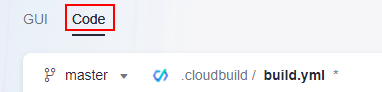
You can modify the YAML file by referring to the sample code. For details, navigate Configuring a Build Task > "Performing Basic Configurations" > "Configuring Build Actions", locate your desired actions, and examine the sample code under "Build with Code". Once the build task is completed, any changes made to the YAML file on this page will overwrite the original YAML file you create for your code-based build.
Complete all configurations and click Save to create a build task. The new task appears in the build task list.
What is your overall rating for this page?
Thank you very much for your feedback. We will continue working to improve the documentation.See the reply and handling status in My Cloud VOC.
For any further questions, feel free to contact us through the chatbot.
Chatbot


