

Help Center/ Cloud Firewall/ User Guide/ System Management/ Security Reports/ Viewing/Downloading a Security Report
Updated on 2026-09-14 GMT+08:00
Viewing/Downloading a Security Report
Scenario
CFW supports daily, weekly, and custom reports. It aggregates data such as policy hits, threat events, and peak traffic for you to preview, download, and archive. You can view the latest report to obtain a snapshot of the current period and analyze historical reports to trace past trends, meeting your O&M inspection and compliance audit requirements.
This section describes how to view a created security report and its displayed information.
Procedure
- Create a security report.
For details, see Creating a Security Report.
- Log in to the CFW console.
- Click
 in the upper left corner of the management console and select a region or project.
 - (Optional) Switch to another firewall instance. If there are multiple firewall instances, you can select a desired instance from the drop-down list in the upper left corner of the page.
- In the navigation tree on the left, choose .
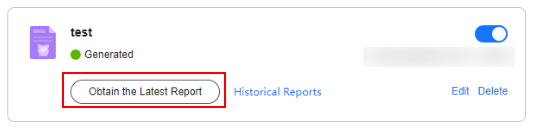
- Click Obtain the Latest Report of the target report. The security report preview page is displayed. Figure 1 Obtaining the latest report
- To download the report, click Download in the lower right corner of the security report preview page.
Viewing/Downloading Historical Security Report
- Log in to the CFW console.
- Click in the upper left corner of the management console and select a region or project.
- (Optional) Switch to another firewall instance. If there are multiple firewall instances, you can select a desired instance from the drop-down list in the upper left corner of the page.
- In the navigation tree on the left, choose .
- Click the Historical Report of the target report. The Historical Reports page is displayed and you can view the report list. Figure 2 Obtaining historical reports
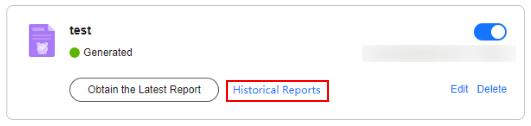 Figure 3 Historical reports
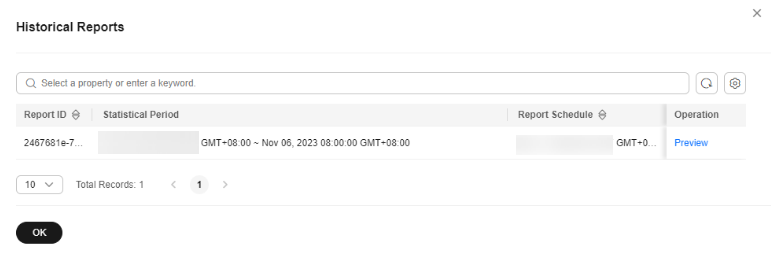
- Click Preview in the Operation column of a report to view the report information.
- To download the report, click Download in the lower right corner of the security report preview page.
References
- For details about the templates and generation time of security reports, see Security Report Description.
- For details about how to modify, enable, or disable security reports, see Managing Security Reports.
What is your overall rating for this page?
0
1
2
3
4
5
6
7
8
9
10
Very dissatisfiedVery satisfied
Thank you very much for your feedback. We will continue working to improve the documentation.See the reply and handling status in My Cloud VOC.
The system is busy. Please try again later.
For any further questions, feel free to contact us through the chatbot.
Chatbot


