

Updated on 2026-09-17 GMT+08:00
Uploading Migration Logs
SMS allows you to upload migration logs to a specified OBS bucket for quick troubleshooting. You can repeatedly upload logs after the full replication is started.
Constraints
- Only the Agent 25.1.0 or later can upload migration logs. To view the version of the Agent you installed on a source server, you can click the source server name in the server list on the SMS console. On the displayed page, click the Task Info tab. In the Source Info area, view the Agent version.
- If a proxy server is used for the migration, you need to select an OBS bucket in the same region as the proxy server, or the logs cannot be uploaded.
Important Notes
You will be billed for storing logs in OBS.
Prerequisites
You have created an OBS bucket before uploading migration logs.
Uploading Migration Logs
- Sign in to the SMS console.
- In the navigation pane, click Servers.
- Locate your server and click Upload in the Log Upload column. Figure 1 Uploading logs

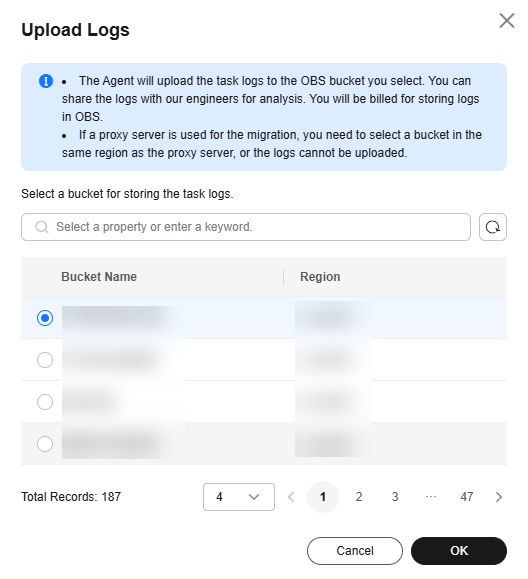
- In the displayed Upload Logs dialog box, select an OBS bucket for storing the uploaded logs and click OK. Then logs will be uploaded, and Uploading will appear in the Log Upload column. Figure 2 Selecting an OBS bucket

The log upload status can be Not ready, Ready, Uploading, Upload succeeded, or Upload failed.
- Check whether Upload succeeded appears. If it does, the migration logs have been successfully uploaded. After migration logs are uploaded, move the cursor to Upload succeeded to check the name of the OBS bucket where the logs are stored and the sharable URL. Figure 3 Logs uploaded

- (Optional) Click
 next to Share URL, and copy and paste the access URL to a browser to check the logs.
What is your overall rating for this page?
0
1
2
3
4
5
6
7
8
9
10
Very dissatisfiedVery satisfied
Thank you very much for your feedback. We will continue working to improve the documentation.See the reply and handling status in My Cloud VOC.
The system is busy. Please try again later.
For any further questions, feel free to contact us through the chatbot.
Chatbot


