

Configuring Same-Region Backup Policies
Scenarios
When you create an RDS instance, an automated backup policy is enabled by default. For security purposes, the automated backup policy cannot be disabled. After the DB instance is created, you can customize the automated backup policy as required and then RDS backs up data based on the automated backup policy you configure.
RDS backs up data at the DB instance level, rather than the database level. If a database is faulty or data is damaged, you can restore it from backups. Backups are saved as packages in OBS buckets to ensure data confidentiality and durability. Since backing up data affects database read and write performance, the automated backup time window should be set to off-peak hours.
After an automated backup policy is configured, full backups are created based on the time window and backup cycle specified in the policy. The time required for creating a backup depends on how much data there is in the instance. Backups are stored for as long as you specified in the backup policy.
You do not need to set an interval for incremental backup because RDS automatically backs up incremental data every 5 minutes or when a certain amount of incremental data is generated. Incremental backups can be used to restore data to a specific point in time.
Video Tutorial
Differences Between Standard Backups and Sparse Backups
| Item | Standard Backup | Sparse Backup |
|---|---|---|
| Function description | RDS for MySQL uses standard backups by default. A standard backup saves all data of an instance based on your chosen schedule and backup cycle. Each time a backup task finishes, the system creates a backup and stores it for the duration you specify. | If you want to retain backups for a long time, you can enable sparse backups to reduce expenses. Compared with the default backup policy, sparse backup policies reduce the backup frequency while maintaining the same retention period for the backups. To enable sparse backups, submit a service ticket to request required permissions. After sparse backups are enabled, the standard backup policy continues to be displayed by default, but you can add sparse backup policies. |
| Number of backup policies | An instance has only one backup policy, which cannot be deleted. The default policy is weekly backup. Select at least one day in a week. The backups can be retained for 1 to 732 days. | The default policy cannot be deleted, but sparse backup policies can be deleted. After enabling sparse backups, you can add sparse backup policies alongside the default backup policy.
|
| Time window | Set it to a one-hour period within the 24-hour day during which the backup task may start, such as 01:00-02:00 or 12:00-13:00. | Set it to a one-hour period within the 24-hour day during which the backup task may start, such as 01:00-02:00 or 12:00-13:00. |
| Snapshot backups | Supported | Supported |
Constraints and Billing
| Category | Constraints | Billing |
|---|---|---|
| Snapshot backups not enabled |
| Backups are saved as packages in OBS buckets. For billing details, see How Are RDS Backups Billed? |
| Billing rules after snapshot backups are enabled:
|

Procedure
- Log in to the RDS console.
- Click
 in the upper left corner and select a region.
 - On the Instances page, click the target DB instance name.
- In the navigation pane on the left, choose Backups & Restorations.
- In the upper right corner of the page, choose Modify Backup Policy > Configure Same-Region Backup Policy. On the displayed page, you can view the backup policies you have. If you want to modify one of them, adjust the following parameters: Figure 2 Modifying a backup policy
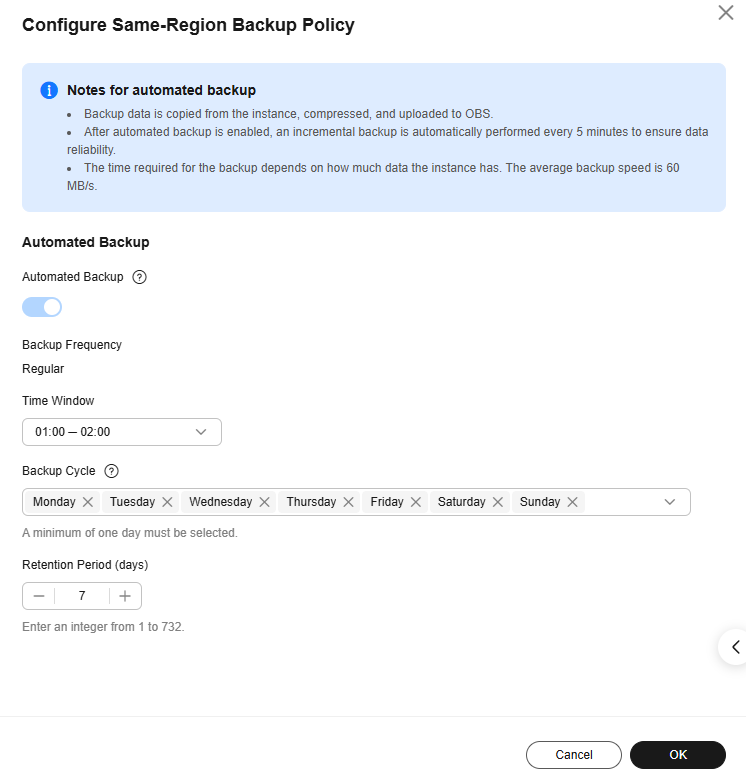
- Retention Period: It indicates how many days your automated full backups and binlog backups can be retained. The retention period is from 1 to 732 days and the default value is 7.
- Extending the retention period enhances data availability.
- Reducing the retention period takes effect for existing backups. Any backups (except manual backups) that have expired will be automatically deleted. Exercise caution when performing this operation.
Automatic deletion policy for full backups:
To ensure data integrity, the system keeps the most recent backup that has exceeded the retention period during automatic deletions. This ensures that data within the retention period can still be restored.
For example, if Backup Cycle was set to Monday and Tuesday and Retention Period was set to 2, the deletion behavior is as follows:
- The full backup created on Monday is automatically deleted on Thursday.
The full backup created on Monday expires on Wednesday, but according to the deletion policy, the system retains the most recent full backup that has exceeded the retention period. So it is retained until a new backup expires. The next full backup is created on Tuesday and expires on Thursday. Therefore, on Thursday, the Monday backup is deleted and the Tuesday backup is retained.
- The full backup created on Tuesday is automatically deleted on Wednesday of the following week.
The backup generated on Tuesday is scheduled to expire on Thursday; however, as it is the last available backup, it is retained until a subsequent backup expires. The next backup is generated the following Monday and expires the following Wednesday, at which point the full backup generated on Tuesday is automatically deleted.
- Automatic deletion policy for binlog backups:
To ensure data integrity, the system keeps the binlog backup of the previous day when the full backup is deleted. This ensures that data within the retention period can still be restored.
- Time Window: Set it to a one-hour period within the 24-hour day during which the backup task may start, such as 01:00-02:00 or 12:00-13:00. It indicates when the backup starts, not the duration of the entire backup task. The backup duration depends on the data volume of your instance.

To minimize potential impact on workloads, set the time window to off-peak hours. The backup time window is saved using the UTC time zone of your local browser. It changes with the time zone if the DST or standard time is switched.
- Backup Cycle: All options are selected by default, but you can change them. Select at least one day of the week.
- Retention Period: It indicates how many days your automated full backups and binlog backups can be retained. The retention period is from 1 to 732 days and the default value is 7.
- Click OK.
You can configure a standard backup policy for up to 50 instances at a time.
- Log in to the RDS console.
- Click in the upper left corner and select a region.
- On the Instances page, select multiple instances and choose More > Configure Same-Region Backup Policy above the instance list.
- In the displayed dialog box, specify the following parameters.
- Retention Period: It indicates how many days your automated full backups and binlog backups can be retained. The retention period is from 1 to 732 days and the default value is 7.
- Extending the retention period enhances data availability.
- Reducing the retention period takes effect for existing backups. Any backups (except manual backups) that have expired will be automatically deleted. Exercise caution when performing this operation.
Automatic deletion policy for full backups:
To ensure data integrity, the system keeps the most recent backup that has exceeded the retention period during automatic deletions. This ensures that data within the retention period can still be restored.
For example, if Backup Cycle was set to Monday and Tuesday and Retention Period was set to 2, the deletion behavior is as follows:
- The full backup created on Monday is automatically deleted on Thursday.
The full backup created on Monday expires on Wednesday, but according to the deletion policy, the system retains the most recent full backup that has exceeded the retention period. So it is retained until a new backup expires. The next full backup is created on Tuesday and expires on Thursday. Therefore, on Thursday, the Monday backup is deleted and the Tuesday backup is retained.
- The full backup created on Tuesday is automatically deleted on Wednesday of the following week.
The backup generated on Tuesday is scheduled to expire on Thursday; however, as it is the last available backup, it is retained until a subsequent backup expires. The next backup is generated the following Monday and expires the following Wednesday, at which point the full backup generated on Tuesday is automatically deleted.
- Time Window: Set it to a one-hour period within the 24-hour day during which the backup task may start, such as 01:00-02:00 or 12:00-13:00. It indicates when the backup starts, not the duration of the entire backup task. The backup duration depends on the data volume of your instance.
To minimize potential impact on workloads, set the time window to off-peak hours. The backup time is in UTC format. The backup time window changes with the time zone if the DST or standard time is switched.
- Backup Cycle: All options are selected by default, but you can change them. Select at least one day of the week.
- Retention Period: It indicates how many days your automated full backups and binlog backups can be retained. The retention period is from 1 to 732 days and the default value is 7.
- Click OK.
FAQ
- Why Has Automated Backup of My RDS Instance Failed?
- Q: How Do I Clean Up Automated Backups?
A: Automated backups cannot be manually deleted. To delete them, you can adjust the retention period specified in your automated backup policy. Retained backups will be automatically deleted at the end of the retention period.
What is your overall rating for this page?
Thank you very much for your feedback. We will continue working to improve the documentation.See the reply and handling status in My Cloud VOC.
For any further questions, feel free to contact us through the chatbot.
Chatbot


