

Updated on 2026-08-04 GMT+08:00
Version Change
DDM allows you to manually upgrade or downgrade the kernel version of a DDM instance.
- Version upgrade: Select a kernel version later than that of the DDM instance and perform the upgrade.
- Version downgrade: Select a kernel version earlier than that of the DDM instance and perform the downgrade.
For details about kernel versions, see Kernel Version Notes.
Precautions
- Changing the kernel version will restart your DDM instance, and this may interrupt your workloads for a while. Perform this upgrade during off-peak hours or make sure that your applications can be automatically reconnected.
- If the current version differs greatly from the target version, remember to perform thorough compatibility testing on a test instance before changing the version of your production instances, so that production services are not affected.
- If there are incompatibility issues after a version upgrade, roll back your instance to the original version by referring to Rolling Back the Version of a DDM Instance.
- Version rollback is not supported after a downgrade. If there are compatibility issues after a version change, you can upgrade the instance to the original version by referring to Upgrading the Version of a DDM Instance.
- The version can be downgraded to 3.0.4.3 or later.
- Downgrading the instance to a version earlier than 3.0.9 will delete existing administrator accounts. Make sure the downgrade has no impact on your services.
- If IPv6 is enabled for the VPC subnet, the target version must be 3.0.9 or earlier or 3.1.3 or later.
- If the kernel version is earlier than 3.1.6.0, only JDK 8 is supported, and the upgrade or downgrade is performed on the node.
- If the kernel version is 3.1.6.0 or later, JDK 17 is supported. If the kernel version is upgraded to 3.1.6.0 or later or is downgraded to a version earlier than 3.1.6.0, the change is performed on a new node due to the JDK version transition. Pay attention to the following points:
- The upgrade duration is longer than that of the local upgrade and depends on the number of groups and nodes. Nodes in the same group and subnet are created concurrently. The change time window needs to be evaluated.
- Before the change, ensure that there are no residual XA transactions.
- If a GSI has been created, delete it before the downgrade. Otherwise, the original GSI will be reused after the upgrade, causing data query errors.
- If no load balancer is available, in the upper right corner of the management console, choose Service Tickets > Create Service Ticket to submit a service ticket.
- An EIP bound to a node will be automatically bound to a new node after the upgrade, which may interrupt services. You are advised to perform the upgrade during off-peak hours.
- If SSL is enabled in a later version and the JDK version is downgraded to a version that does not support SSL, disable SSL. If SSL is required after the upgrade, manually enable SSL. For details, see Enabling and Disabling SSL for an Instance.
Procedure
- Log in to the DDM console.
- On the Instances page, locate the target instance and click its name.
- On the Basic Information page, in the Instance Information area, click Change beside the Version field. Figure 1 Upgrading the version of a DDM instance

- In the displayed dialog box, select Target Version. The system will perform an upgrade or a downgrade based on the target version you selected. Figure 2 Selecting a target version
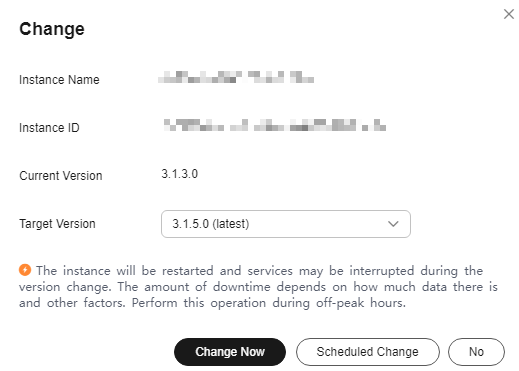
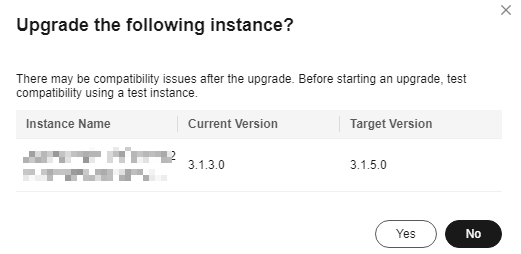
- Click Change Now. In the displayed dialog box, click Yes. Figure 3 Confirming the change
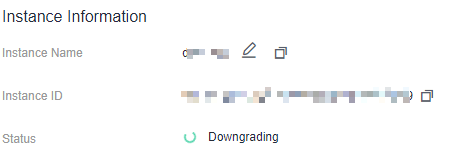
- When the version is being changed, the instance status becomes Upgrading or Downgrading. After the change is complete, the instance status changes to Running, and the instance version becomes the target version. Figure 4 Downgrading
Follow-up Operations
You can view the progress of a version change task in the task center. For details, see Task Center.
Parent topic: Instance Management
What is your overall rating for this page?
0
1
2
3
4
5
6
7
8
9
10
Very dissatisfiedVery satisfied
Thank you very much for your feedback. We will continue working to improve the documentation.See the reply and handling status in My Cloud VOC.
The system is busy. Please try again later.
For any further questions, feel free to contact us through the chatbot.
Chatbot


