

Monitoring Call Details
Inspectors can view call details.
Prerequisites
Permissions on operations under the current menu that require separate configuration have been configured. For details about the operation permissions that can be configured separately, see Table 1.
Procedure
- Sign in to the AICC as a tenant administrator and choose to view call details of the tenant space. Figure 1 Call details

- Set data filter criteria.
- Click the time widget, set the start time and end time, and click OK to filter data.

In the integrated deployment environment, the maximum time span between the start time and end time is five days.
In the independent deployment environment, the maximum time span between the start time and end time is one day.
- Click Advanced Search, enter a calling number and a called number, and click Search to filter detailed data.
- Click
 to refresh real-time data.
- Click the time widget, set the start time and end time, and click OK to filter data.
- Click
 to set the table header. Figure 2 Column Configuration
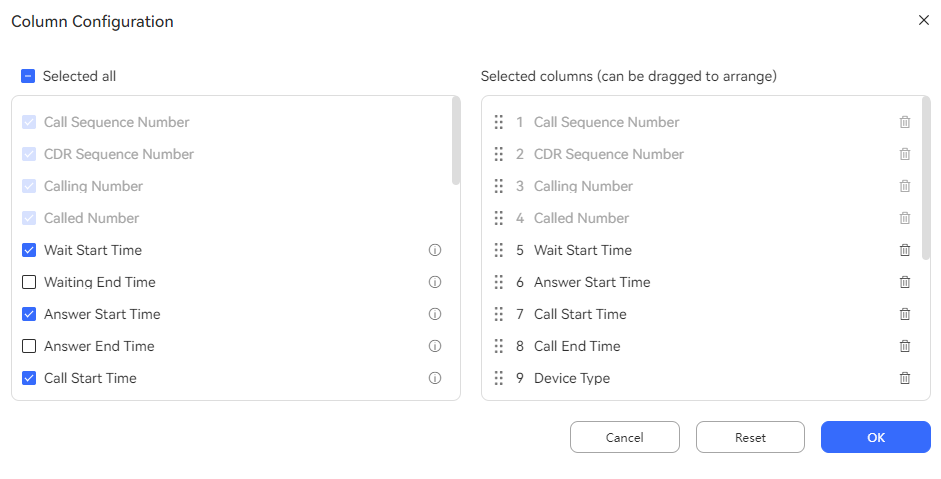
- For some columns, you cannot deselect them or change their sequence.
- Click
 or
or  to deselect a column.
 - Drag a selected column to change its sequence.
- Hover the pointer over
 to view the detailed description of a column.
 - Click Reset to reset the column configuration to the state when the dialog box is opened.
After the configuration is complete, click OK to save the new column configuration. Data is displayed based on the new column configuration.
- (Optional) Export details to the local PC.
- Click
 and enter a compression password to create an export task. Figure 3 Export

- Different compression passwords can be set for different export tasks. The compression password is used to open the exported compressed file.
- If the tenant parameter Specifies whether to set the password of the compressed file for exporting data. is set to No, an export task can be created without entering a compression password.
- Click
 to view the password plaintext.
- The exported data contains personal data. Exercise caution when processing the exported data to prevent personal data leakage and abuse.
- In the independent deployment environment, you can click
 to export call details without entering a compression password.
- Click
 to view the export tasks in the last seven days.
 - Click download in the Operation column corresponding to the created export task to download the exported details to the local PC. When opening the file, you need to enter the compression password set when you create the export task.
- Click
What is your overall rating for this page?
Thank you very much for your feedback. We will continue working to improve the documentation.See the reply and handling status in My Cloud VOC.
For any further questions, feel free to contact us through the chatbot.
Chatbot


