

Configuring Surveys
Surveys include manual surveys, IVR surveys, and intelligent training surveys. After a tenant administrator configures surveys in a unified manner, the surveys can be used to collect statistics based on scenarios.
Survey types are described as follows:
- Standard surveys can be used by intelligent outbound calls, IVR flows, and intelligent training businesses. Diversified surveys can be configured.
Prerequisites
None
Procedure
- Sign in to the AICC as a tenant administrator and choose . Figure 1 Survey Config

- Configure a survey category.
- All is selected by default. Click
 . The Create Survey Category dialog box is displayed.
 - Configure a survey category. Figure 2 Create Survey Category

- Click Create to save the survey category information.
- All is selected by default. Click
- Configure a survey.
- Select the new survey category and click Add on the right of the page. The Create Survey page is displayed.
- Configure the survey content. Figure 3 Adding a manual survey
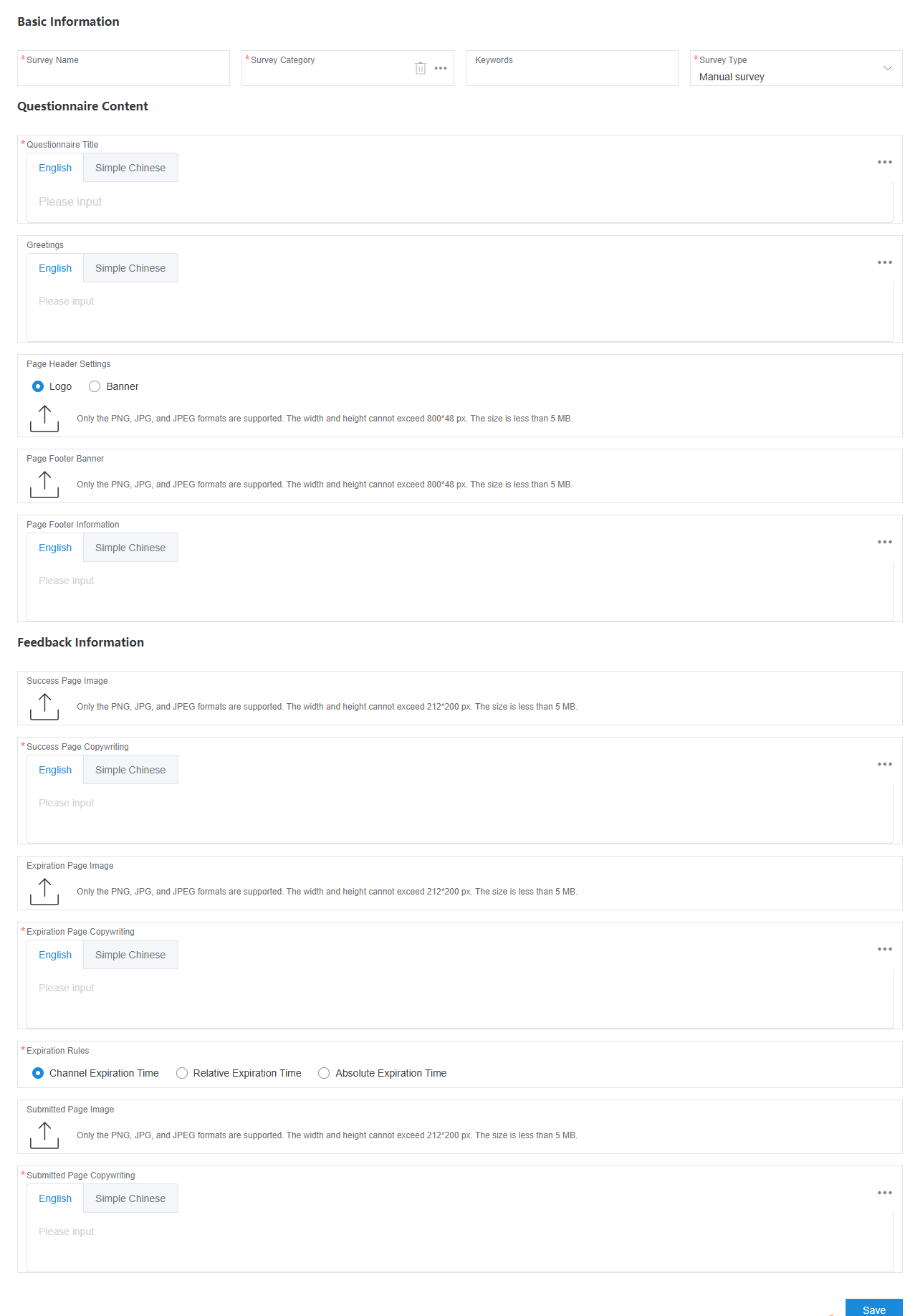
Table 1 Adding a manual survey Element/Component
Description
Remarks
Basic Information
Survey Name
(Mandatory) Survey name, which can contain a maximum of 32 characters.
-
Survey Category
(Mandatory) Created survey category.
-
Keywords
Survey keywords.
-
Survey Type
(Mandatory) Survey scenario. The options are Intelligent training, Manual and IVR survey Manual survey, and IVR Survey.
-
Questionnaire Content
Questionnaire Title
(Mandatory) Survey title, which can contain a maximum of 64 characters.
Language types are specified by Languages supported by the questionnaire under .
Greetings
(Optional) Survey greeting, which can contain a maximum of 512 characters.
Page Header Settings
(Optional) Upload an image in PNG, JPG, or JPEG format. The dimension of the image cannot exceed 800 pixels × 48 pixels, and the size cannot exceed 5 MB.
-
Page Footer Banner
(Optional) Upload an image in PNG, JPG, or JPEG format. The dimension of the image cannot exceed 800 pixels × 48 pixels, and the size cannot exceed 5 MB.
-
Page Footer Information
(Optional) Page footer information, which can contain a maximum of 128 characters.
Language types are specified by Languages supported by the questionnaire under .
Feedback Information
Success Page Image
(Optional) Upload an image in PNG, JPG, or JPEG format. The dimension of the image cannot exceed 212 pixels × 200 pixels, and the size cannot exceed 5 MB.
-
Success Page Copywriting
(Mandatory) Copy for successful submission, which can contain a maximum of 256 characters.
Language types are specified by Languages supported by the questionnaire under .
Expiration Page Image
(Optional) Upload an image in PNG, JPG, or JPEG format. The dimension of the image cannot exceed 212 pixels × 200 pixels, and the size cannot exceed 5 MB.
-
Expiration Page Copywriting
(Mandatory) Copy for survey expiration, which can contain a maximum of 256 characters.
Expiration Rules
This parameter is mandatory.
- Channel Expiration Time: The channel reply time of satisfaction surveys configured on the workbench is used.
- Relative Expiration Time: After users receive a survey, they must complete and submit the survey within a specified interval (unit: day).
- Absolute Expiration Time: Regardless of when users receive a survey, they must complete and submit the survey before a specified time point.
Submitted Page Image
(Optional) Upload an image in PNG, JPG, or JPEG format. The dimension of the image cannot exceed 212 pixels × 200 pixels, and the size cannot exceed 5 MB.
-
Submitted Page Copywriting
(Mandatory) Copy for repeated submission, which can contain a maximum of 256 characters.
Language types are specified by Languages supported by the questionnaire under .
- Choose Save.
- Click Question List and configure questions.
- Click Add. The Create Question page is displayed.
- Configure the question content. Figure 4 Adding a question to a manual survey
 Figure 5 Adding a question (score type) to a manual survey
 Figure 6 Adding a question (single choice type) to an IVR survey
 Figure 7 Adding a question (score type) to an IVR survey

Table 2 Survey question configuration Element
Description
Basic Information
Title
Question title.
Language types are specified by Languages supported by the questionnaire under .
Question Type
Value options:- Single choice
- Multiple choices
- Q&A
- Score
NOTE:- Only IVR and manual surveys support questions of the Score type.
- Only manual surveys support questions of the Multiple choices and Q&A types. IVR surveys do not support these two types.
Minimum Score
Minimum question score. The value must be 0 or a positive integer.
This parameter is displayed when Question Type is set to Score.
Maximum Score
Maximum question score. The maximum score must be greater than the minimum score.
This parameter is displayed when Question Type is set to Score.
Score Interval
Question score interval. The value must be 0 or a positive integer.
This parameter is displayed when Question Type is set to Score.
Display of options
Value options:- Tile display
- Collapsed display
Mandatory
Value options:- Yes
- No
Question Type
Value options:- Business capability
- Information Quality
- Customer question
- Service attitude
- Service specification execution
- System question
Weight Factor%
Question weight.
Problem announcement playing mode
Voice File
You can select only an approved voice file whose Usage Scenario is Questionnaire on the page.

TTS
You can select only an approved TTS file whose Usage Scenario is Questionnaire on the page.

Question Content
- Survey question content can be configured in different languages.
- Language types are specified by Languages supported by the questionnaire under .
- Customized variables can be used in question content, for example, ${staffName}.
NOTE:The question content is used for SMS satisfaction surveys of the voice or video channel.
Figure 8 Adding a question to an intelligent training survey

- Click Add to add an option list for the question whose Question Type is Single choice or Multiple choices. Figure 9 Create Option page
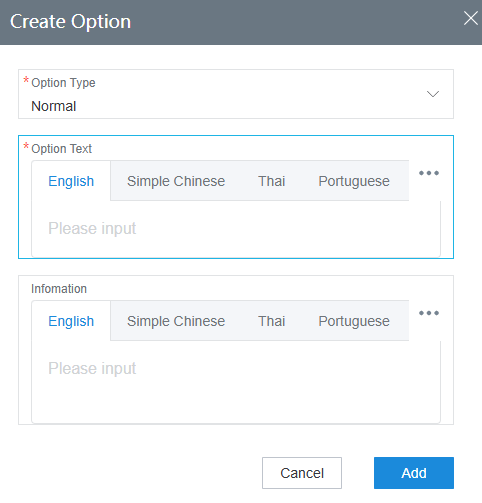
Table 3 GUI elements on the Create Option page Element
Description
Remarks
Option Type
Question option type.
Option: Normal
-
Option Text
Question option text.
Option text and information of survey questions can be configured in different languages.
Language types are specified by Languages supported by the questionnaire under .
Infomation
Question option information.
- Click Save. The question list page is displayed.
- (Optional) Adjust the sequence of questions in the question list. Click Adjust Sequence. In the Adjust Sequence dialog box, select the desired question, click Up or Down, and click OK. Figure 10 Adjust Sequence

- (Optional) Click
 on the Question List page of a manual survey, and select a question and question options to establish relationships on the Option Associated Question Display page. For example, there are two questions: Question 1: Do you think the price of tap water is high? Question 2: What range do you think is reasonable for the price of tap water? If you select expensive for question 1, you continue to answer question 2. If you select cheap for question 1, you do not need to answer question 2. Figure 11 Option Associated Question Display page

- Configure question execution rules.
- Return to the question list page and click Manage Question. The Manage Question page is displayed. Figure 12 Manage Question

- Each question has a default rule. Default rules cannot be modified or deleted. You can click Add to customize question execution rules as required. Customized rules cannot be modified or deleted.
- Set Question Type to Multiple choices and edit the rule.
- Select a question from the question list and set the redirection rule. The default redirection rule is Jump based on option.
- If Jump Rule is set to Fixed jump, the system directly jumps to the specified question. If Jump Rule is set to Jump based on option, the system jumps to the specified question only when the specified option is met.

- Click OK.
- Return to the question list page and click Manage Question. The Manage Question page is displayed.
- (Optional) On the survey details page, click Test Survey to test the survey before the survey is officially published. Figure 13 Survey details

- Click Release to officially publish the survey.
Follow-up Procedure
You can perform the following operations on a published survey:
- Click Disable. The survey of the current version is disabled and cannot be used by other modules.
- Click New Version to copy all content of the survey of the current version to create a survey of a new version.
What is your overall rating for this page?
Thank you very much for your feedback. We will continue working to improve the documentation.See the reply and handling status in My Cloud VOC.
For any further questions, feel free to contact us through the chatbot.
Chatbot


