

Help Center/ Cloud Container Instance (CCI)/ User Guide/ Using CCI Through the Console/ Workload Management/ Workload Scaling
Updated on 2026-09-09 GMT+08:00
Workload Scaling
Workload scaling allows you to flexibly adjust the number of pods based on changes in service requests. You can choose manual scaling for immediate effect, or configure auto scaling based on alarm policies such as resource usage. This enables the system to automatically scale in or out, helping you handle traffic spikes and optimize resource costs.
- Auto scaling: triggered by metrics. After the configuration is complete, pods can be automatically added or deleted as the resources change over time.
- Manual scaling: After the configuration is complete, pods can be added or deleted immediately.
Constraints
- Auto scaling is only supported for Deployments.
- CCI 2.0 supports auto scaling only in the TR-Istanbul, AF-Johannesburg, AP-Singapore, and ME-Riyadh regions.
Auto Scaling
For details about how to configure auto scaling, see HPA.
Manual Scaling
- Log in to the CCI 2.0 console.
- In the navigation pane, choose Workloads. On the Deployments tab, locate the target Deployment and click Edit YAML in the Operation column.
- Change the value of spec.replicas, for example, to 3, and click OK.
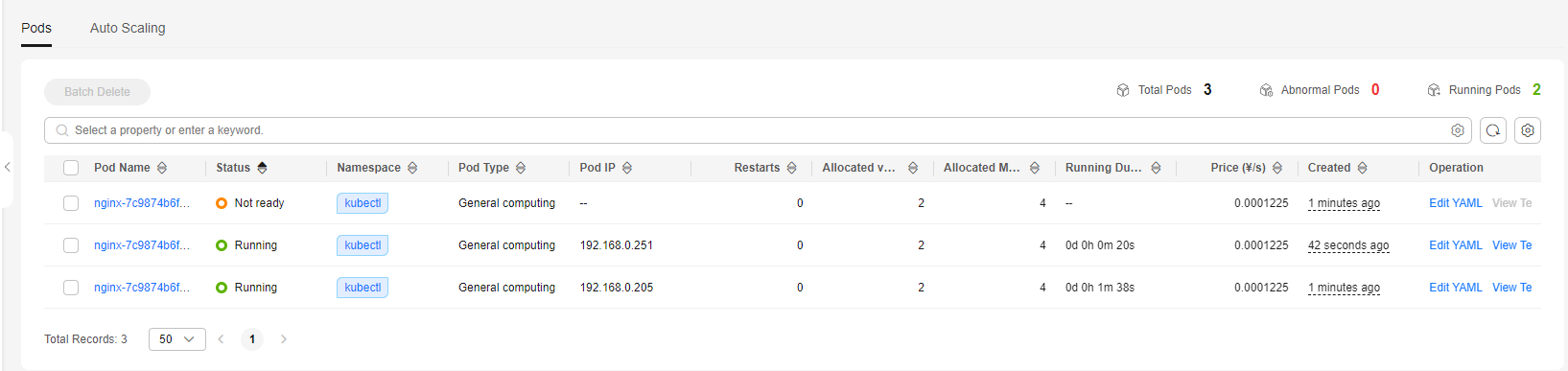
- On the Pods tab, view the new pods that are being created. When the statuses of all added pods change to Running, the scaling is complete. Figure 1 Pod list after a manual scaling
What is your overall rating for this page?
0
1
2
3
4
5
6
7
8
9
10
Very dissatisfiedVery satisfied
Thank you very much for your feedback. We will continue working to improve the documentation.See the reply and handling status in My Cloud VOC.
The system is busy. Please try again later.
For any further questions, feel free to contact us through the chatbot.
Chatbot


