

Help Center/ Relational Database Service_RDS for MySQL/ FAQs/ Network Security/ How Do I Import the SSL Certificate of an RDS Instance to a Windows or Linux Server?
Updated on 2026-10-08 GMT+08:00
How Do I Import the SSL Certificate of an RDS Instance to a Windows or Linux Server?
Importing the Certificate to a Windows Server
- Click Start and choose Run. In the displayed Run dialog box, enter MMC and press Enter.
- On the displayed console, choose File > Add/Remove Snap-in.
- In the left Available snap-ins pane of the displayed Add or Remove Snap-ins dialog box, select Certificates and click Add.
- In the displayed Certificates snap-in dialog box, select Computer account and click Next.
- In the displayed Select Computer dialog box, click Finish.
- In the Add or Remove Snap-ins dialog box, click OK.
- On the console, double-click Certificates.
- Right-click Trusted Root Certification Authorities and choose All Tasks > Import.
- In the displayed Certificate Import Wizard dialog box, click Next.
- Click Browse to change the file type to All Files (*.*).
- Locate the downloaded root certificate ca.pem file and click Open. Then, click Next.

You must change the file type to All Files (*.*) in the browse window to perform this operation, because .pem is not a standard certificate extension.
- Click Next.
- Click Finish.
- Click OK to complete the import of the root certificate.
Importing the Certificate to a Linux Server
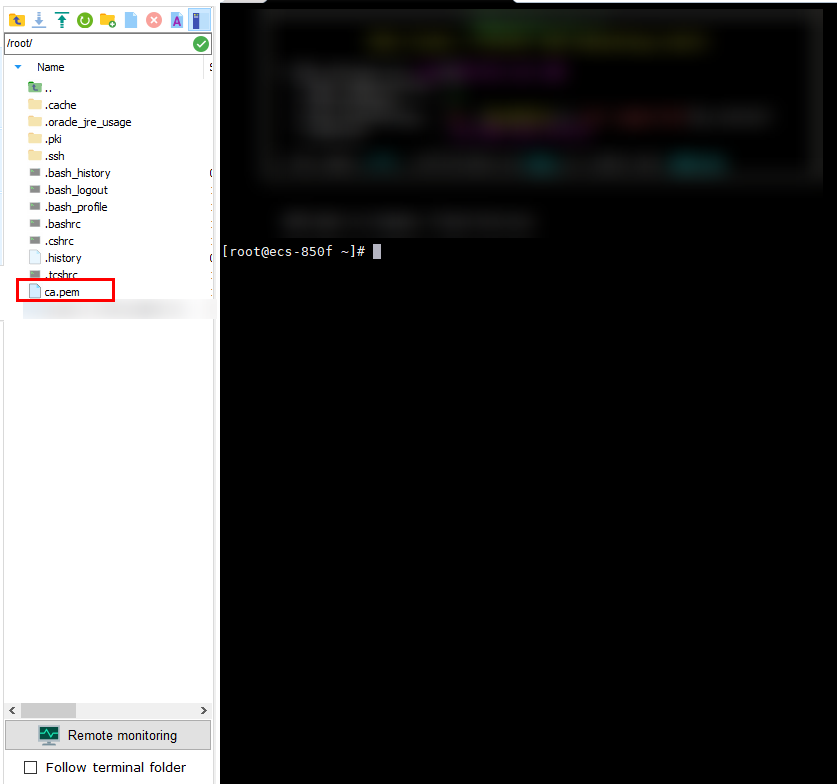
You can use any terminal connection tool (such as WinSCP or PuTTY) to upload the certificate to any directory on the Linux server.
Example:
Figure 1 Importing a certificate
What is your overall rating for this page?
0
1
2
3
4
5
6
7
8
9
10
Very dissatisfiedVery satisfied
Thank you very much for your feedback. We will continue working to improve the documentation.See the reply and handling status in My Cloud VOC.
The system is busy. Please try again later.
For any further questions, feel free to contact us through the chatbot.
Chatbot


