

Reporting Logs to LTS
Constraints
Before using LTS, you need to purchase a VPC endpoint for accessing LTS. During the purchase, search for and select VPC endpoint service for LTS from the service list. For details, see How Do I Create a VPC Endpoint on the VPCEP Console?
Scenario
Log Tank Service (LTS) analyzes and processes massive amounts of log data to maximize the availability and performance of cloud services and applications. CCI 2.0 reports logs of containers in each pod to LTS.
Creating a Deployment on the Console to Interconnect with LTS
- Log in to the CCI 2.0 console.
- In the left navigation pane, choose Workloads. On the Deployments tab, click Create Deployment.
- Complete basic settings.
- Add containers. A pod generally contains one or more containers created from different images. If your application needs to run on multiple containers in a pod, click Add Container and then select an image each time when you need another container.
- Select an upgrade policy.
- To deliver container logs to LTS for centralized management, select Ingest Logs to LTS and complete the configuration by referring to Table 1.
Table 1 Interconnection with LTS Parameter
Description
Log Group
Select the logical group that the logs belong to. You can select an existing log group or click Create Log Group to create one.NOTE:The log group name cannot be the same as the current or original name of an existing log group. Use only letters, digits, hyphens (-), underscores (_), and periods (.). Do not start with a period or underscore or end with a period.
Log Stream
Select a log stream (basic unit of log storage) in the log group. You can select an existing log stream or click Create Log Stream to create one.NOTE:Use only letters, digits, hyphens (-), underscores (_), and periods (.). Do not start with a period or underscore or end with a period.
Policy Name
Enter a custom name for the log collection policy, which is used to identify the log collection rule.NOTE:The name can contain a maximum of 63 characters and must start and end with a letter or digit. Only lowercase letters, digits, and hyphens (-) are allowed.
Log Type
- Container standard output: Collect logs that are printed to the standard output or standard error stream when containers are running.
- Container file logs: Collect the content of a specified log file in a container. NOTE:
- You can add a maximum of 20 log directories.
- Each path must be an absolute path. If there are duplicate paths, only the logs of one log directory can be collected.
- Log files in .gz, .tar, or .zip format are not supported.
- A maximum of three levels of directories can be matched using wildcards. The level-1 directory does not support wildcards. The directory name and file name must be complete names and support asterisks (*) and question marks (?) as wildcards. An asterisk (*) can match multiple characters. A question mark (?) can match only one character.
Log Format
- Single-line text: Each log contains only one line of text. The newline character \n denotes the start of a new log.
- Multi-line text: Each log may span multiple lines of text and is matched for the first line by using a regular expression. To print multi-line logs, you need to enter the log matching format.
- Click Create Deployment.
In the workload list, if the workload status changes to Running, the workload is created. You can click the workload name to view the details and refresh the page to view the real-time workload status.
- Wait until the workload enters the running status and click View Log in the Operation column to view the logs reported by the pod.


Creating a Deployment Using YAML to Interconnect with LTS
- Log in to the LTS console and create a log group.


- Create a log stream in the created log group.


- Log in to the CCI 2.0 console.
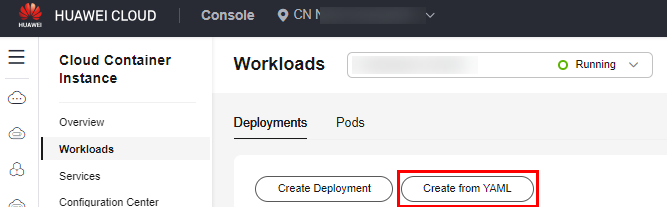
- In the navigation pane, choose Workloads. On the Deployments tab, click Create from YAML.
- Edit the YAML file.
If you use this function for the first time, do not use regular expression matching. You can use it as required later.
apiVersion: cci/v2
kind: Deployment
metadata:
  name: test
spec:
  replicas: 1
  selector:
    matchLabels:
      app: test
  template:
    metadata:
      annotations:
        logconf.k8s.io/fluent-bit-log-type: lts      # Where logs are reported
        logconfigs.logging.openvessel.io: "{\"default-config\":{\"container_files\":{\"container-0\":\"stdout.log;\/root\/out.log;\/data\/emptydir-volume\/*.log\"},\"lts-log-info\":{\"349b50f7-f6ba-4768-86f9-e7f84ab677c0\":\"8a9e0589-c3b5-4ed1-b8cd-1e8a54612d0e\"}}}"  # Log reporting configuration
      labels:
        app: test
    spec:
      containers:
      - image: centos:latest
        command: ['sh', '-c', "while true; do echo hello; touch /root/out.log; echo hello >> /root/out.log; touch /data/emptydir-volume/emptydir.log; echo hello >> /data/emptydir-volume/emptydir.log; sleep 10; done"]     # Command used to simulate log writing
        volumeMounts:
        - name: emptydir-volume
          mountPath: /data/emptydir-volume
        - name: emptydir-memory-volume
          mountPath: /data/emptydir-memory-volume
        name: container-0  # The container name (container-0) must be the same as the one in logconfigs.logging.openvessel.io.
        resources:
          limits:
            cpu: 100m
            memory: 100Mi
          requests:
            cpu: 100m
            memory: 100Mi
      volumes:
      - name: emptydir-volume
        emptyDir: {}
      - name: emptydir-memory-volume
        emptyDir:
          sizeLimit: 1Gi
          medium: Memory
  strategy:
    type: RollingUpdate
    rollingUpdate:
      maxSurge: 1
      maxUnavailable: 0
In annotations, logconfigs.logging.openvessel.io specifies configuration items for log reporting, and the configuration items are in JSON format. The following describes each configuration item:
{ "default-config": { // Configuration name. You can change it as needed. "container_files": { // You can set the log collection paths of multiple containers. stdout.log indicates standard output. /root/out.log indicates the text logs in rootfs (volumes included). /data/emptydir-xxx/*.log indicates the directories in rootfs (volumes included). "container-0": "stdout.log;/root/out.log;/data/emptydir-volume/*.log", ... }, "lts-log-info": { // Only one log group and one log stream are allowed. "f938a11a-678e-4631-80a0-3667be1280f7": "a248c18b-61ed-4de2-8f7f-c042b78bb0fd" // Log group ID and log stream ID in the format of {log-group-ID}:{log-stream-ID} } }, "other-config": { // Other settings ... } } - Wait until the workload enters the running status and click View Log in the Operation column to view the logs reported by the pod.


What is your overall rating for this page?
Thank you very much for your feedback. We will continue working to improve the documentation.See the reply and handling status in My Cloud VOC.
For any further questions, feel free to contact us through the chatbot.
Chatbot


