

Configuring Auto Throttling
Scenarios
Auto throttling automatically controls traffic by presetting criteria such as a CPU usage threshold and the maximum number of active connections. When these criteria are met, the system automatically throttles sessions to ensure core workload availability during sudden traffic surges or read/write exceptions.
Prerequisites
If you use auto throttling for the first time, upgrade DBA Assistant first.
- In the Auto Throttling area, click Upgrade DBA Assistant. In the displayed dialog box, you can learn about the enhanced features and billing rules.
- (Optional) If you enable Collect Slow Query Logs and Collect All SQL Statements, slow query logs and all SQL statements are collected and analyzed from multiple angles. For details, see Viewing Slow Query Logs and Viewing Top SQL Statements. Figure 1 Upgrading DBA Assistant

Procedure
- Log in to the RDS console.
- Click
 in the upper left corner and select a region.
- On the Instances page, click the target instance name to go to the Summary page.
- In the navigation pane, choose SQL Analysis and Tuning under DBA Assistant, and click the Auto Throttling tab.
- Click Auto Throttling.
- Toggle on
 and configure required parameters. For details about the parameters, see Table 1. Figure 2 Example
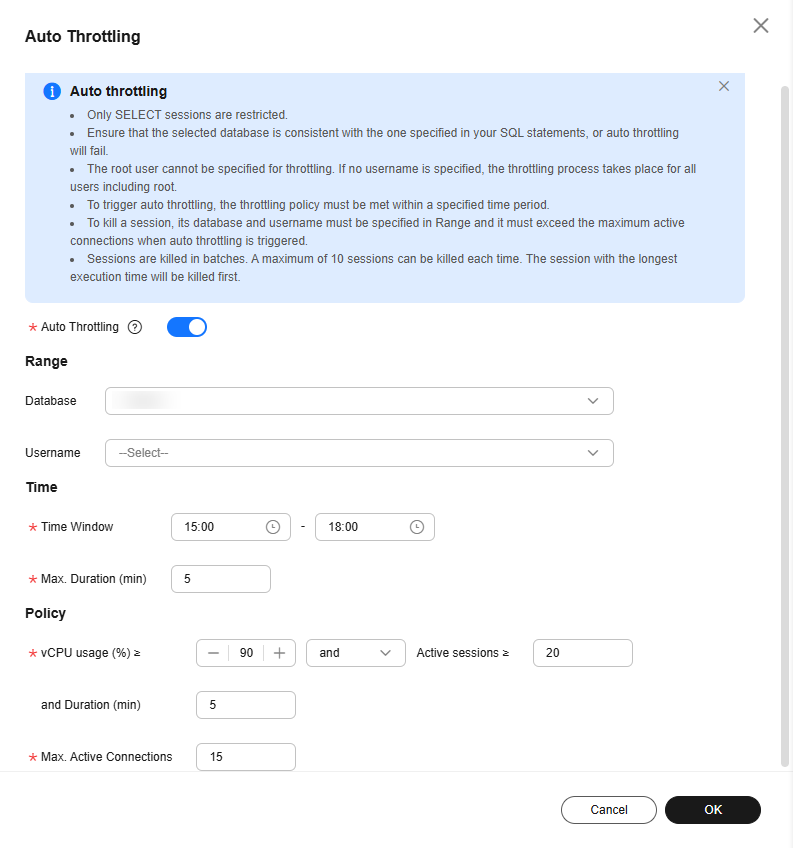
Example for setting auto throttling parameters
Set Time Window to 15:00-18:00, Max. Duration (min) to 5, vCPU usage (%) to 90, Active sessions to 20, and Duration (min) to 5. When all the criteria are met, auto throttling is triggered. If the vCPU usage or active session count no longer meets the throttling policy during the time window, auto throttling ends.
Table 1 Parameters Parameter
Description
Database
The name of the database for which auto throttling needs to be enabled. Ensure that the database you select is consistent with the one specified in the use <database> statement, or auto throttling will fail.
If the database name is not specified, auto throttling is applied to all databases by default.
Username
The name of the user to whom auto throttling is applied.
Time Window
The time when auto throttling is applied. Auto throttling can be triggered only once within the time window.
Max. Duration (min)
Maximum length of time that SQL statements matching the auto throttling policy can be throttled within the time window.
vCPU usage (%)
vCPU usage threshold for the instance (≥ 70%). You also need to specify the relationship between the vCPU usage and active sessions. Their relationship can be and or or.
Active sessions
Threshold for active sessions. Value range: 1 to 5000
Duration (min)
How long vCPU usage and active sessions have exceeded the specified values. The duration can range from 2–60 minutes.
For example, if you set vCPU usage (%) to 90%, Active sessions to 1000, and Duration (min) to 30, auto throttling will be triggered only when both vCPU usage and active sessions exceed those thresholds continuously for 30 minutes.
Max. Active Connections
Maximum number of active connections allowed. The value can range from 1 to 5,000. Auto throttling stops when the number of active connections drops to this limit.
- Click OK.
- Verify that an auto throttling record is generated on the page every time auto throttling is triggered. You can also view historical auto throttling records.
Follow-up Operations
After auto throttling is enabled, you can determine whether to kill sessions. To learn how to kill sessions, see Managing Real-Time Sessions.
You can terminate transactions by setting certain parameters. For details, see Ending Idle Transactions.
What is your overall rating for this page?
Thank you very much for your feedback. We will continue working to improve the documentation.See the reply and handling status in My Cloud VOC.
For any further questions, feel free to contact us through the chatbot.
Chatbot


