

Connecting to a Replica Set Instance Using Mongo Shell (Public Network)
Scenarios
In the following scenarios, you can access a DDS instance from the Internet by binding a public gateway or an EIP to the instance.
Scenario 1: If your application is running on an ECS that is in a different region from the one where the DDS instance is located, connect to the DDS instance using an EIP.
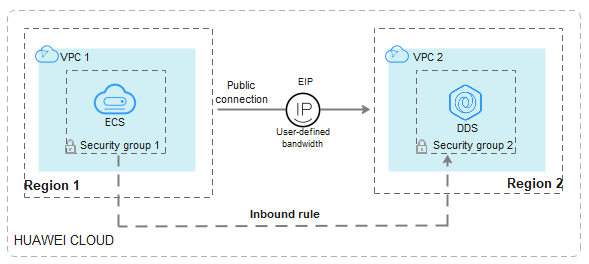
Scenario 2: If your application is deployed on a cloud server provided by other vendors, connect to the DDS instance using an EIP.
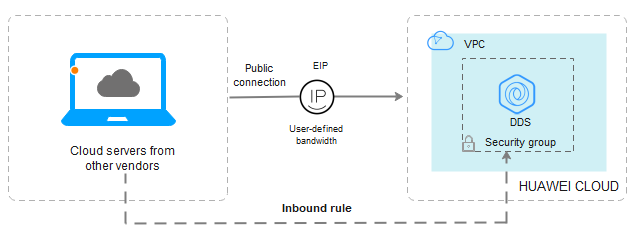
This section uses an application deployed on an ECS as an example to guide you through the process of connecting to a replica set instance using Mongo Shell over an EIP.
You can connect to a replica set instance using either an SSL connection or a non-SSL connection. SSL connections are encrypted and provide higher security. To improve data transmission security, connect to instances using SSL.
Prerequisites
- For details about how to create and log in to an ECS, see Purchasing an ECS and Logging In to an ECS.
- You have bound a public gateway or an EIP to the replica set instance and configured security group rules to ensure that the instance can be accessed from the ECS.
- Install the MongoDB client on the ECS.
For details about how to install a MongoDB client, see How Can I Install a MongoDB Client?

The version of the installed MongoDB client must be the same as the instance version.
Procedure

If you connect to an instance over the SSL connection, enable SSL first. Otherwise, an error is reported. For details about how to enable SSL, see Enabling and Disabling SSL.
- Log in to the management console.
- Click
 in the upper left corner and select a region and a project.
 - Click
 in the upper left corner of the page and choose Databases > Document Database Service.
 - On the Instances page, click the instance name.
- In the navigation pane, choose Connections.
- In the Basic Information area, click
 next to the SSL field to download the root certificate.
 - Upload the root certificate to the ECS that needs to connect to the instance.
Choose the corresponding upload method based on whether the ECS runs Linux or Windows.
- In Linux, run the following command: scp<IDENTITY_FILE><REMOTE_USER>@<REMOTE_ADDRESS>:<REMOTE_DIR>
- IDENTITY_FILE indicates the directory where the root certificate is stored. Ensure that the directory's access permission is set to 600.
- REMOTE_USER is the ECS OS user.
- REMOTE_ADDRESS is the ECS address.
- REMOTE_DIR is the directory on the ECS where the root certificate is uploaded.
- In Windows, upload the root certificate using a remote connection tool.
- In Linux, run the following command:
- Connect to the instance from the directory where the MongoDB client is located.
- Method 1: Using a public network connection address
./mongo "<public-network-connection-address>" --ssl --sslCAFile<FILE_PATH> --sslAllowInvalidHostnames
The parameters are explained as follows:
- Public Network Connection Address: On the Instances page, click the instance to switch to the Basic Information page. In the navigation pane on the left, choose Connections. Click the Public Connection tab and obtain the public network connection address. Figure 3 Obtaining the public network connection address

The format of the public network connection address is provided below. It uses a fixed account and authentication database. Therefore, the username rwuser and the authentication database admin cannot be changed.
mongodb://rwuser:<password>@192.168.xx.xx:8635/test?authSource=admin
Configure the parameters in the address as described in the table below.
Table 1 Parameter description Parameter
Description
rwuser
Account name, that is, the database username.
<password>
Password for the database account. Replace it with the actual password.
If the password contains at signs (@), exclamation marks (!), dollar signs ($), percent signs (%), or plus signs (+), replace them with hexadecimal URL codes (ASCII) %40, %21, %24, %25, and %2B respectively.
For example, if the password is ****@%***!$+, the corresponding URL code is ****%40%25***%21%24%2B.
192.168.xx.xx:8635
The EIP and port bound to the node of the replica set instance.
authSource=admin
The authentication database of user rwuser must be admin. authSource=admin is fixed in the command.
- FILE_PATH is the path where the root certificate is stored.
- --sslAllowInvalidHostnames: The replica set certificate is generated using the internal management IP address to ensure that internal communication does not occupy resources such as the user IP address and bandwidth. You must add --sslAllowInvalidHostnames when connecting to a replica set instance over a public network using SSL.
Example command:
./mongo "mongodb://rwuser:<password>@192.168.xx.xx:8635/test?authSource=admin" --ssl --sslCAFile /tmp/ca.crt --sslAllowInvalidHostnames - If you connect to an instance over a public HA address, enclose the connection string in double quotation marks.
- To improve read and write performance and prevent errors from being reported when data is written from the client after a primary/secondary switchover, connect to an instance in HA mode. For details, see Connecting to a Replica Set Instance for Read and Write Separation and High Availability.
- Public Network Connection Address: On the Instances page, click the instance to switch to the Basic Information page. In the navigation pane on the left, choose Connections. Click the Public Connection tab and obtain the public network connection address.
- Method 2: Using an EIP
./mongo --host <DB_HOST> --port <DB_PORT> -u <DB_USER> -p --authenticationDatabaseadmin --ssl --sslCAFile<FILE_PATH> --sslAllowInvalidHostnames
The parameters are explained as follows:
Table 2 Parameters Parameter
Description
DB_HOST
DB_PORT
Database port. The default port number is 8635.
You can click the instance name to go to the Basic Information page. In the navigation pane, choose Connections. On the Public Connection tab page, obtain the port number next to the Database Port field in the Basic Information area.
Figure 5 Obtaining the port number

DB_USER
Database account. The default value is rwuser.
FILE_PATH
Path where the root certificate is stored.
--sslAllowInvalidHostnames
To ensure that internal communication within the replica set does not consume user IP addresses or bandwidth resources, the replica set instance's certificate is generated using the internal management IP address. You must add --sslAllowInvalidHostnames when connecting to a replica set instance over a public network using SSL.
Enter the database account password when the following prompt appears:
Enter password:
Example command:
./mongo --host 192.168.xx.xx --port 8635 -u rwuser -p --authenticationDatabase admin --ssl --sslCAFile /tmp/ca.crt --sslAllowInvalidHostnames
- Method 3: Using the EIP of a public gateway
./mongo --host <DB_HOST> --port <DB_PORT> -u <DB_USER> -p --authenticationDatabaseadmin --ssl --sslCAFile<FILE_PATH> --sslAllowInvalidHostnames
The parameters are explained as follows:
Table 3 Parameters Parameter
Description
DB_HOST
EIP of the public gateway bound to the instance node to be connected.
On the Instances page, click the instance name to go to the Basic Information page. In the navigation pane, choose Connections. On the displayed page, click the Public Connection tab and find the EIP of the public gateway bound to the target node.Figure 6 Obtaining the EIP of the public gateway

DB_PORT
Port of the public gateway.
Figure 7 Obtaining the port of the public gateway

DB_USER
Database account. The default value is rwuser.
FILE_PATH
Path where the root certificate is stored.
--sslAllowInvalidHostnames
To ensure that internal communication within the replica set does not consume user IP addresses or bandwidth resources, the replica set instance's certificate is generated using the internal management IP address. You must add --sslAllowInvalidHostnames when connecting to a replica set instance over a public network using SSL.
Enter the database account password when the following prompt appears:
Enter password:
Example command:
./mongo --host 192.168.xx.xx --port 8635 -u rwuser -p --authenticationDatabase admin --ssl --sslCAFile /tmp/ca.crt --sslAllowInvalidHostnames
- Method 1: Using a public network connection address
- Check the connection result. If the following information is displayed, the connection is successful.
- The primary node of the replica set is connected.
replica:PRIMARY>
- The secondary node of the replica set is connected.
replica:SECONDARY>
- The primary node of the replica set is connected.

If you connect to an instance without SSL, ensure that SSL is disabled. Otherwise, an error will be reported. For details about how to disable SSL, see Enabling and Disabling SSL.
- Log in to the ECS.
- Connect to a DDS instance.
- Method 1: Using a public network connection address
./mongo "<Public network address>"
Public Network Connection Address: On the Instances page, click the instance to switch to the Basic Information page. In the navigation pane on the left, choose Connections. Click the Public Connection tab and obtain the public network connection address.
Figure 8 Obtaining the public network connection address

The format of the public network connection address is provided below. It uses a fixed account and authentication database. Therefore, the username rwuser and the authentication database admin cannot be changed.
mongodb://rwuser:<password>@192.168.xx.xx:8635/test?authSource=admin
Configure the parameters in the address as described in the table below.
Table 4 Parameter description Parameter
Description
rwuser
Account name, that is, the database username.
<password>
Password for the database account. Replace it with the actual password.
If the password contains at signs (@), exclamation marks (!), dollar signs ($), percent signs (%), or plus signs (+), replace them with hexadecimal URL codes (ASCII) %40, %21, %24, %25, and %2B respectively.
For example, if the password is ****@%***!$+, the corresponding URL code is ****%40%25***%21%24%2B.
192.168.xx.xx:8635
The EIP and port bound to the node of the replica set instance.
authSource=admin
The authentication database of user rwuser must be admin. authSource=admin is fixed in the command.
Example command:
./mongo "mongodb://rwuser:<password>@192.168.xx.xx:8635/test?authSource=admin"
- If you connect to an instance over a public HA address, enclose the connection string in double quotation marks.
- To improve read and write performance and prevent errors from being reported when data is written from the client after a primary/secondary switchover, connect to an instance in HA mode. For details, see Connecting to a Replica Set Instance for Read and Write Separation and High Availability.
- Method 2: Using an EIP
./mongo --host <DB_HOST> --port <DB_PORT> -u <DB_USER> -p --authenticationDatabase admin
The parameters are explained as follows:
Table 5 Parameters Parameter
Description
DB_HOST
EIP bound to the instance node to be connected.
On the Instances page, click the instance name to go to the Basic Information page. In the navigation pane, choose Connections. On the displayed page, click the Public Connection tab and find the EIP of the target node.
Figure 9 Obtaining the EIP

DB_PORT
Database port. The default port number is 8635.
You can click the instance name to go to the Basic Information page. In the navigation pane, choose Connections. On the Public Connection tab page, obtain the port number next to the Database Port field in the Basic Information area.
Figure 10 Obtaining the port number

DB_USER
Database account. The default value is rwuser.
Enter the database account password when the following prompt appears:
Enter password:
Example command:
./mongo --host 192.168.xx.xx --port 8635 -u rwuser -p --authenticationDatabase admin
- Method 3: Using the EIP of a public gateway
./mongo --host <DB_HOST> --port <DB_PORT> -u <DB_USER> -p --authenticationDatabase admin
The parameters are explained as follows:
Enter the database account password when the following prompt appears:
Enter password:
Example command:
./mongo --host 192.168.xx.xx --port 8635 -u rwuser -p --authenticationDatabase admin
- Method 1: Using a public network connection address
- Check the connection result. If the following information is displayed, the connection is successful.
- The primary node of the replica set is connected.
replica:PRIMARY>
- The secondary node of the replica set is connected.
replica:SECONDARY>
- The primary node of the replica set is connected.


What is your overall rating for this page?
Thank you very much for your feedback. We will continue working to improve the documentation.See the reply and handling status in My Cloud VOC.
For any further questions, feel free to contact us through the chatbot.
Chatbot


