

Updated on 2025-11-18 GMT+08:00
What Can I Do If I Cannot Find My ECSs?
Symptom
You cannot find your purchased ECSs after logging in to the console.
Possible Causes
- The ECSs are not in the selected region.
- The yearly/monthly ECSs have expired, or the pay-per-use ECSs have been deleted due to arrears.
Solution
Method 1: Change the region.
- Log in to the management console.
- Select the region in which you created your ECS. Figure 1 Changing a region on the management console homepage

Method 2: View resource details on the My Resources page.
- Log in to the management console.
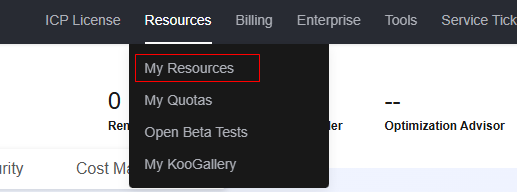
- On the right of the top navigation bar of the management console, choose Resources > My Resources. Figure 2 My Resources
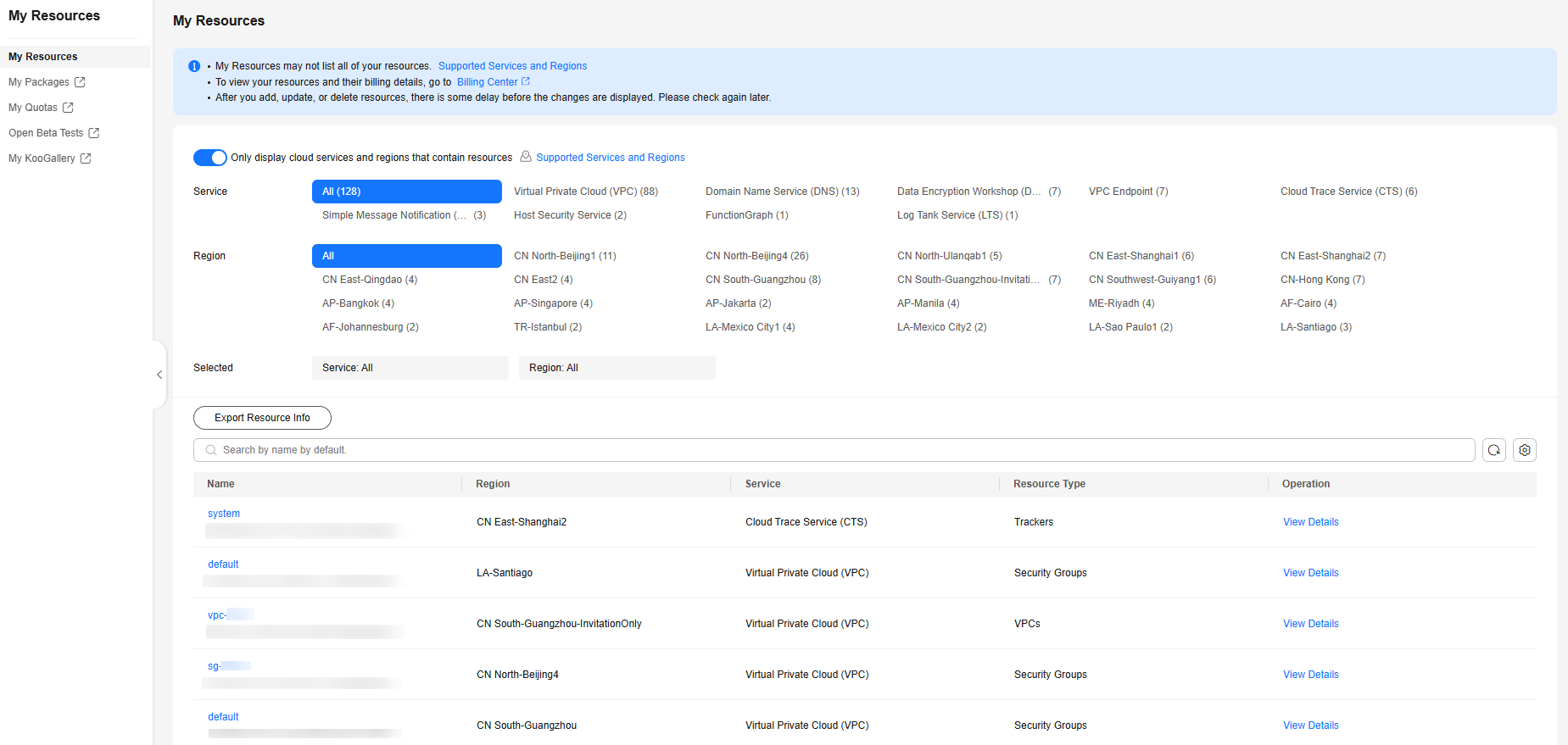
- On the My Resources page, view resource details.
- Click a resource type to display all resources of the resource type in the list.
- Click a region to view all resources in the region.
Figure 3 Resource list
Method 3: View historical resources in Billing Center.
This method is used only to view historical resources that have been unsubscribed from or deleted. For unsubscribed or deleted resources, if they are not backed up, their data cannot be restored.
- Yearly/Monthly resources
- Log in to the Billing Center console.
- In the navigation pane on the left, choose Orders > My Orders.
- On the My Orders page, view yearly/monthly resources.
You can filter resources by time period, product type, or order number.
- Pay-per-use resources
- Log in to the Billing Center console.
- In the navigation pane on the left, choose Billing > Bill Details.
- Set Data Period to Details to view pay-per-use resources.
You can filter resources using attributes in the search box.
Parent topic: ECS Creation
What is your overall rating for this page?
0
1
2
3
4
5
6
7
8
9
10
Very dissatisfiedVery satisfied
Thank you very much for your feedback. We will continue working to improve the documentation.See the reply and handling status in My Cloud VOC.
The system is busy. Please try again later.
For any further questions, feel free to contact us through the chatbot.
Chatbot


