

How Can I Locate the Root Cause If a Workload Is Abnormal?
If a workload is abnormal, you can check the pod events first to locate the fault and then rectify the fault.
Fault Locating

Step 1: Check the Basic Workload Status (Quickly Determine the Exception Type)
- Log in to the CCE console and click the cluster name to access the cluster console.
- In the navigation pane, choose Workloads and select a namespace in the upper left corner of the page.
- Locate the target workload and check its status. The following scenarios cover the core workload states:
- Not ready: Check for pod exceptions. For details, see Step 2: Check for Pod Exceptions (Locate the Root Cause of Workload Exceptions).
- Being processed: Wait for the operation to complete. If the fault persists for an extended period, follow the troubleshooting steps for the Not ready scenario.
- Running: No action is required. However, if the workload is running but inaccessible, check whether intra-cluster access is functioning normally. For details, see Step 3: Check for Access Exceptions (Workload Is Normal But Cannot Be Accessed).
Step 2: Check for Pod Exceptions (Locate the Root Cause of Workload Exceptions)
View pod events to identify the cause. Refer to Viewing Pod Events for the appropriate solution based on the specific event.
The pod statuses listed in the table below are obtained from the STATUS field in the output of kubectl get pod.

STATUS is a more granular status generated by kubectl based on state.Phase, state.Conditions, and status.ContainerStatuses.
| Pod Status | Description | Reference |
|---|---|---|
| Pending | The pod failed to schedule. | |
| Pending | A storage volume failed to mount to the pod. | What Should I Do If a Storage Volume Can't Be Mounted or the Mounting Times Out? |
| Pending | A storage volume failed to mount. | What Should I Do If a Workload Exception Occurs Due to a Storage Volume Mount Failure? |
| FailedPullImage ImagePullBackOff | The container image failed to pull. The container image failed to pull again. | |
| CreateContainerError CrashLoopBackOff | The container failed to start. The container failed to restart. | |
| Evicted | The pod is repeatedly evicted. | |
| Creating | The pod is stuck in the Creating state. | What Should I Do If a Workload Remains in the Creating State? |
| Terminating | The pod is stuck in the Terminating state. | |
| Stopped | The pod is in the Stopped state. | What Should I Do If a Workload Is Stopped Caused by Pod Deletion? |
| Init:N/M | The Init container failed to start. | What Should I Do If There Is an Init Container Startup Failure in a Workload? |
| Init:Error | The Init container failed to start. | What Should I Do If There Is an Init Container Startup Failure in a Workload? |
| Init:CrashLoopBackOff | The Init container is failing to restart repeatedly. | What Should I Do If There Is an Init Container Startup Failure in a Workload? |
Step 3: Check for Access Exceptions (Workload Is Normal But Cannot Be Accessed)
If the workload is running but inaccessible, perform the following troubleshooting steps:
- Obtain the pod IP address on the CCE console or by running the kubectl command.
- Log in to a node or container in the cluster, manually call the API using curl, and check whether the container port is correctly configured.
- If {container-IP}:{port} is inaccessible, log in to the service container and attempt to access 127.0.0.1:{port}.
For details, see Logging In to a Container.
If the workload is running but not functioning properly, or if the access result does not meet expectations, see What Should I Do If a Workload Appears to Be Normal But Is Not Functioning Properly?.
Common Troubleshooting Methods
Use the following methods to locate pod faults.
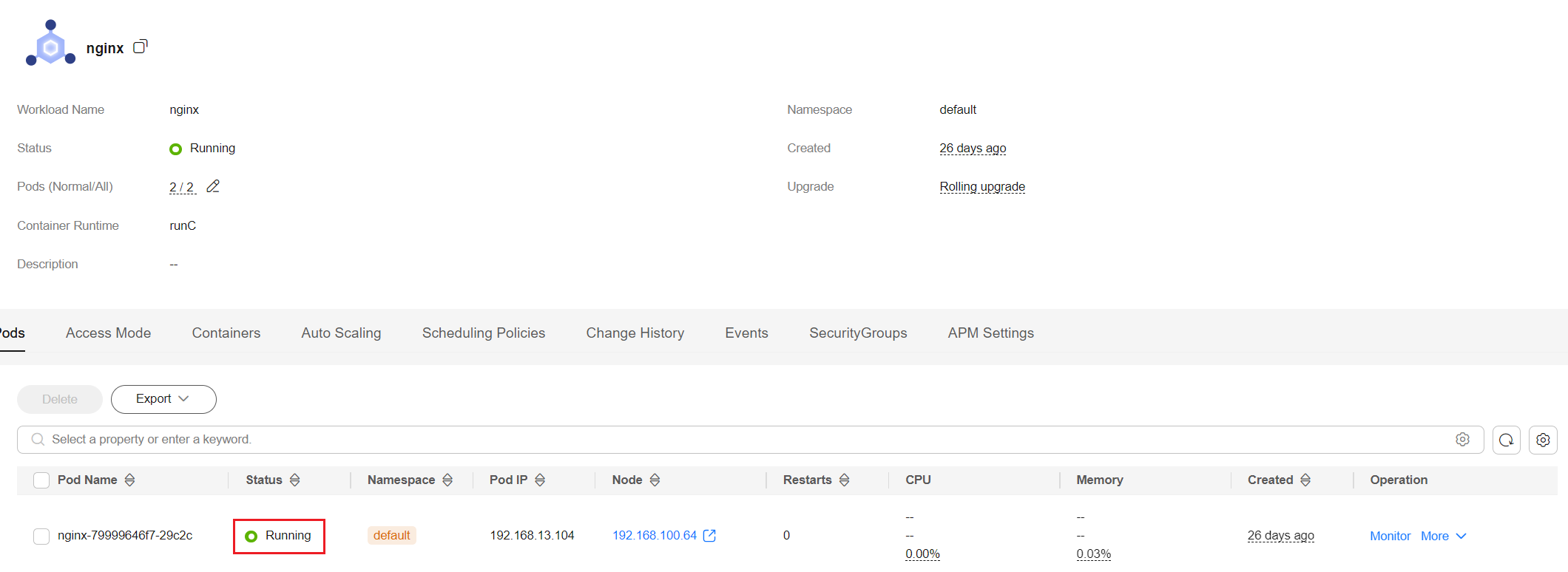
Checking Pod Status
Viewing Pod Configurations
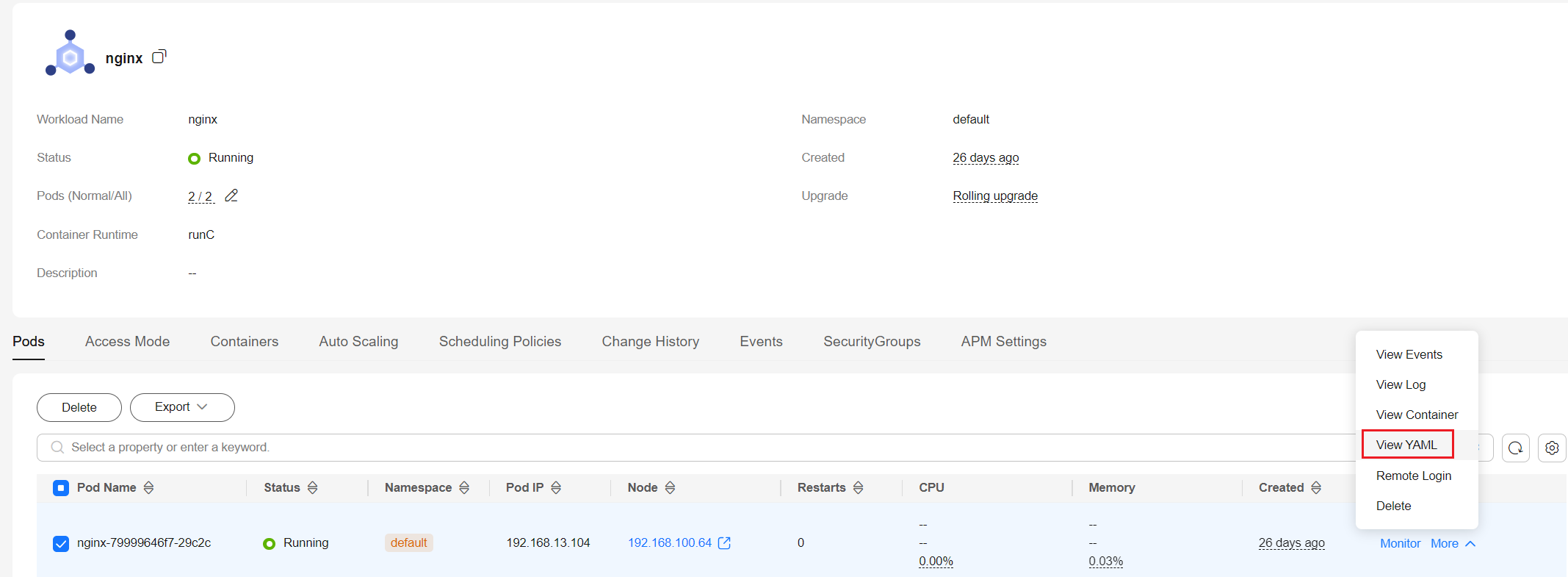
- Log in to the CCE console.
- Click the cluster name to access the cluster console. In the navigation pane, choose Workloads.
- Click the name of the target workload. In the workload pod list, locate the row containing the target pod and choose More > View YAML in the Operation column.
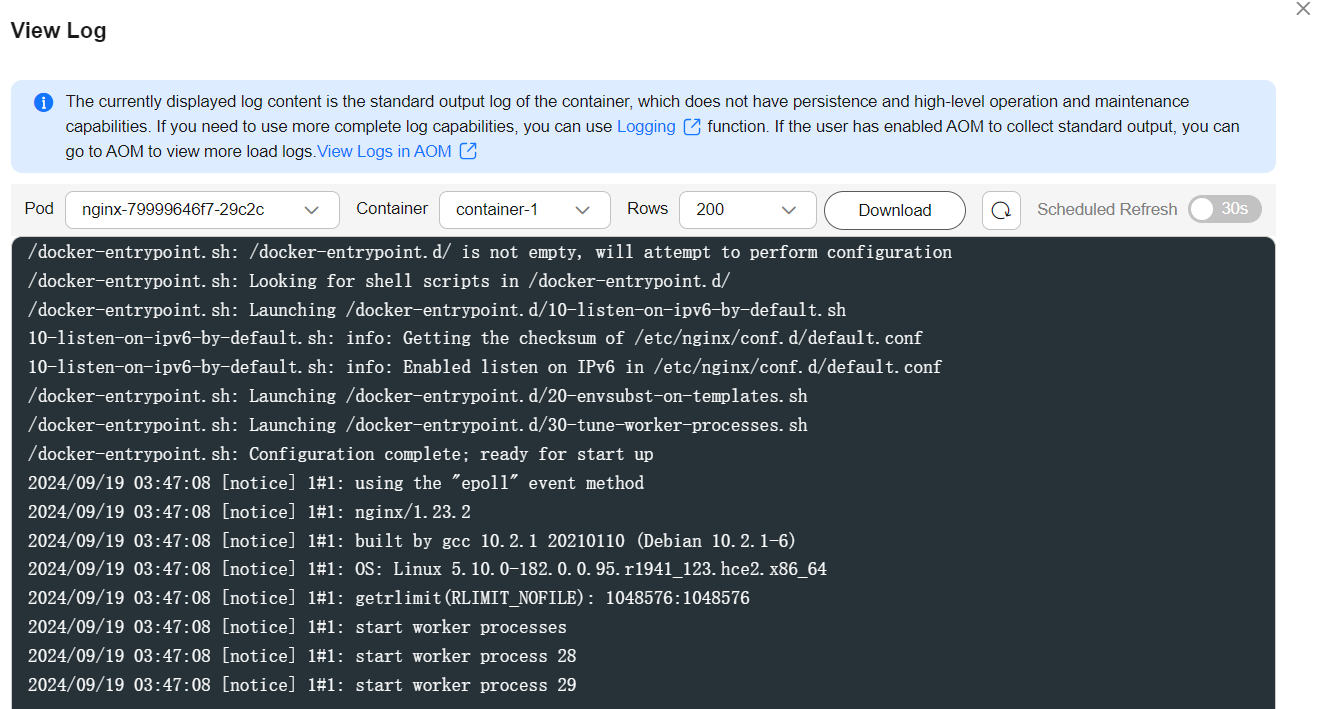
Viewing Pod Events
Method 1
On the CCE console, click the workload name to go to the workload details page, locate the row containing the abnormal pod, and choose More > View Events in the Operation column.

Method 2
Use the kubectl command:
kubectl describe pod {pod-name} Information similar to the following is displayed:
...
Events:
  Type     Reason            Age   From               Message
  ----     ------            ----  ----               -------
  Warning  FailedScheduling  49s   default-scheduler  0/2 nodes are available: 2 Insufficient cpu.
  Warning  FailedScheduling  49s   default-scheduler  0/2 nodes are available: 2 Insufficient cpu.

Logging In to a Container
You can log in to a container using kubectl. For details, see Logging In to a Container.
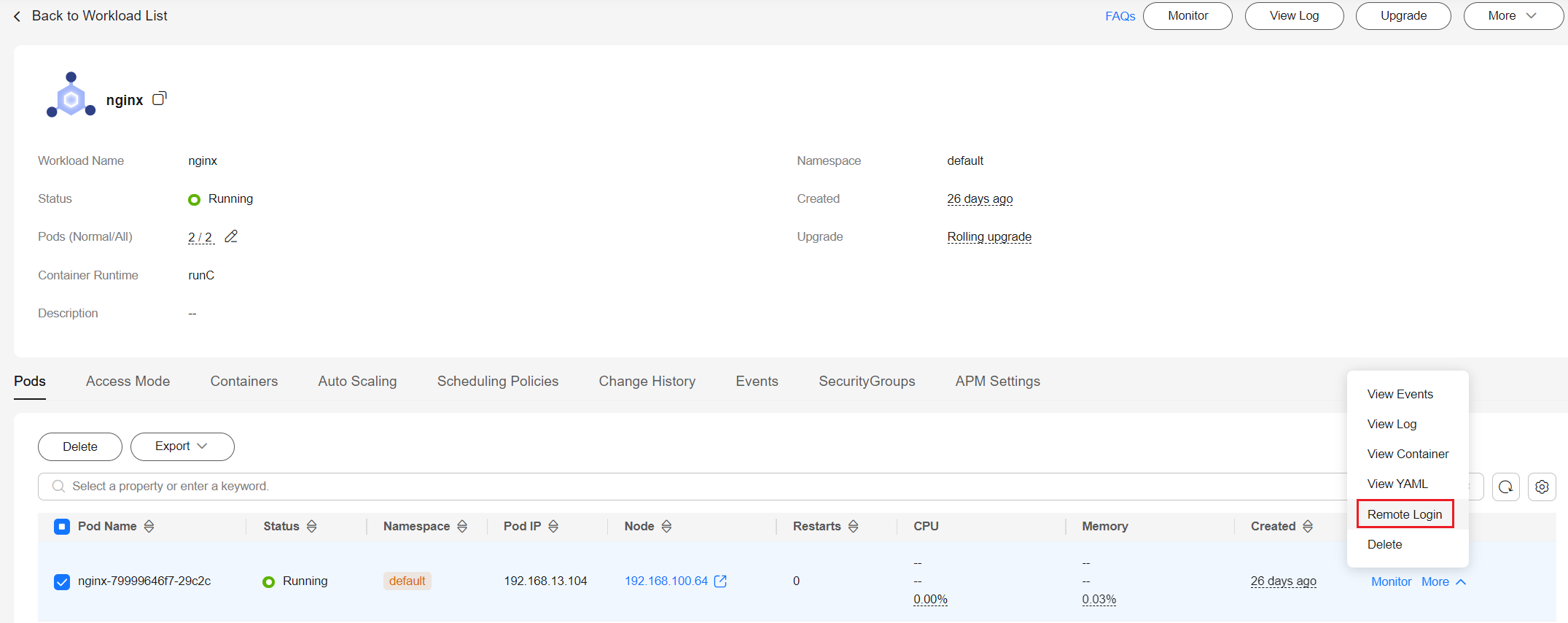
- Log in to the CCE console.
- Click the cluster name to access the cluster console. In the navigation pane, choose Workloads.
- Click the name of the target workload. In the workload pod list, locate the row containing the target pod and choose More > Remote Login in the Operation column.
What is your overall rating for this page?
Thank you very much for your feedback. We will continue working to improve the documentation.See the reply and handling status in My Cloud VOC.
For any further questions, feel free to contact us through the chatbot.
Chatbot


