

Restoring an Instance from a Backup
Scenarios
If a manual backup was created before an instance was deleted, you can restore the instance on the Backups page.
Procedure
| Step | Description |
|---|---|
| Use Data Admin Service (DAS) to create a database and table and insert data into the table. | |
| Delete the instance. | |
| Restore your instance data from a backup. | |
| Log in to the DAS console and check whether the data was restored. |
Step 1: Prepare Data
- Log in to the management console.
- Click
 in the upper left corner and select a region and project.
- Click
 in the upper left corner of the page and choose .
- On the Instances page, locate the instance and, in the Operation column, click Log In to access the DAS console.
Alternatively, click the instance name on the Instances page. On the displayed Basic Information page, click Log In in the upper right corner.
- Enter the database username and password and click Test Connection. After the connection test is successful, click Log In.
- On the menu bar on top, choose SQL Operations > SQL Query.
- In the SQL execution window, run the following statement to create a database:
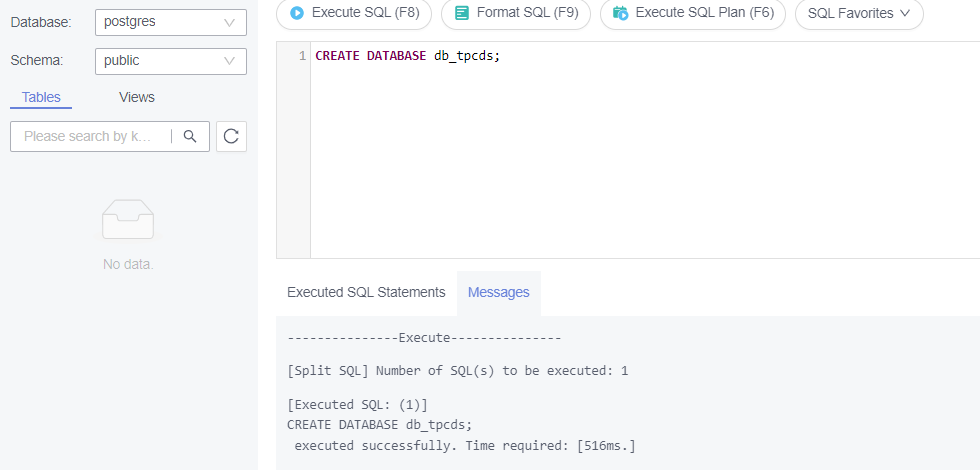
CREATE DATABASE db_tpcds;
If information shown in the following figure is displayed, the creation was successful.
Figure 1 Creating a database
Switch to the newly created database db_tpcds in the upper left corner.
- Use SQL statements to create a table and insert data.
- Create a schema.
CREATE SCHEMA myschema;
Switch to the newly created schema in the upper left corner.
- Create a table named mytable that has only one column. The column name is firstcol and the column type is integer.
CREATE TABLE myschema.mytable (firstcol int);
- Insert data into the table.
INSERT INTO myschema.mytable values (100);
- Create a schema.
- Query table data.
SELECT * FROM myschema.mytable;
Step 2: Delete the Instance
- Log in to the management console.
- Click
 in the upper left corner and select a region and project.
- Click
 in the upper left corner of the page and choose .
- On the Instances page, locate the instance you want to delete, click More in the Operation column, and choose Delete.
- In the Delete DB Instance dialog box, enter DELETE, select the confirmation check box in the Confirm field, and click OK. Refresh the Instances page later to confirm that the deletion was successful.
Step 3: Restore an Instance Using a Backup File
- Log in to the management console.
- Click
 in the upper left corner and select a region and project.
- Click
 in the upper left corner of the page and choose .
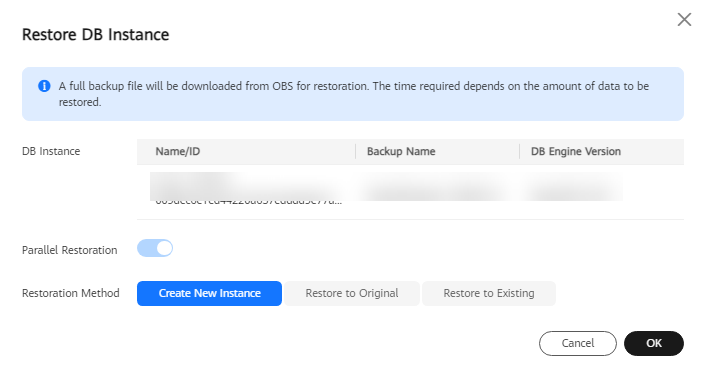
- In the navigation pane, choose Backups. On the Backups page, locate the backup to be restored and click Restore in the Operation column.
- Set Restoration Method to Create New Instance and click OK. Figure 2 Restoring data from a backup
- On the Create New Instance page, select the billing mode, enter the instance name, and specify other parameters such as the AZs and time zone. Figure 3 Basic Settings
 Figure 4 Instance Configuration

Table 1 Parameter description Parameter
Example Value
Description
Billing Mode
Pay-per-use
GaussDB provides yearly/monthly billing and pay-per-use billing.
- Yearly/Monthly: You pay upfront for the amount of time you expect to use the DB instance for. You will need to make sure you have a top-up account with a sufficient balance or have a valid payment method configured first.
For distributed instances using the combined deployment model, yearly/monthly billing is only available to authorized users. To apply for the permissions needed, submit a service ticket.
- Pay-per-use: You can start using the DB instance first and then pay as you go. Pricing is listed on a per-hour basis, but bills are calculated based on the actual usage duration.
Edition Type
Enterprise edition
GaussDB provides Basic edition and Enterprise edition.
The basic edition lacks certain advanced features that are available in the enterprise edition. The basic edition delivers the same level of performance as the enterprise edition at a more affordable price. This edition is ideal for users who prioritize cost and do not need advanced features.
For more details about the differences between the two editions, see Differences Between the Basic and Enterprise Editions of GaussDB Instances.
Failover Priority
Reliability
This parameter is only available for distributed instances using independent deployment.
Additionally, this parameter is only available for authorized users. To apply for the permissions needed, submit a service ticket.
- Reliability: Data consistency is prioritized during a failover. This is recommended for applications whose highest priority is data consistency.
- Availability: Database availability is prioritized during a failover. This is recommended for applications that require their databases to provide uninterrupted online services.
AZ
AZ1
An AZ is a physical region where resources have independent power supply and networks. AZs are physically isolated but interconnected through an internal network.
- Yearly/Monthly: You pay upfront for the amount of time you expect to use the DB instance for. You will need to make sure you have a top-up account with a sufficient balance or have a valid payment method configured first.
- Configure instance specifications. Figure 5 Resource Configuration

Table 2 Parameter description Parameter
Example Value
Description
Instance Specifications
Dedicated(1:8); 8 vCPUs | 64 GB
The vCPUs and memory of an instance.
Storage Space
40 GB
The allocated storage space contains necessary file system overhead required for inodes, reserved blocks, and database operations.
Disk Encryption
Disable
Enabling disk encryption improves data security, but slightly affects the read and write performance of the database.
If a shared KMS key is used, the corresponding CTS event is createGrant. Only the key owner can receive this event.
Transparent Data Encryption
Disable
- Disable: Encryption is disabled.
- Enable: Encryption is enabled, which improves data security but affects system performance.
If you select Enable, the Key Name parameter is displayed. You can select an existing key or create a new one as the tenant key.
- Configure the instance name and password. Figure 6 Instance Management

Table 3 Parameters in the Instance Management area Parameter
Example Value
Description
DB Instance Name
gauss-748f
The instance name is case-sensitive, must start with a letter, and can contain 4 to 64 characters. Only letters, digits, hyphens (-), and underscores (_) are allowed.
Password
Configure
Select Skip or Configure.
- If you select Skip, to log in to your database as the root user, you will have to reset the password. For details about how to reset the password, see Resetting the Administrator Password of a GaussDB Instance.
- If you select Configure, enter the administrator password and confirm the password.
Administrator
root
Database administrator. The default username is root.
Administrator Password
-
This parameter is mandatory if you select Configure for Password. Use a strong password and change it regularly to reduce the risk of brute-force attacks and other security threats.
Confirm Password
-
This parameter is mandatory if you select Configure for Password. Enter the administrator password again.
- Retain the default settings for the network configuration. Figure 7 Network configuration

- Select an enterprise project and retain the default values for other parameters. Figure 8 Additional Options

Table 4 Parameter description Parameter
Example Value
Description
Enterprise Project
default
If your account has been associated with an enterprise project, select the target project from the Enterprise Project drop-down list.
You can also go to the Enterprise Project Management Service console to create a project. For details, see Enterprise Management User Guide.
Table Names in M-compatible Databases
Case-sensitive
This parameter determines the case sensitivity for table names in M-compatible databases. The table names here also include table aliases and the names of user-defined views, schemas (internal databases), as well as related column names in the information_schema system view.
NOTICE:- The case sensitivity of M-compatible table names can only be configured during the creation of an instance and cannot be changed afterward. The default value is Case-sensitive.
- To prevent operation failures, keep this setting consistent for both instances involved in the following operations: setting up a DR relationship, restoring data from a backup, importing and exporting data, and logical decoding.
- This parameter is only available for centralized instances of version V2.0-8.203 or later.
- Click Next.
- Confirm the information and click Submit.
- After the task is submitted, check the instance status on the Instances page. The restoration is complete when the status shows Available.
Step 4: Check the Results
- Log in to the management console.
- Click
 in the upper left corner and select a region and project.
- Click
 in the upper left corner of the page and choose .
- On the Instances page, locate the instance and, in the Operation column, click Log In to access the DAS console.
- Enter the database username and password and click Test Connection. After the connection test is successful, click Log In.
- Check the database name and table data to verify that the restoration is complete.
What is your overall rating for this page?
Thank you very much for your feedback. We will continue working to improve the documentation.See the reply and handling status in My Cloud VOC.
For any further questions, feel free to contact us through the chatbot.
Chatbot


